
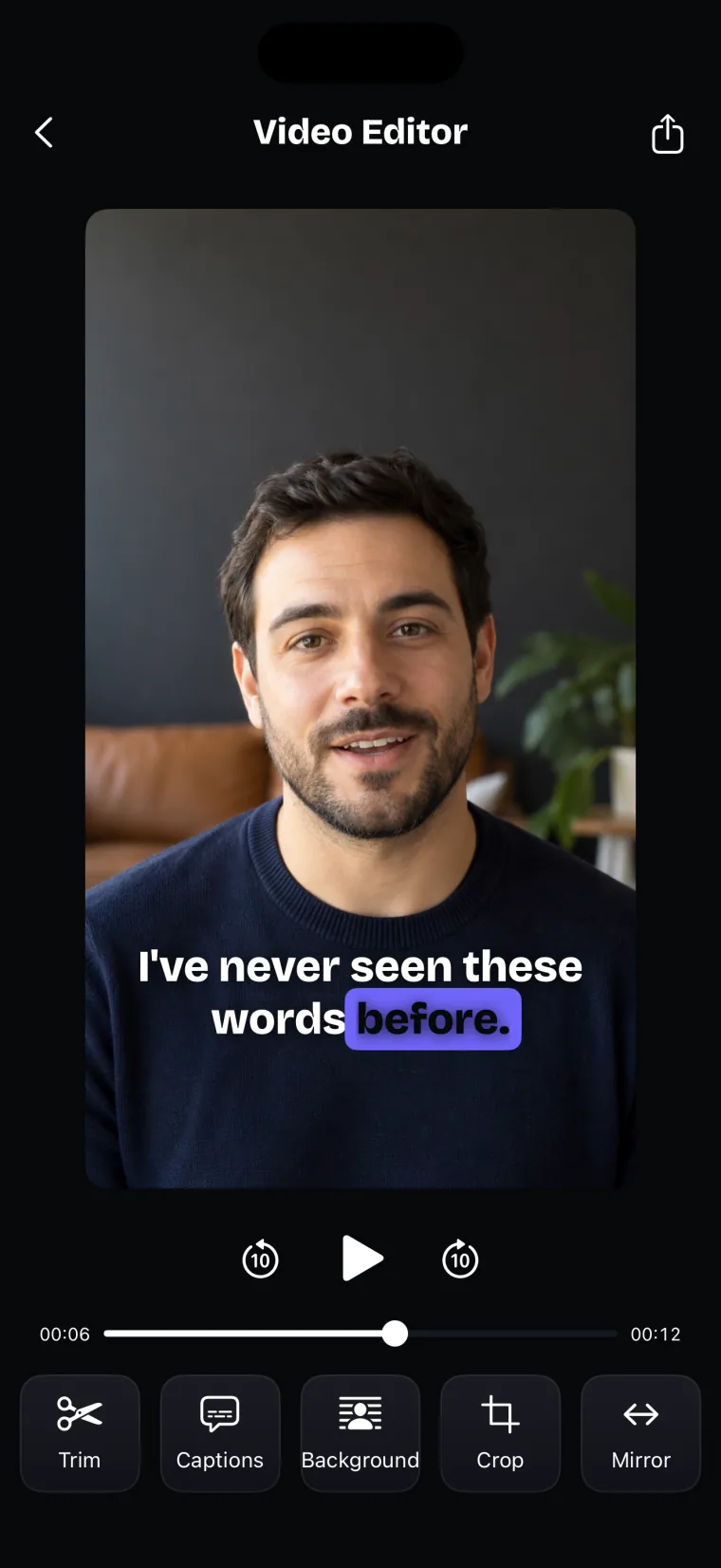

Automatic captions in Teleprompter: Video & Captions turn the speech in a take you recorded in the app into timed captions, using Apple’s speech recognition. Where a word you said is the same word as in your script, the caption takes the script’s spelling, capitals and punctuation. The captions are burned into the video when you save it to Photos. The app does not caption videos recorded elsewhere and does not export subtitle files.
How captions are made
Captions in Teleprompter: Video & Captions start from the take’s audio. You first confirm the spoken language. The app pre-selects one, in this order: the language used for this take before, the script’s language, your voice scroll language, then your iPhone’s language. The take is then transcribed with punctuation while a ring shows the progress, you pick a look, and the captions appear on the video.
The app splits captions at pauses and punctuation, with at most five words, 30 characters or 3.2 seconds in each one. Word timings come from the transcript.
The script check works word by word. If you wrote a name with capitals in your script and the recogniser hears that same word, the caption uses your capitals. If the recogniser hears a different word, the app leaves it as heard; it never swaps in a word from the script.
- Record a take, or open one from the project’s take list.
- Tap Captions in the editor’s tool row.
- Check the language under “What language is this take in?” and change it if the take is in another language.
- Wait while the app reads the take.
- Pick a look. The captions appear on the video.
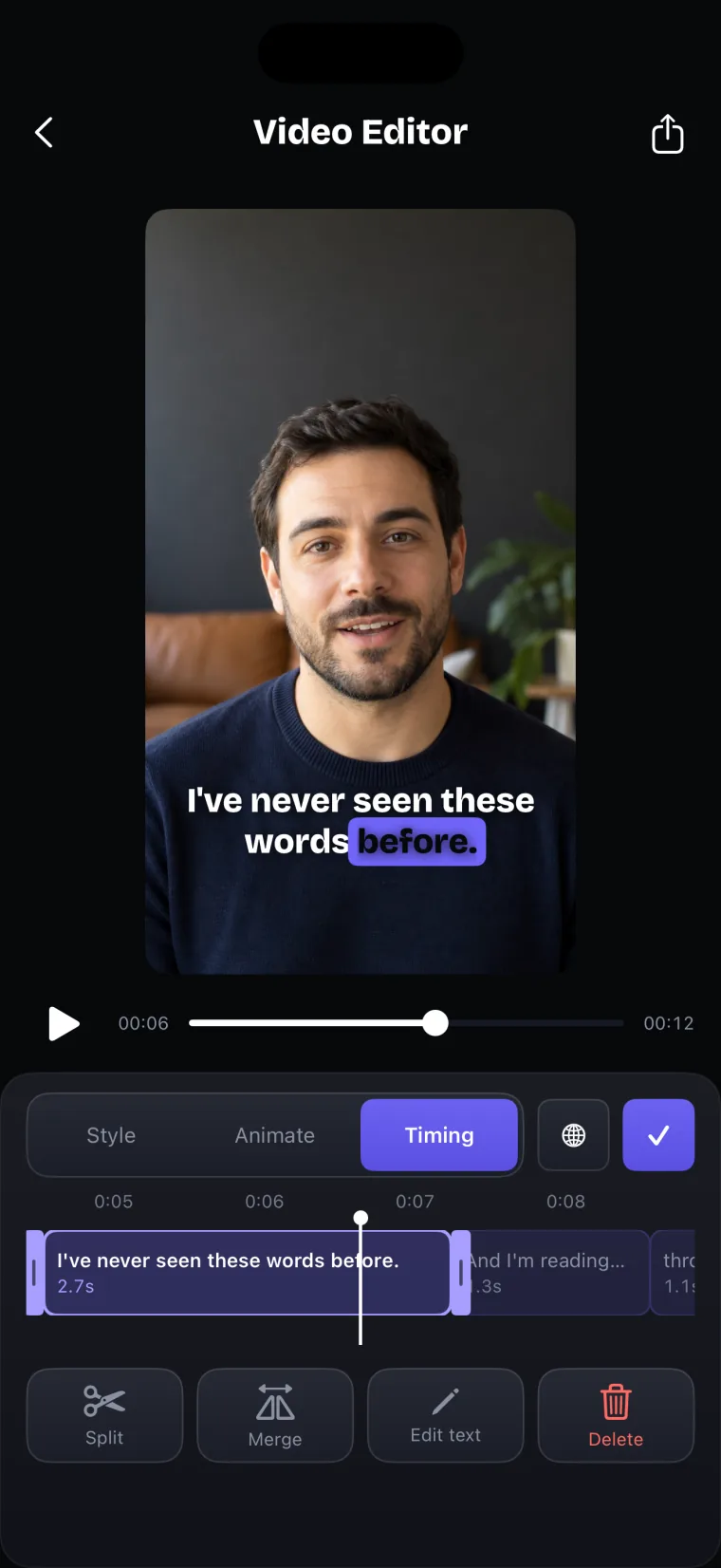
- Open the Timing tab and read each caption, fixing any word that came out wrong.
- Tap the share icon to save the video, with the captions burned in, to Photos.
Languages
Captions in Teleprompter: Video & Captions can be made in any language Apple’s speech recognition supports on your device, one entry per language. The app picks the regional variant from your region and from what runs on the device. The caption list is not limited to the nine languages that voice scroll follows.
Each language in the list is marked “Runs on this iPhone, no connection needed” or “Needs a connection for this language”. When the device has an on-device model for the language, recognition stays on the device; when it does not, the audio goes to Apple’s speech recognition service. If the take is in a different language from the one you chose, you can redo the captions in another language.
Changing how captions look and read
Caption editing in Teleprompter: Video & Captions has three tabs, and every change shows on the video as you make it. On iPad the controls sit in a side panel next to the video.
- Style: a list of ready-made looks, a font, a colour or highlight colour, a size slider, and the position Top, Centre or Bottom. You can also drag the caption on the video. An optional second font picks out the key word, the last word, the second line, or words you tap.
- Animate: how each caption comes in, and how fast.
- Timing: drag a caption’s start and end, or use Split, Merge, Edit text and Delete.
Where this stops working well
Captions in Teleprompter: Video & Captions have these limits:
- Captions are burned into the video only. There is no .srt or .vtt subtitle file, so a platform that asks for a separate file cannot get one from this app.
- Captions work only on takes recorded in the app. There is no way to bring in a video from Photos.
- Names and words that are not in the script can come out wrong. You fix them with Edit text.
- There is no button to add a new caption by hand. Captions come from the transcript and are then edited.
- The script’s spelling is not applied to Chinese or Japanese, which are written without spaces. Those captions stay as heard.
- A language without an on-device model needs a connection. If the recogniser stalls, it stops after 25 seconds of silence and the app says “The recogniser stopped responding.”
- Captions are written in the spoken language. The app does not translate them.
- Captions made right after recording are not stored with the new take. If you reopen that take later from the take list, the captions are made again.
Teleprompter: Video & Captions also has limits that apply to the whole app.
It records with the front camera only, adds captions only to videos recorded in the app, and saves finished videos to Photos; it does not post to social networks or export subtitle files.
Teleprompter: Video & Captions is free to download; a subscription unlocks your own scripts and projects, and prices are shown in the app before you pay.
Guides that use captions
- Checking captions word by word before you post
- Captions in UGC videos made for a brand
- Captions for recorded lessons
- Which teleprompter apps also make captions
Questions people ask
Which languages can Teleprompter: Video & Captions make captions in?
Any language Apple’s speech recognition supports on your iPhone or iPad, which is a longer list than the nine languages voice scroll follows. The language list marks which ones run on the device and which need a connection.
Why do some caption words follow my script’s spelling and others do not?
A caption word takes the script’s spelling only when the recogniser heard the same word that is in the script. A word heard differently, or a word that is not in the script, stays as heard, and you can correct it with Edit text in the Timing tab.
Can I add a caption that the transcript missed?
There is no button to add a caption by hand. You can add the missing words to the caption next to them with Edit text, and use Split if the caption gets too long.
Why are my captions gone when I open the take again?
Captions made right after recording are not stored with the new take, so reopening that take from the take list makes them again. Captions you make on a take opened from the list are stored with it. A video you saved to Photos keeps its captions either way.