
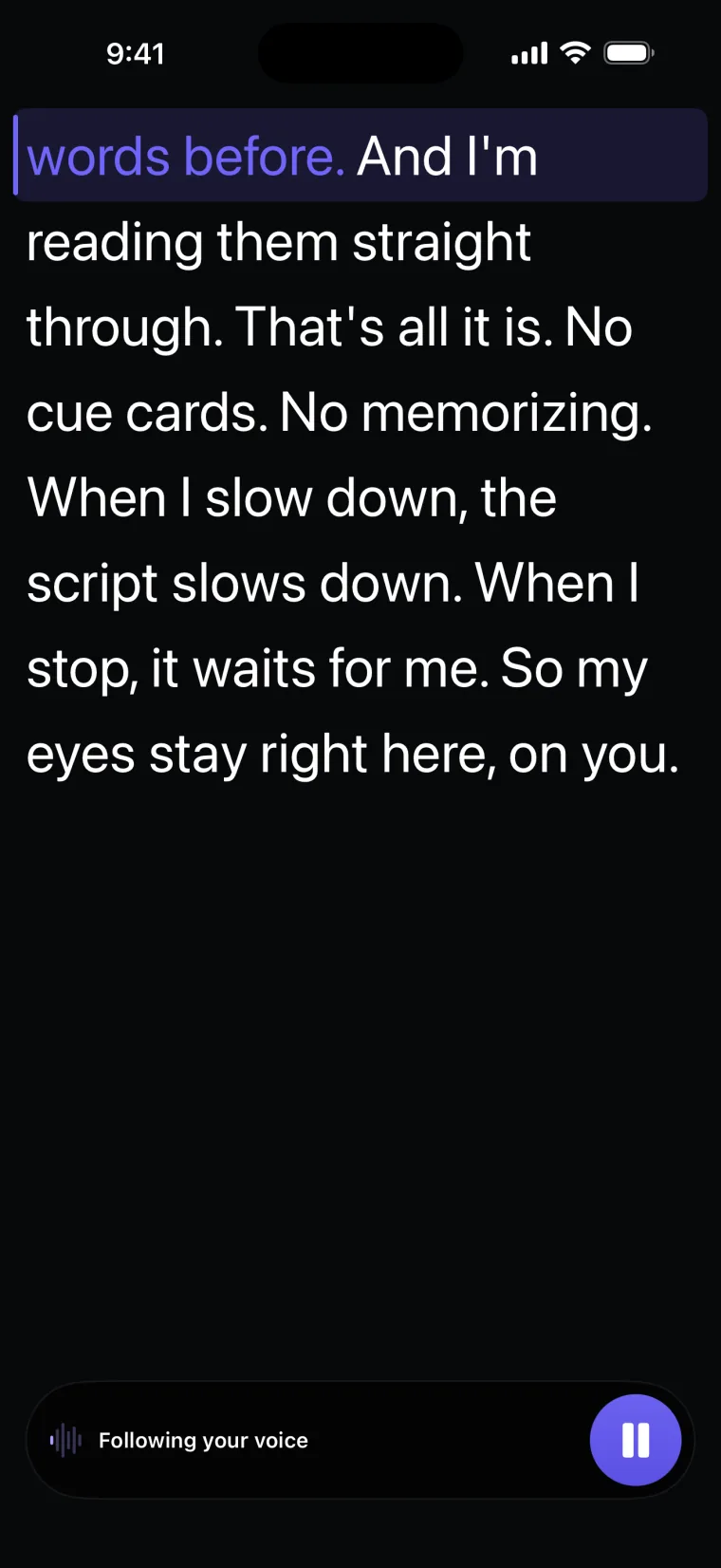

Voice scroll is the scroll mode called Voice in Teleprompter: Video & Captions. In Voice mode the script moves on as you say its words and stays still when you stop talking, so you read at your own pace instead of keeping up with a set speed. Voice scroll works on the full-screen prompter and on the recording screen.
How voice scroll follows your reading
Voice scroll in Teleprompter: Video & Captions uses Apple’s speech recognition to turn what you say into words. The app then lines up your last eight words with the script around your place, looking from about 30 words behind to about 45 words ahead, ignoring capitals, accents and punctuation. In Chinese and Japanese it compares your last sixteen characters instead of eight words.
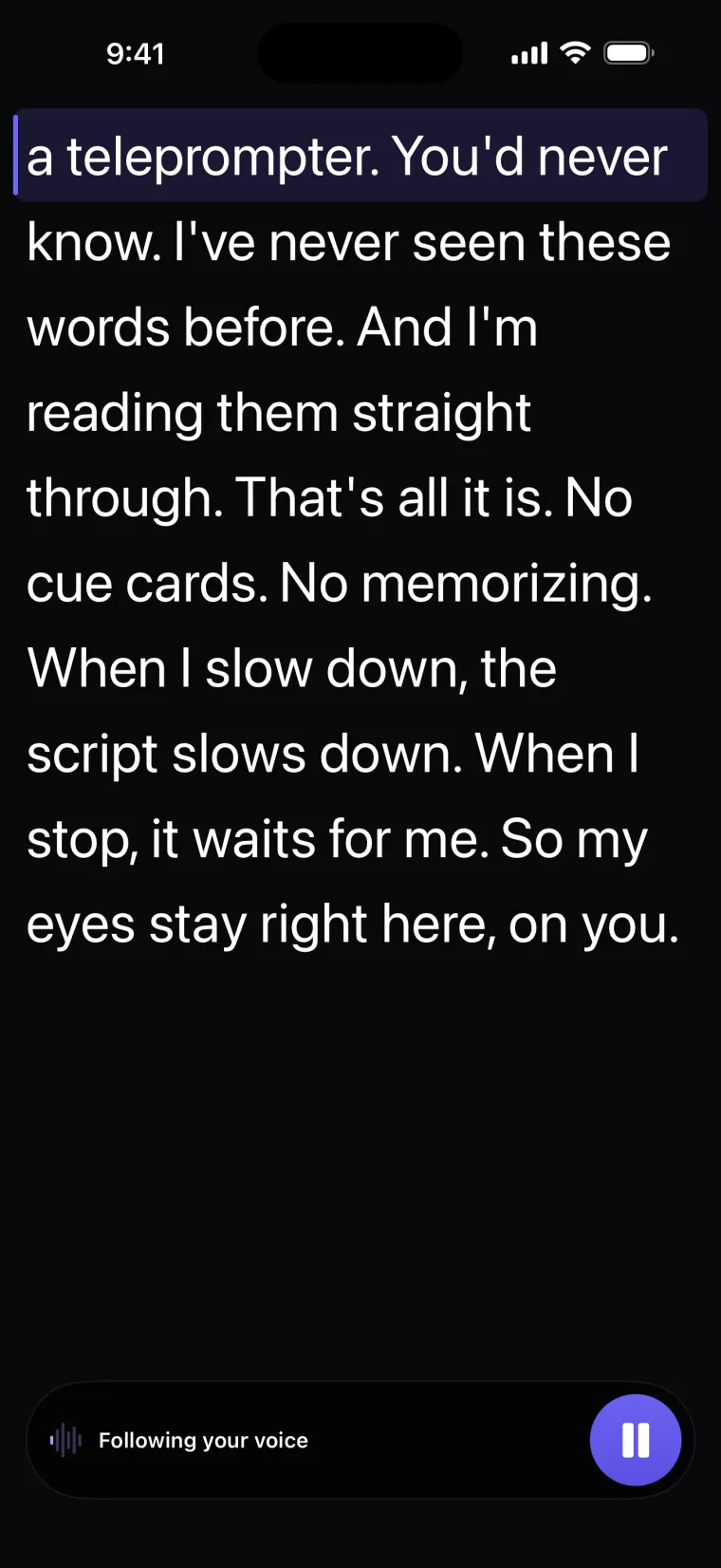
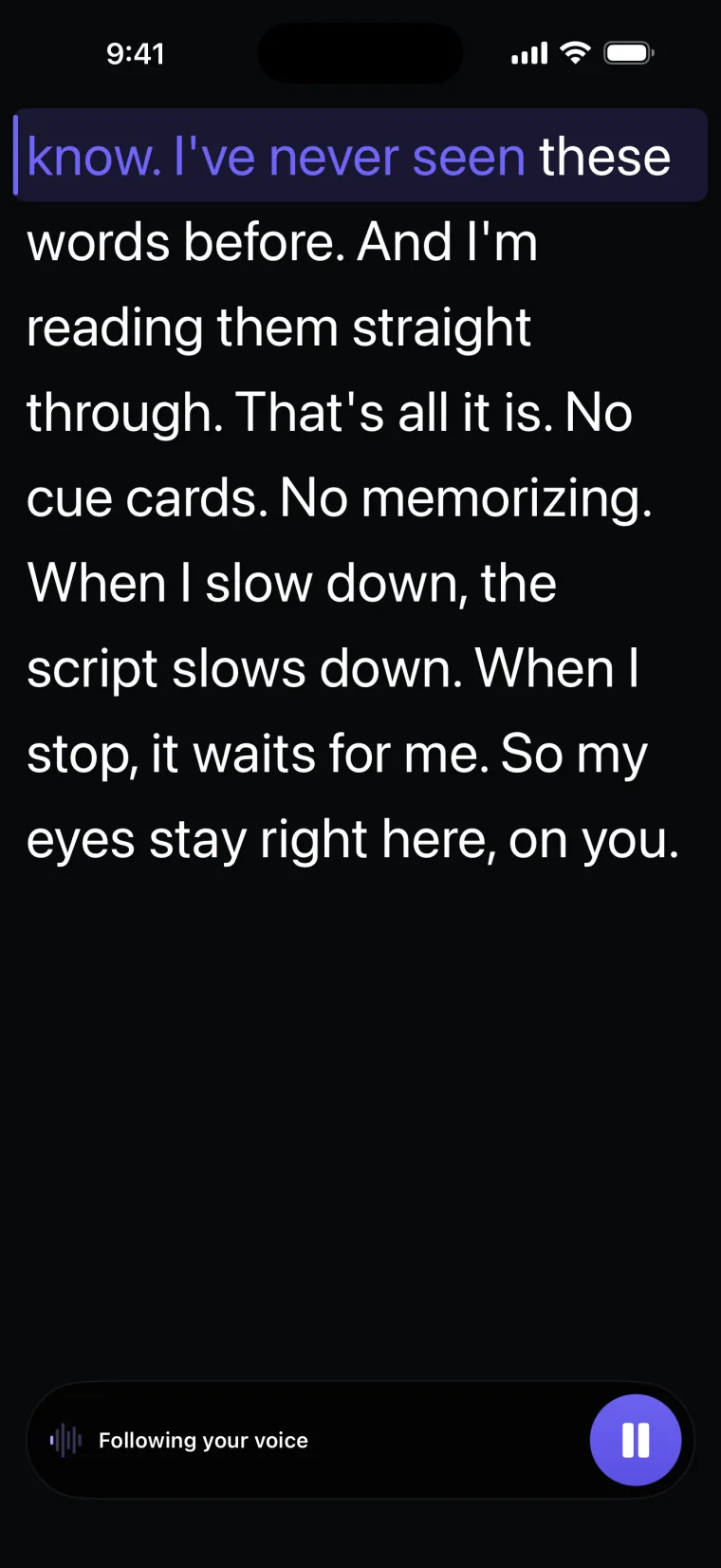
The line you are reading sits on a fixed reading line near the top of the screen, close to the camera, and the words you have already read change colour.
One stray word does not throw the script ahead. A small step to the next words needs one clear match, and a bigger jump forward needs two matching words. In words of four letters or more, a partly heard word or a one-letter difference, such as “color” and “colour” or a plural, still counts as a match. Words you change or add while reading are outvoted by the words around them.
When you stop talking, nothing moves. Pause keeps your place and Resume carries on. You can also drag the script, or tap a line on the prompter screen, to set where reading continues. Long reads are not cut off: when Apple’s recognition session ends, voice scroll starts a new one and carries your last words over.
How to turn on voice scroll
- Open a project and tap Scroll at the bottom of the prompter screen.
- Choose Voice, then pick the language you will read in next to Language.
- Allow the microphone and speech recognition when iOS asks for them.
- Drag the script until the line you want to start from sits at the top.
- Tap Start and read. The bar at the bottom says “Following your voice” while the app is following you.
The recording screen has the same choice in its settings panel; the page on recording with the script over the camera covers that screen.
Languages voice scroll understands
Voice mode follows speech in nine languages: English, French, Spanish, Portuguese, Arabic, Russian, Chinese, Japanese and Indonesian; Spanish uses Apple’s speech recognition for Spain (es-ES) and Portuguese uses Apple’s for Portugal (pt-PT).
Voice scroll in Teleprompter: Video & Captions listens in one language at a time, chosen before you start reading. The app offers no Mexican, US Spanish or Brazilian Portuguese option for voice scroll, and how well the Spain and Portugal recognisers follow Latin American or Brazilian speakers has not been measured. German, Italian, Korean and Hindi are not among the nine. Captions are a separate feature with a longer language list: captions can use any language Apple supports on your device.
Voice scroll runs on the device when your iPhone or iPad has Apple’s on-device speech model for the chosen language; otherwise the audio goes to Apple’s speech recognition service over the network. Apple decides which languages have an on-device model on which devices, so the app cannot promise offline use for a given language.
Where this stops working well
Voice scroll in Teleprompter: Video & Captions depends on Apple’s speech recognition and on you reading close to the script. These are its limits:
- Skipping far ahead (more than about 45 words) or talking off script leaves the script where it is. Voice scroll does not jump to a guess; drag the script to your line.
- Voice scroll needs microphone and speech recognition permission. When it cannot start, the prompter screen shows a banner that names the reason (microphone refused, microphone busy, speech recognition refused, or the language unavailable) and offers “Use auto scroll”.
- If voice scroll stops during a recording, for example because of a call or a lost microphone, the take carries on at your set speed from your place and the screen says so. On the prompter screen, reading pauses and the app explains why.
- How well voice scroll copes with a noisy room depends on Apple’s recogniser. The app does not measure accuracy, and no accuracy figure exists.
Voice scroll is not the right mode when the recogniser keeps losing you; use Auto for that, which scrolls at a speed you set from 1 to 50 and does not listen at all.
Teleprompter: Video & Captions also has limits that apply to the whole app.
It records with the front camera only, adds captions only to videos recorded in the app, and saves finished videos to Photos; it does not post to social networks or export subtitle files.
Teleprompter: Video & Captions is free to download; a subscription unlocks your own scripts and projects, and prices are shown in the app before you pay.
Guides that use voice scroll
- How voice tracking and a fixed scroll speed differ
- Setting up one iPhone to read and record
- Voice scroll when English is not your first language
- Rehearsing a speech out loud with the prompter
- Which other iPhone teleprompter apps follow the voice
Questions people ask
Does voice scroll work while the camera is recording?
Yes. On the recording screen of Teleprompter: Video & Captions, voice scroll is the Voice recognition switch in the settings panel, with the same Language choice. If voice scroll stops during a take, the take carries on at your set speed.
Can I move the script myself while voice scroll is on?
Yes. Drag the script, or tap a line on the prompter screen, and voice scroll continues from there. This is also how you get back on track after skipping far ahead.
Is my script sent anywhere when voice scroll is on?
No. The app gives the recogniser words from your script as hints only when recognition runs on the device. When the audio goes to Apple’s speech recognition service instead, the script is not sent with it.
Can I use voice scroll for a script that mixes two languages?
Voice scroll listens in one language at a time, chosen before you start reading. For a script that switches language, Auto mode scrolls at a set speed and does not depend on the language you speak.