Plan the lesson as short parts
A video lesson is easier to record and easier to watch when each part covers one idea. You already break a topic into steps when you teach it in class, and those steps make good parts: the definition of a new term, one worked example, the instructions for a task, a short recap.
Short parts help both sides. A slip costs you one part, not the whole lesson; students can find the part they need and watch it again; and when one part goes out of date, you record only that part again.
Before you write any script, list the parts in order, with what students should be able to do after each one. Anything that has to be seen on a board, on paper or on a screen becomes its own part, filmed with a different camera or tool; the last section of this guide says which.
What to script word for word, and what to leave as notes
A lesson script does not have to hold everything you say. Script the parts where the exact words matter to students, and keep the rest as short notes, so those parts still sound like you.
| Part of the lesson | Script it word for word? | Why |
|---|---|---|
| Definitions and key terms | Yes | Students copy a definition down, so a small change in wording can teach the wrong thing. |
| Instructions for a task or assignment | Yes | Students follow instructions as given, including any step you leave out. |
| Worked examples | Yes, each step | The order and the wording of the steps are what students learn from. |
| Introduction and recap | Short notes | They sound more natural in your own words. |
| Stories and asides | No | They tend to sound flat when read. |
A lesson script has a second use in Teleprompter: Video & Captions: captions take their spelling from it, so write subject terms and names in the script exactly as you want students to see them.
One script can mix full sentences for the exact parts with short notes for the rest. In Voice mode, the script stays where it is while you talk around a note and moves on when you start the next written sentence, as long as that sentence is within about 45 words of your place.
Set up: eye level, light in front of you, a quiet room
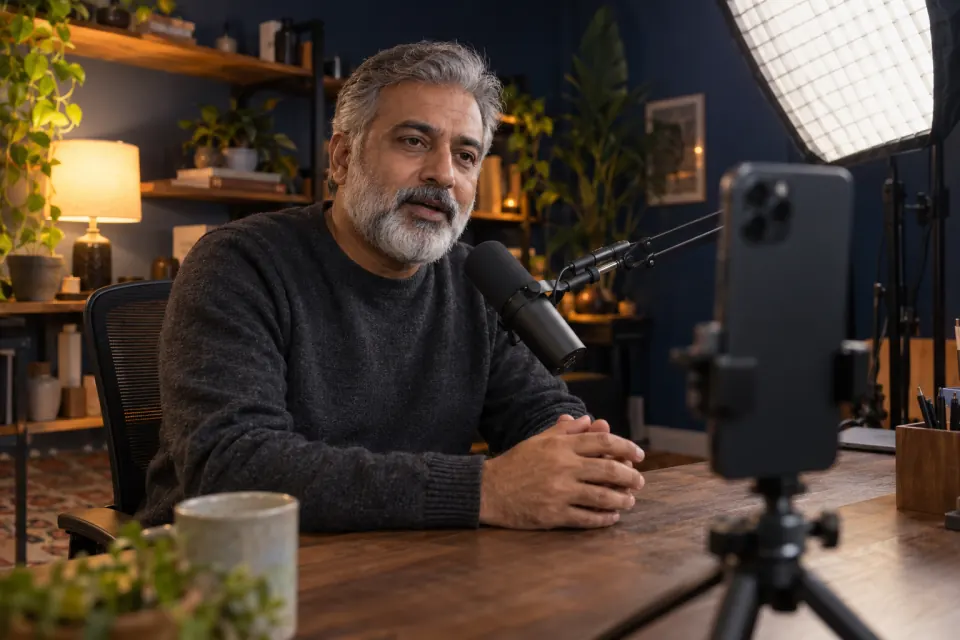
The position of the phone decides where your eyes go on camera. Put it at the height of your eyes, on a small tripod or a stack of books, close enough to read the script without leaning in. Teleprompter: Video & Captions records sound with the iPhone’s built-in microphone, so a closer phone also gives clearer sound.
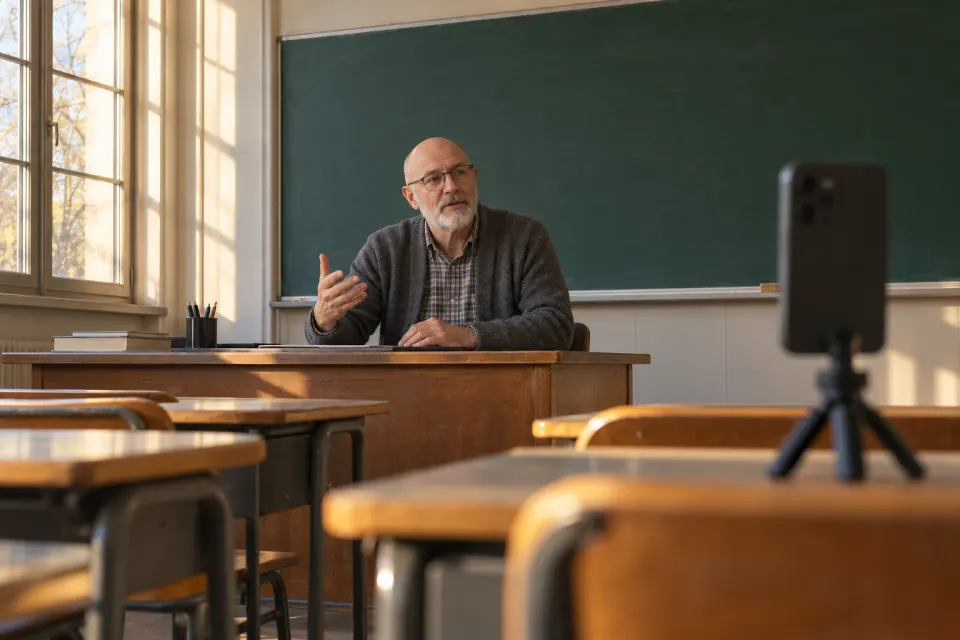
Light for a lesson video should come from in front of you: face a window or a lamp, because a bright window behind you turns your face dark. A classroom after the students have left is quiet, but its hard walls can echo; a room with curtains or soft furniture echoes less.
Portrait or landscape depends on where your students will watch: a wide video suits a computer or a projector, a tall one fills a phone held upright. The app records either way, following how the phone is held. Upright, the script window hangs from the top edge near the lens, and the grip at its foot makes it taller or shorter. Sideways, the script fills the left half of the screen and the controls stand on the right.
Recording each part
The recording screen in Teleprompter: Video & Captions is built for reading your lesson notes next to the camera: the script sits in a window over the live camera picture, the line you are reading stays near the top, close to the lens, and the words you have read change colour. Make one project per part. A project holds one script and every take you record from it, so each part’s takes stay together.
- Create a project for the part and type or paste its script, or import it from a PDF or plain-text file. A scanned handout imports as an empty script, because the app does not read text from images.
- Open the project and tap Record to open the recorder.
- Mount the phone the way you will record, and, if it is upright, set the height of the script window with the grip at its foot.
- Open the settings panel from the control bar. Turn Voice recognition on and choose your Language if you want the script to follow your voice, or leave it off and set the Scroll speed, using Test to check it.
- Look at the lens and press Record. Recording starts at once and there is no countdown, so wait a moment before you speak.
- Read the part, then press Stop. A take shorter than 5 seconds is not kept.
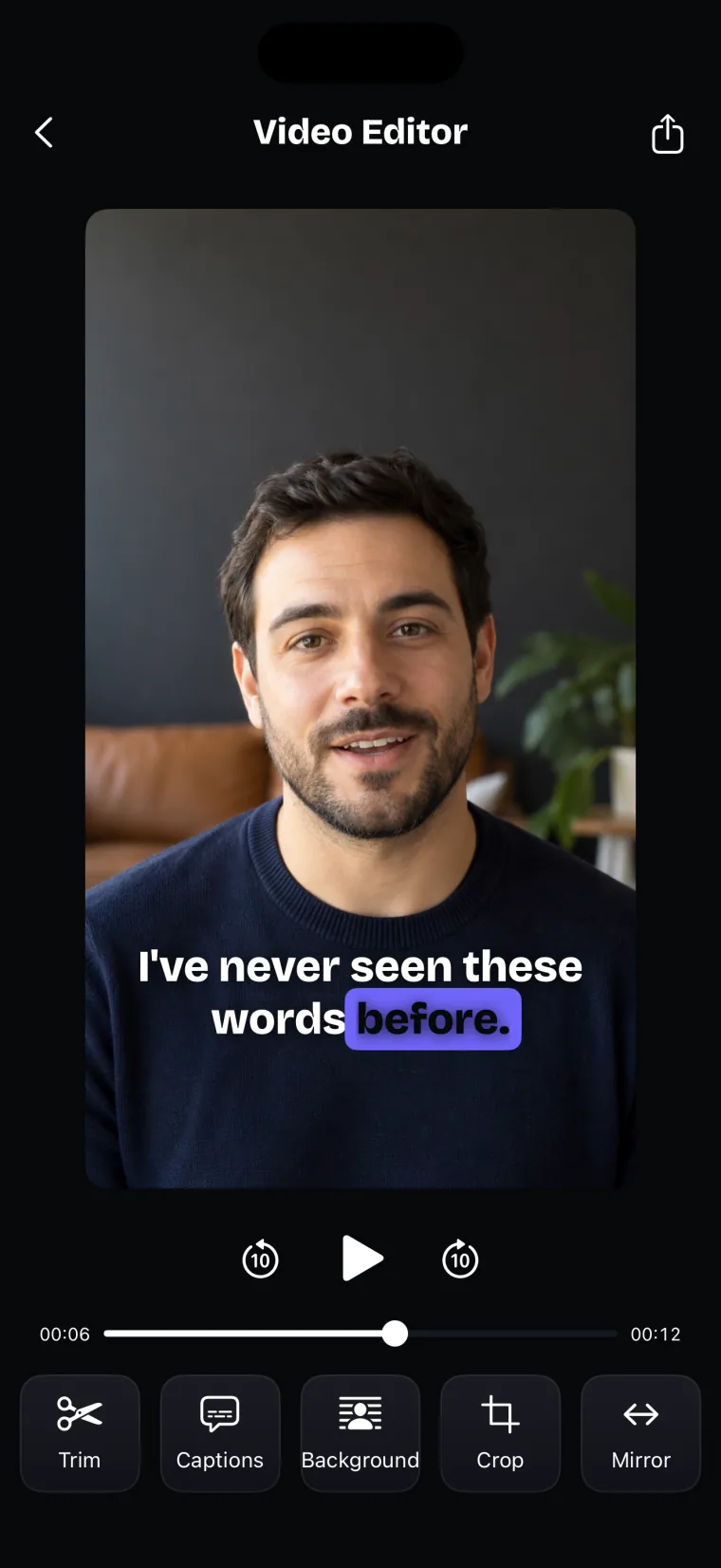
- The editor opens on the new take. Use Trim to cut the silence at the start and the end; the take is added to the project when you leave the editor.
If voice following loses your place after a long aside, drag the script to your line. If voice following stops during a take, for example when a call comes in, the recorder carries on at the set speed from your place and says so, so set a Scroll speed you can read at even with Voice recognition on.
Keeping many parts in order is covered in recording a longer video in parts. For an explanation you have never given out loud, rehearsing out loud before recording saves takes.
Captions students can follow
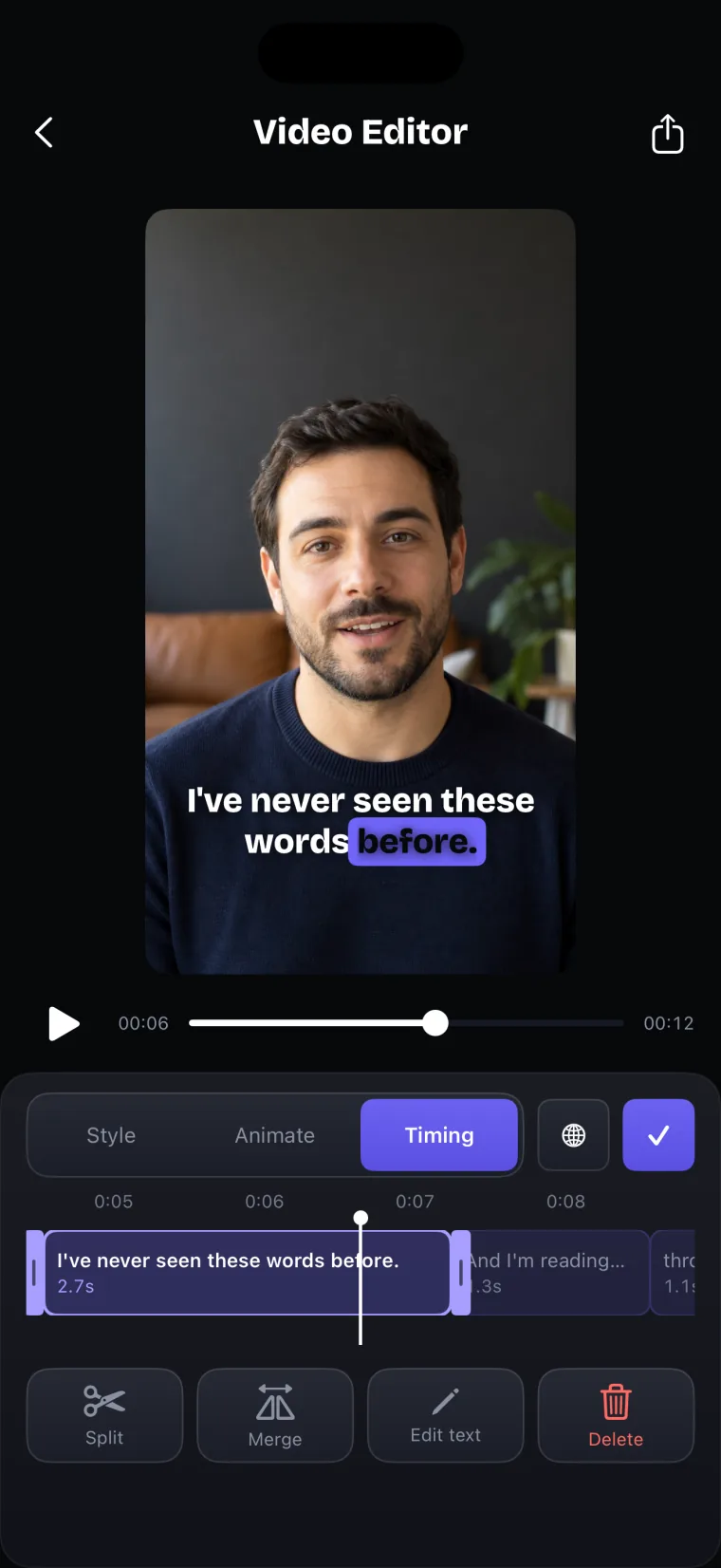
Captions in Teleprompter: Video & Captions are made from the take’s own audio. Tap Captions in the editor. The app asks “What language is this take in?” and shows the language it has chosen and why, for example “Matches your script”; tap the language to change it, then tap Generate captions. When the take has been transcribed, you pick a look and the captions appear on the video. Each caption breaks at pauses and punctuation and holds at most five words, 30 characters or 3.2 seconds, which keeps it short enough to read while watching.
Where a word in a caption is the same word as in your script, the caption takes the script’s spelling, capitals and punctuation. The app never changes a heard word into a different word from the script, so a term you added on the spot, or one the recogniser heard as another word, can come out wrong. Fix those in the Timing tab: select the caption, then use Edit text, Split, Merge or Delete, or drag the caption’s start and end to change when it shows. The guide on how captions are made and corrected covers this step by step.
Captions work in any language Apple’s speech recognition supports on your iPhone, not only the nine that voice following uses. If you teach a language, note that each take is transcribed in the one spoken language you confirm, so record the parts in each language as separate takes.
When you save the take to Photos, the captions are burned into the picture, and students cannot turn them off. The app does not export .srt or .vtt files; if your course platform asks for one, make it with a tool that exports subtitle files.
Where this stops working well
Teleprompter: Video & Captions covers the parts of a lesson where you talk to the camera, and several things a lesson needs are outside it.
It records with the front camera only, adds captions only to videos recorded in the app, and saves finished videos to Photos; it does not post to social networks or export subtitle files.
- Board work and paper. The app has no camera switch. Film the board with the iPhone’s own Camera app, which records in Video mode and switches between the front-facing camera and the one on the back (Apple iPhone User Guide, “Record a video” and “Take a selfie”, read 2026-10-27).
- Slides and apps on screen. The app does not record the screen. iPhone screen recording starts from the Record button in Control Center, records your voice if you press and hold that button and turn the microphone on, and saves the video in Photos (Apple Support, “Record the screen on your iPhone, iPad, or iPod touch”, read 2026-10-27).
- Captions and editing for those videos. The app cannot open a video from Photos; caption and join those parts in a video editor that imports clips.
- Uploading. The share icon in the editor saves the video to Photos; it does not open other apps or post anywhere. Upload the video from Photos to your learning platform.
- Keeping edits. Captions added straight after recording are not stored with the new take; if you reopen the take later from the take list, they are made again. Trim, crop, background and mirror changes made to a take reopened from the list are not written back to it; saving to Photos keeps them.
- Scripts on more than one device. There is no account and no cloud sync, so a lesson script written on your iPhone is not on your iPad. Save longer scripts as PDF or plain-text files and import them on each device.
Questions people ask
How do I record a lesson on my iPhone by myself?
Put the phone on a small tripod or a stack of books at eye level, face a window or a lamp, and record the lesson one part at a time. Keep definitions and instructions in a script near the lens so you can read them exactly while looking at the camera, and trim the start and end of each part before you save it.
Should I script a video lesson word for word?
Script the parts where the exact words matter to students: definitions, instructions and the steps of worked examples. Keep the introduction, the recap and any stories as short notes, so they sound like you talking.
Can I record my screen or a whiteboard in Teleprompter: Video & Captions?
No. Teleprompter: Video & Captions records with the front camera only and does not record the screen. Use the iPhone’s Camera app for the board and its screen recording for slides or apps, then put the parts together in a video editor that imports clips.
How do I make captions spell subject terms correctly?
Write each term in the script exactly as you want students to see it, and read it from the script. When the heard word is the same word as in the script, the app uses the script’s spelling, capitals and punctuation. A term that still comes out wrong can be fixed with Edit text in the captions Timing tab.