From brief to script
A brand brief for a UGC video can arrive as finished lines, as talking points, or as a list of things to mention and things to avoid. Whichever it is, you turn it into a script you can say out loud in your own voice, because a UGC video is meant to sound like you talking about the product.
- Mark every line the brand wants word for word: the product name, claims about what it does, the offer, any disclaimer. These go into the script unchanged.
- Turn the talking points into sentences you would say to a friend: short, in the first person, one point per sentence.
- Put the script in order: the hook, how you use the product, what it does for you, the required lines, and the call to action the brief asks for.
- Check the script against the brief’s list of words and claims to avoid.
- Read it out loud once and cut any sentence you stumble on that the brand did not require.
For the opening line itself, writing a short script with a strong first line covers how to write one.
Lines that must be exact: read those, say the rest in your words
A UGC script holds two kinds of lines. The lines the brand requires have to come out exactly, and your own lines have to sound unrehearsed. Reading the whole script from a screen next to the lens lets you say the required lines word for word without glancing down at notes.
| Part of the script | How to say it | Why |
|---|---|---|
| Hook | Your words, in several versions | The brand may want to try more than one. |
| How you use the product | Your words, close to the script | It has to sound like your own experience. |
| Product name and claims | Exactly as the brief writes them | Changed claim wording may no longer be what the brand approved. |
| Offer or discount code | Exactly, and slowly | Viewers act on it, so it has to be right. |
| Disclaimer | Exactly | The brief sets its wording. |
| Call to action | As the brief asks | The brand decides where viewers go next. |
Voice mode in Teleprompter: Video & Captions suits this mix. The script follows your voice and waits when you stop, and a word you change or add is outvoted by the words around it, so small changes to your own lines do not throw it off. Talking off script for longer leaves the script where it is; it does not jump to a guess. If it ever loses you, drag the script to your line.
Recording hooks and versions
Recording all the hooks in one take is a practical way to give a brand a choice in Teleprompter: Video & Captions. A take shorter than 5 seconds is not kept, so a hook recorded on its own can be too short to save; recorded together, the hooks make one take of a useful length. You then cut each hook out of that take, as many times as you need, because trim, crop, background and mirror changes made to a take reopened from the take list are not written back to it; saving to Photos is how you keep them.
- Put every hook at the top of the script, each as its own short paragraph, followed by the rest of the script once.
- Record one take: read the first hook, leave a second of silence, read the next hook, and so on, then read the rest of the script.
- When the editor opens on the new take, leave it without editing. A new take is stored in the version you leave the editor with, so this keeps it whole.
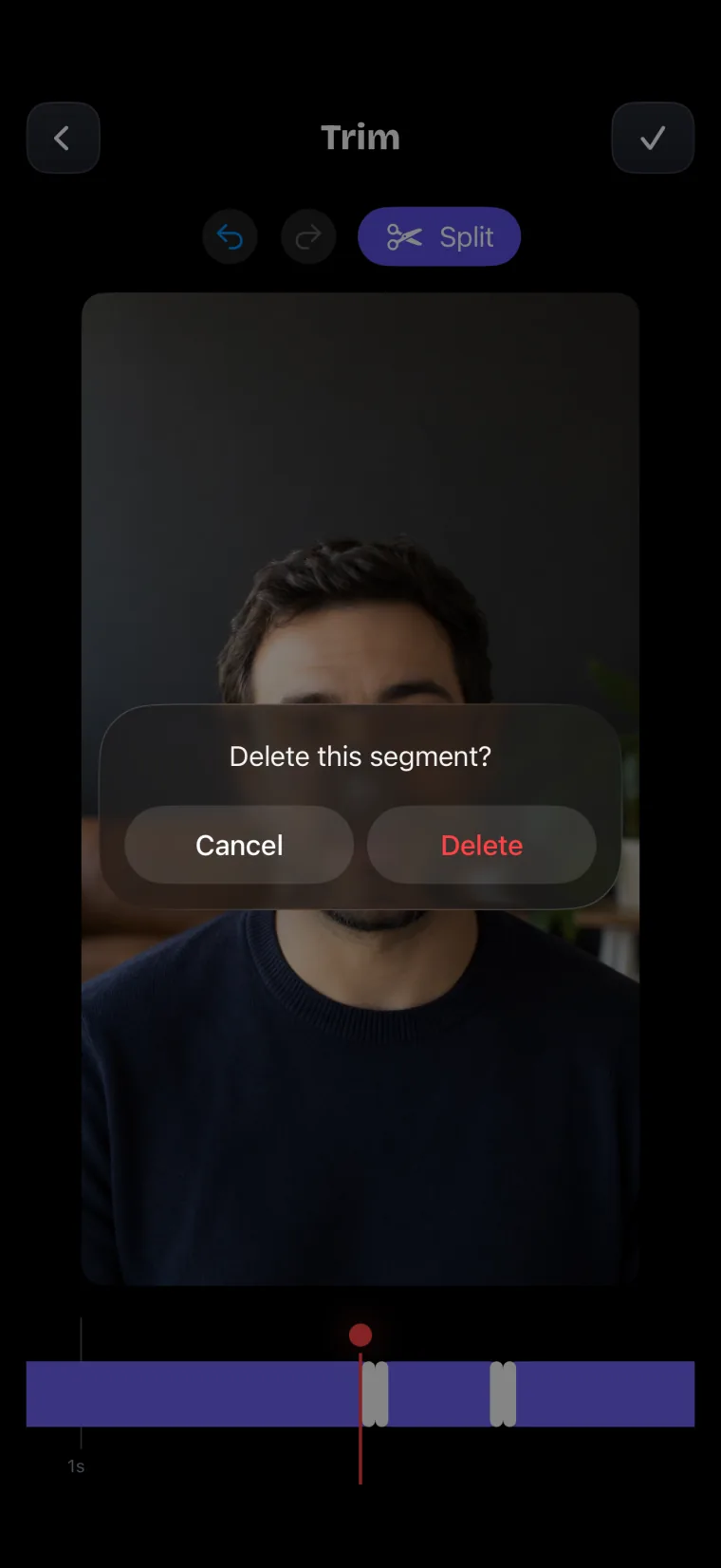
- Open the take from the project’s take list and tap Trim. Split the take at the start and at the end of the hook you want, press and hold each segment you do not need and tap Delete, then confirm with the check mark. Save the result to Photos with the share icon.
- Open the same take again from the list for the next hook. It opens whole again.
Trim joins the parts you keep. If the brand wants each hook followed by the rest of the video, keep one hook and the rest of the script in step 4 and delete only the other hooks. If the brand edits the video itself, deliver each hook and the rest of the script as separate files.
Vertical format, captions on or off
The brief decides the shape of the video and whether captions are burned in. Crop in Teleprompter: Video & Captions has the presets Free, 1:1, 4:5, 9:16 and 16:9. Pick 9:16 when the brief asks for vertical video, and record with the phone held upright, so the crop keeps most of the picture. If the brand wants the same take in more than one shape, one take cropped for several places shows the order of steps.
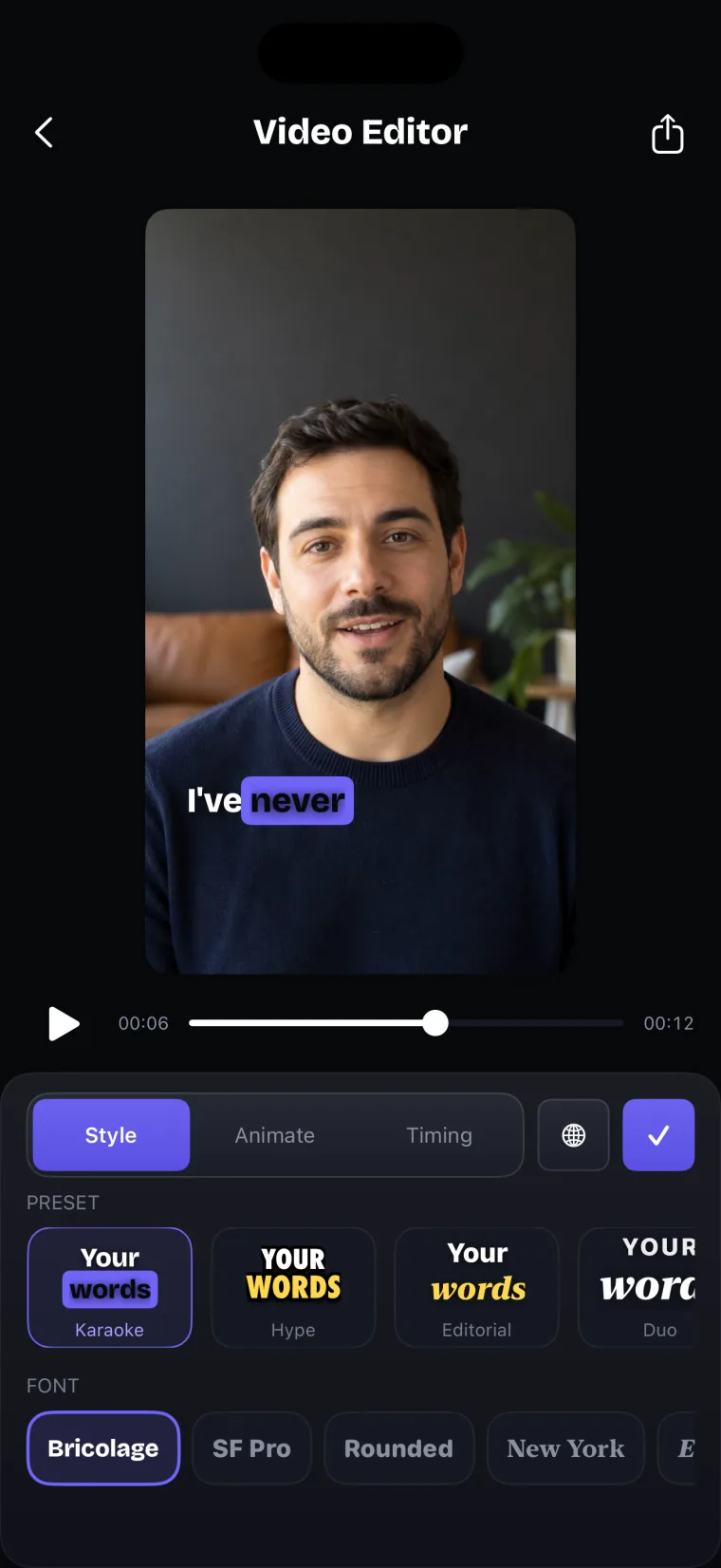
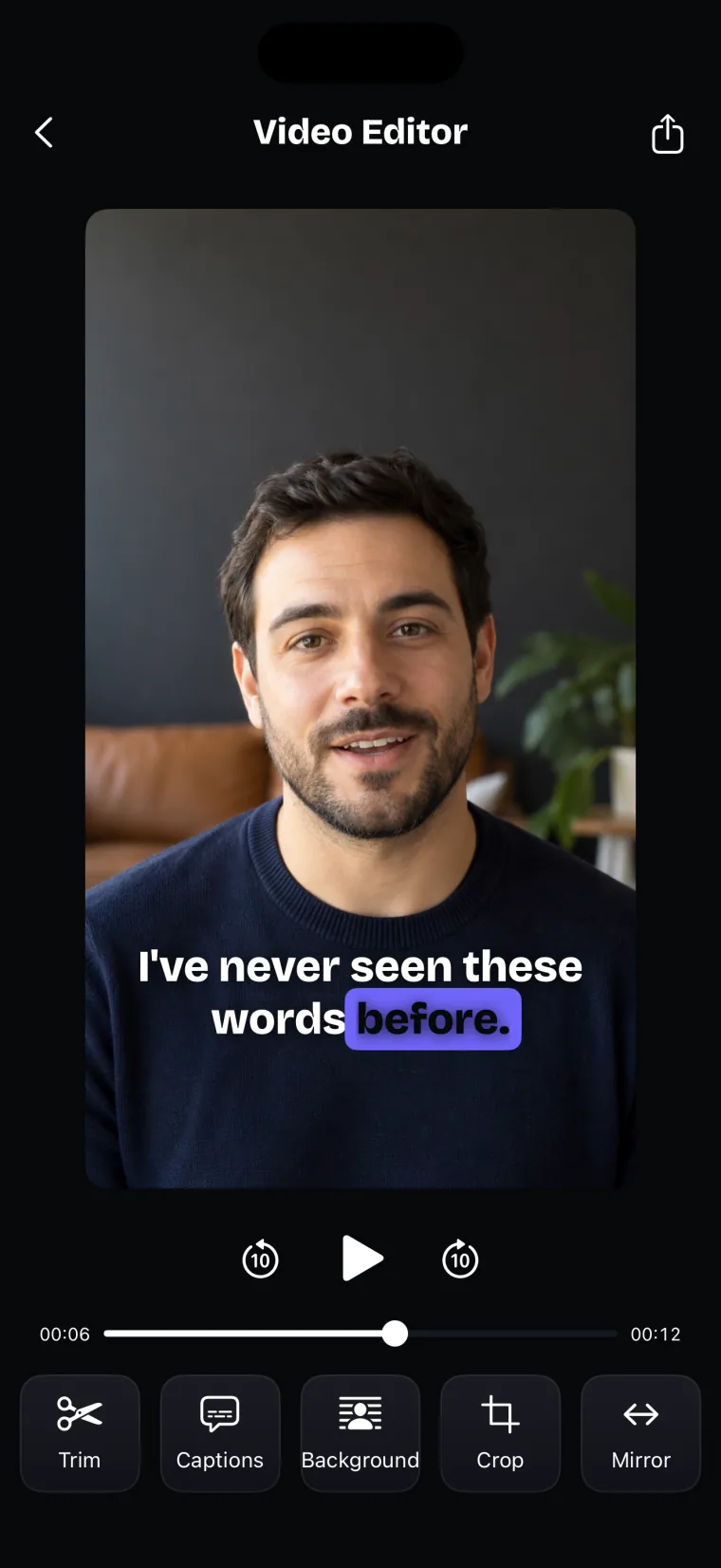
If the brief asks for captions on the video, add them with Captions in the editor; the captions page explains burning captions into the export. Where a heard word is the same word as in your script, the caption takes the script’s spelling, capitals and punctuation, so a product name you read from the script comes out spelled the brand’s way when it is heard as that word. An unusual brand name heard as a different word stays wrong, because the app never swaps a heard word for a script word; fix it with Edit text in the captions Timing tab. The guide on checking captions word by word shows how to go through them before you send anything.
If the brief asks for a clean file, do not add captions. A take with no captions and no mirror flip is saved to Photos as it is, without re-encoding. If the brief asks for both versions, save the clean one first, then add captions and save again.
If printed text on the product reads backwards in your take, the editor’s Mirror tool flips the video left to right before you save it.
Product shots and B-roll: not in this app
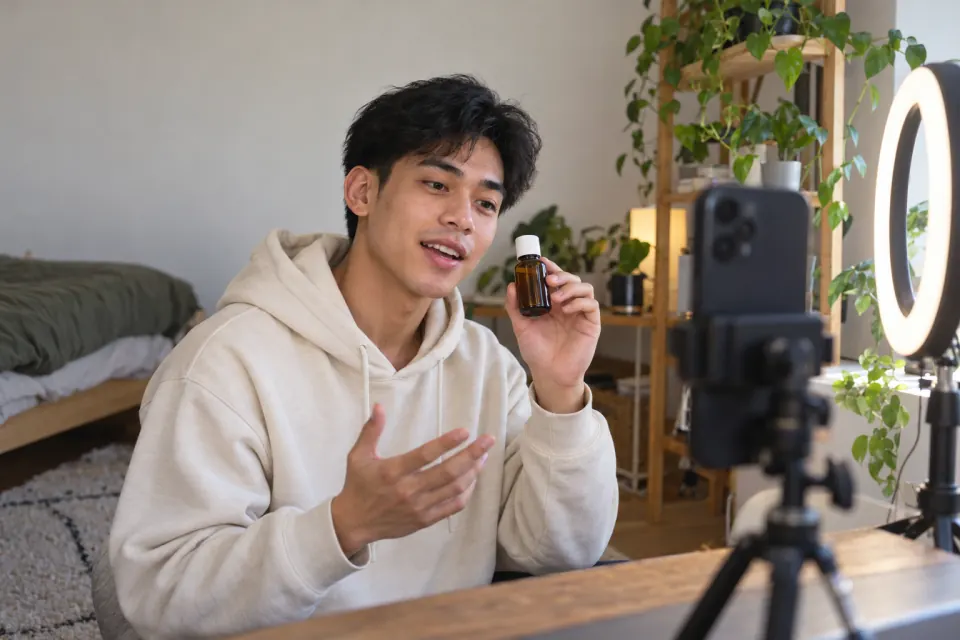
Close-ups of the product, your hands using it, and shots of it around the house are filmed with the camera on the back of the phone, pointed at the product. Teleprompter: Video & Captions records with the front camera only, so film those shots with the iPhone’s Camera app, which records in Video mode and switches between the front-facing camera and the one on the back (Apple iPhone User Guide, “Record a video” and “Take a selfie”, read 2026-10-27).
The app also does not import videos, so it cannot join your product shots to your talking takes. If the brief asks for one finished video with B-roll, put the parts together in a video editor that imports clips, or send the parts separately if the brand edits.
Delivering the file
Teleprompter: Video & Captions saves the finished video to your Photos library and nowhere else. The share icon in the editor asks for permission to add to Photos and then saves the video; if that permission was refused, nothing is saved and no message appears, so allow it again in the iPhone’s Settings. From Photos, send the file the way the brief asks, for example through an upload link or a shared folder.
A brief that names a resolution or a frame rate needs checking before you agree to it: the app has no setting for either, and a take whose background was blurred or replaced is written at up to 1920 by 1080.
Where this stops working well
Teleprompter: Video & Captions covers the talking part of a UGC video: reading the script on camera, cutting hooks, cropping and captions.
It records with the front camera only, adds captions only to videos recorded in the app, and saves finished videos to Photos; it does not post to social networks or export subtitle files.
- Product close-ups and B-roll. No back camera and no camera switch. Film those shots in the Camera app and join them in an editor that imports clips.
- Posting. No share sheet and no posting to TikTok, Instagram or YouTube. Upload or send the file from Photos.
- Brand graphics. The editor’s tools are Trim, Captions, Background, Crop and Mirror. None of them adds a logo, a brand template, a title card or an intro; the brand or a video editor adds those.
- Caption files. Captions are burned into the picture. The app does not make an .srt or .vtt file; if a brand asks for one, use a tool that exports subtitle files.
- Unusual product names. A name that the recogniser hears as another word is not corrected from the script; check every caption that contains it.
Questions people ask
Do UGC creators read from a script?
You can, and for some lines you should. Product claims, an offer or a disclaimer have to come out exactly as the brief writes them, and reading them is the reliable way to get them right. The rest can be in your own words. A prompter next to the lens lets you read without looking away from the camera.
How do I record several versions of a hook quickly?
Put all the hooks at the top of the script and read them in one take, with a second of silence between them. In Teleprompter: Video & Captions, leave the editor once without editing, then open the take from the take list, trim it to one hook and save that to Photos; open it again for the next hook, because changes to a reopened take are not written back to it. Avoid one short take per hook: a take under 5 seconds is not kept.
Can I deliver a UGC video without captions?
Yes. The app only adds captions when you add them, and a take with no captions and no flip is saved to Photos as it is, without re-encoding. If the brand wants a captioned version as well, save the clean one first.
Can I film product close-ups in Teleprompter: Video & Captions?
No. The app records with the front camera only. Film close-ups and B-roll with the iPhone’s Camera app, and put them together with your talking takes in a video editor that imports clips.