
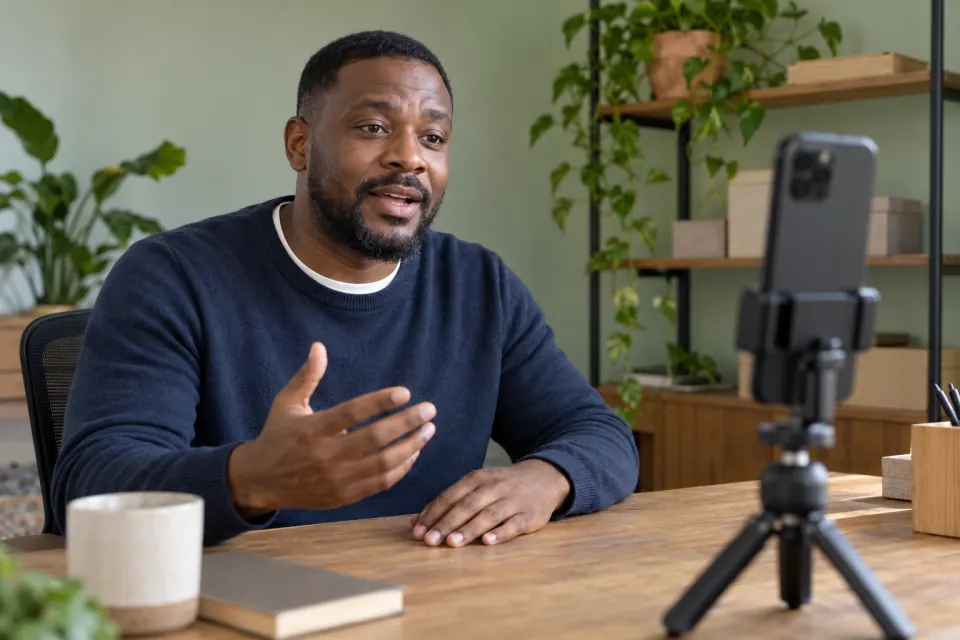
Your script sits under the camera
Teleprompter: Video & Captions is an iPhone and iPad app that shows your script on screen while the front camera records you, scrolls it at your speed or follows your voice as you read, and adds captions to the finished video.
Write or paste your script
Start a project, give it a title, and type your script or paste it in. You can also import a PDF or a text file.
Tap record
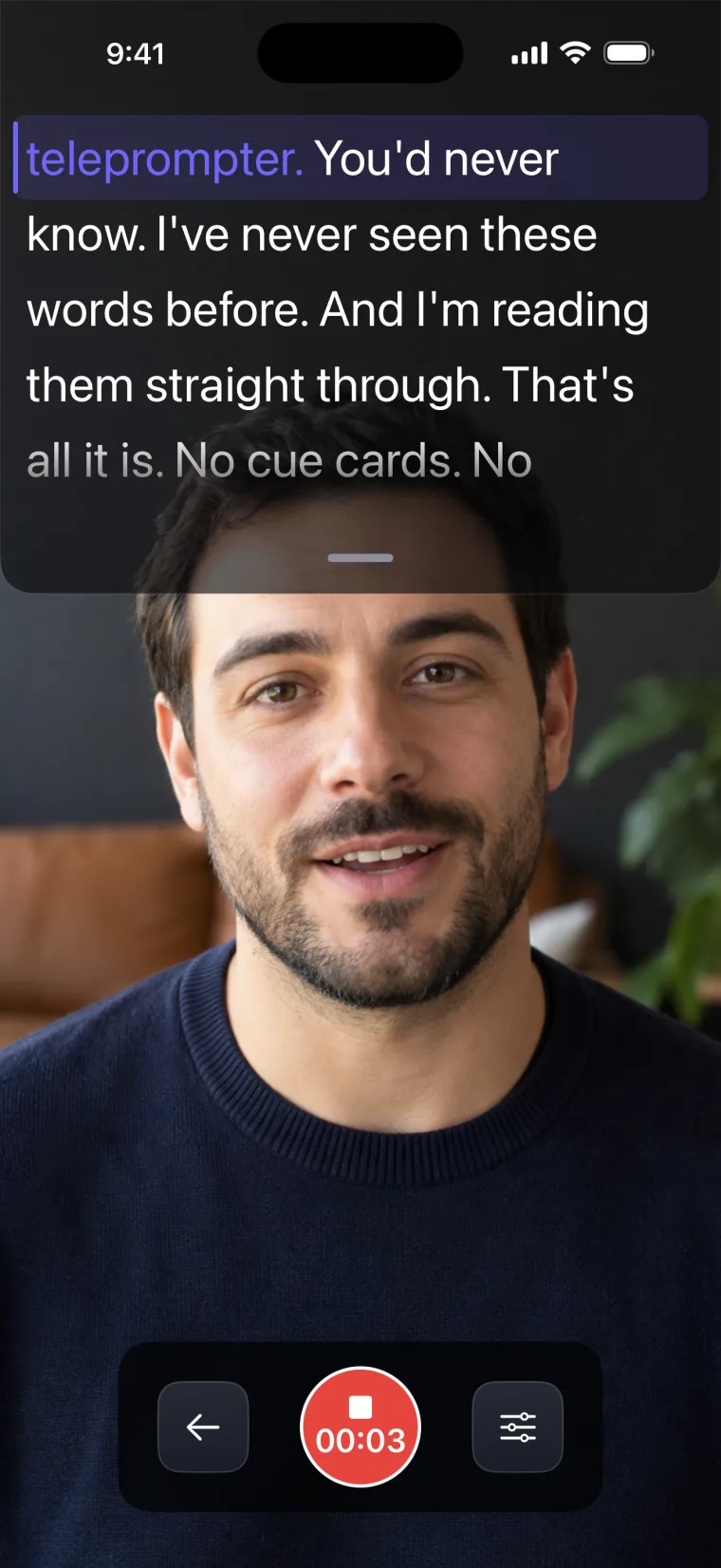
The front camera starts and the script stays at the top of the screen, close to the lens, so your eyes stay near the camera while you read.
Read at your own pace
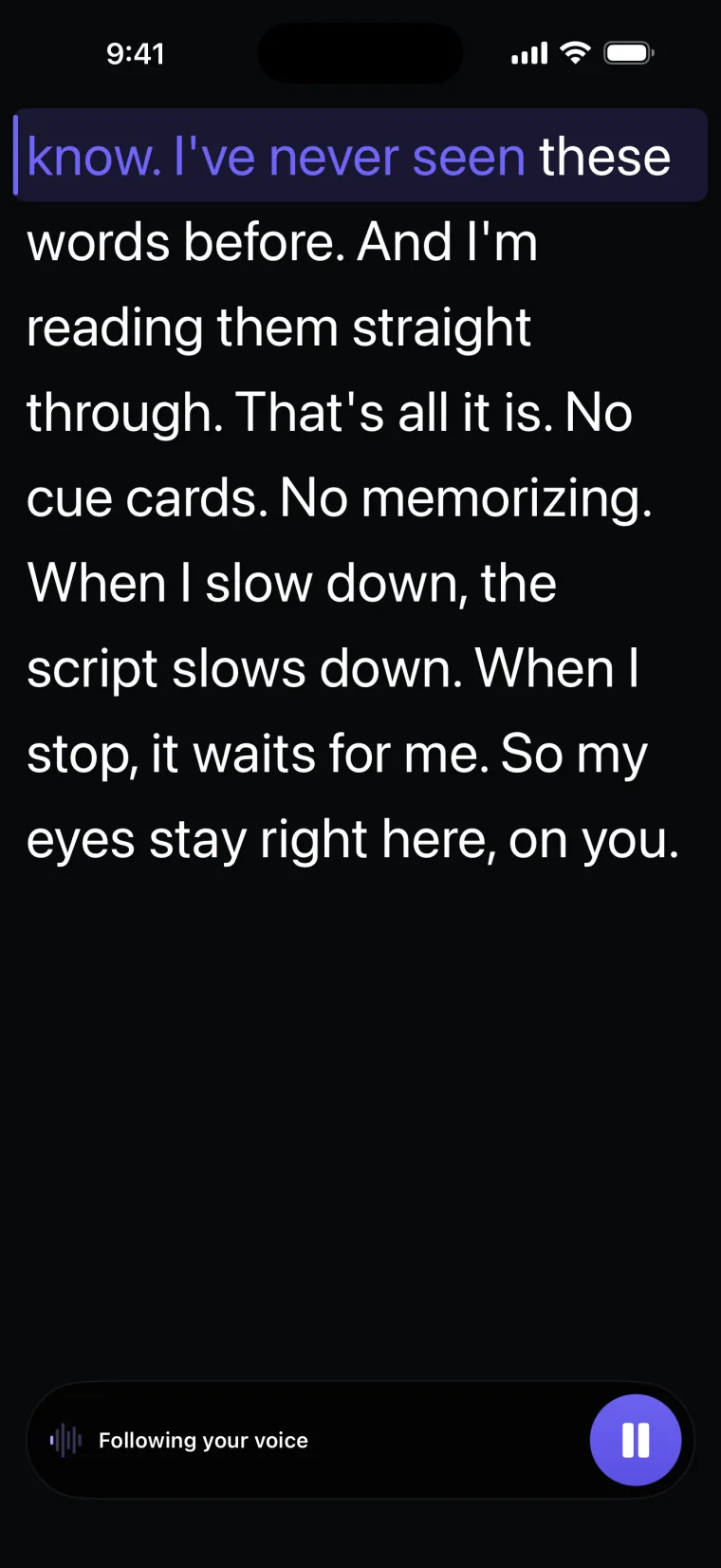
With Voice, the app listens and moves the script as you read, and waits when you stop. With Auto, it scrolls at the speed you set.
Add captions after
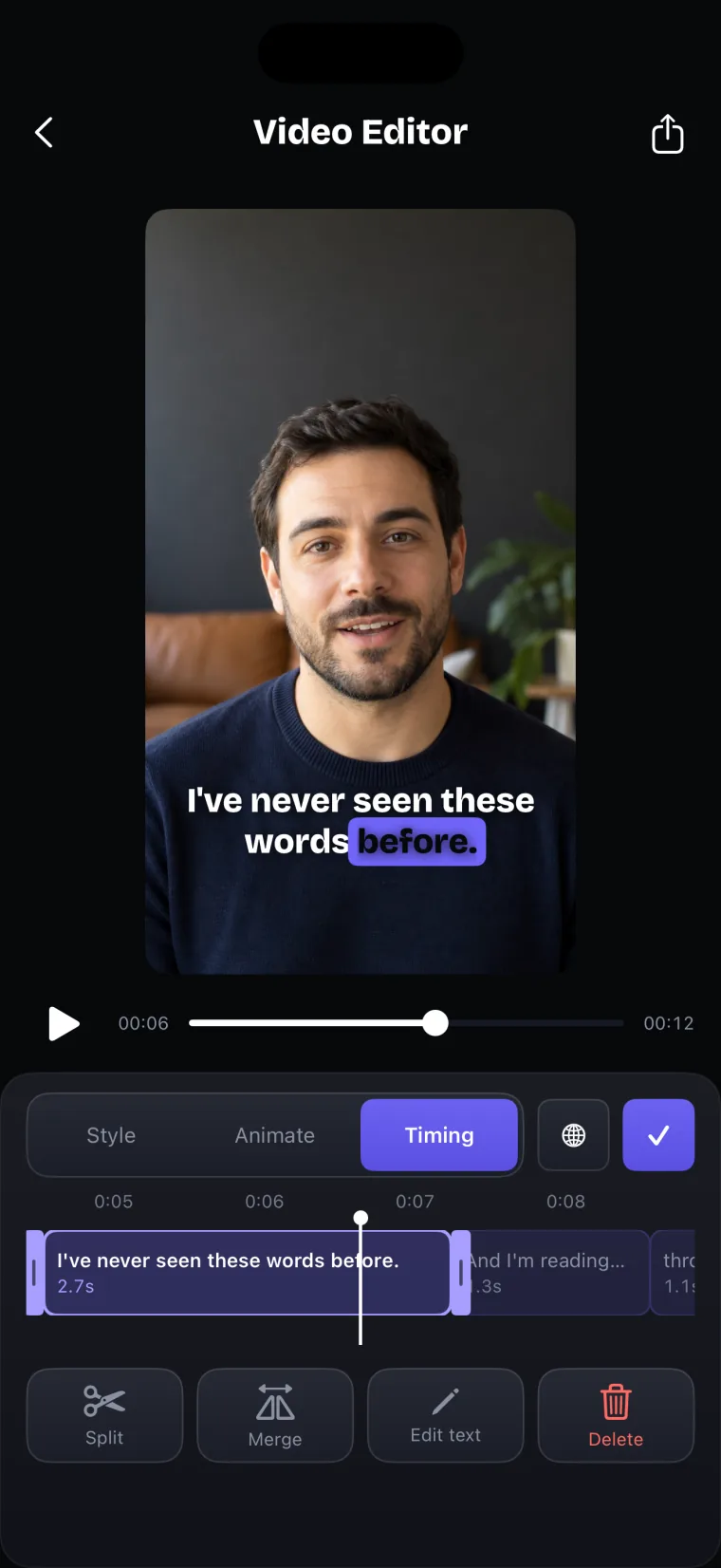
The app writes captions from what you said. Check the words, pick a style, trim or crop the take, and save the video to Photos.
Who uses it

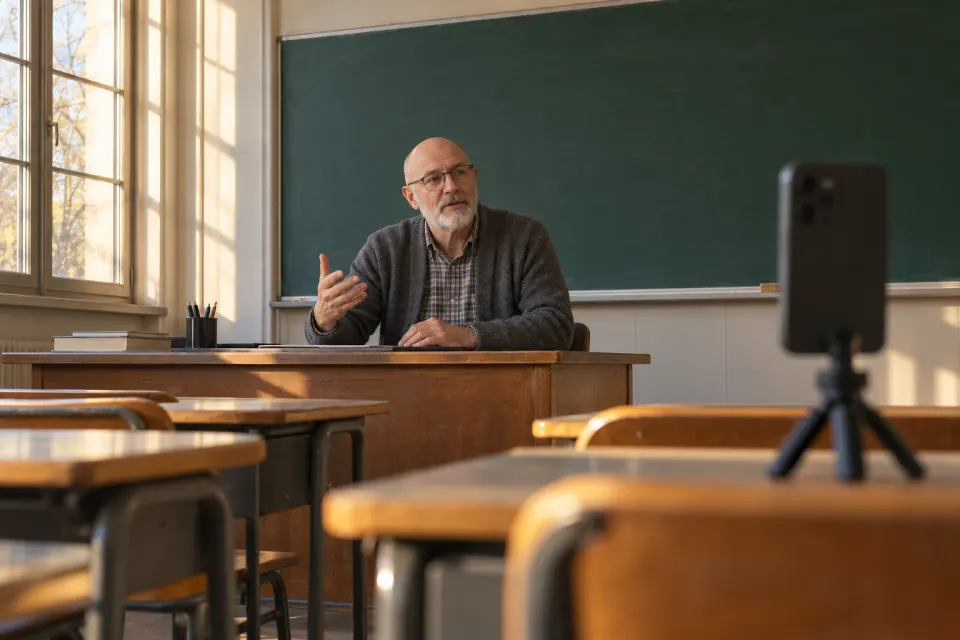

You make videos for YouTube, TikTok or Instagram and lose your place when you look away from the lens. Long videos from a script
You are preparing a one-way video interview and want to say what you planned without reading off a sheet. One-way video interviews
You speak English as a second language and want the exact words in front of you. Recording in English as a non-native speaker
It follows your voice
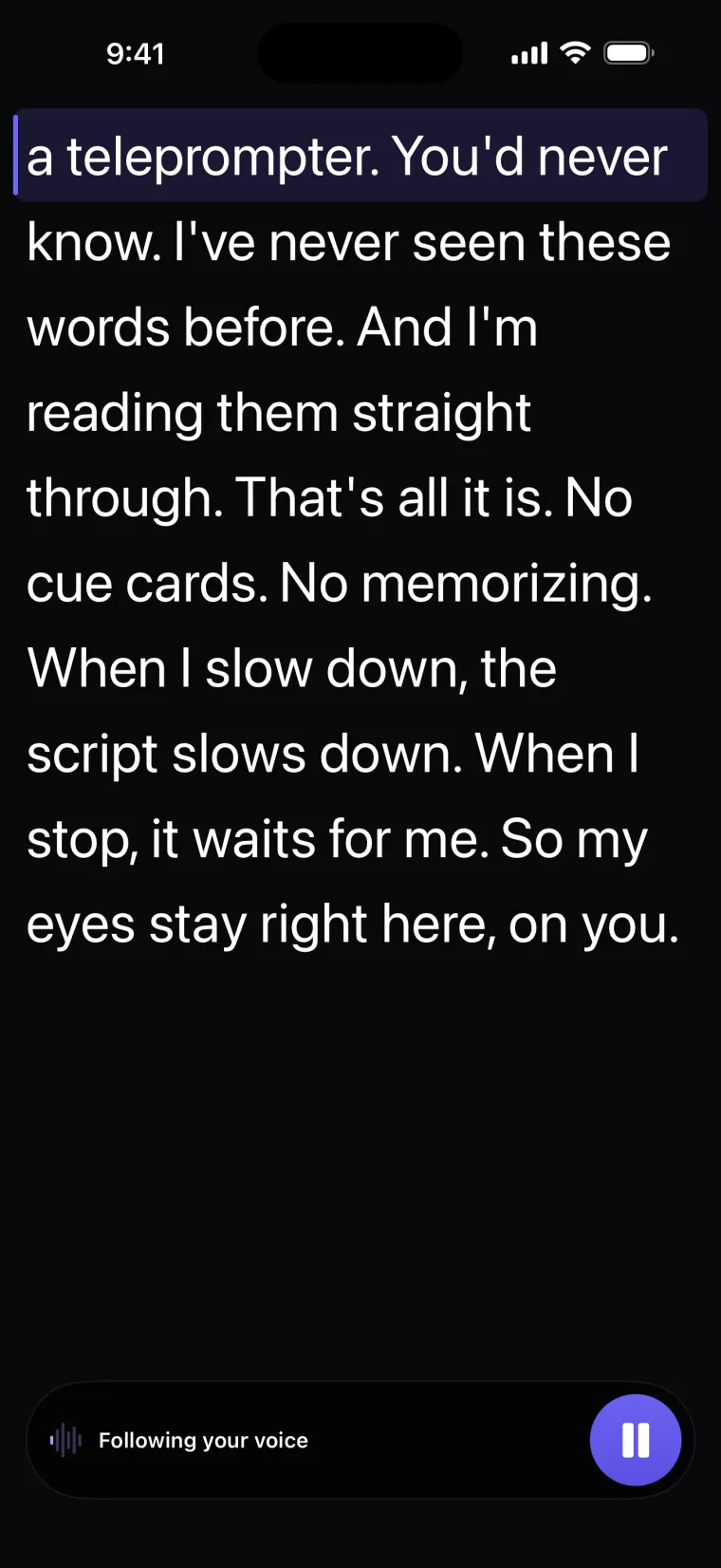
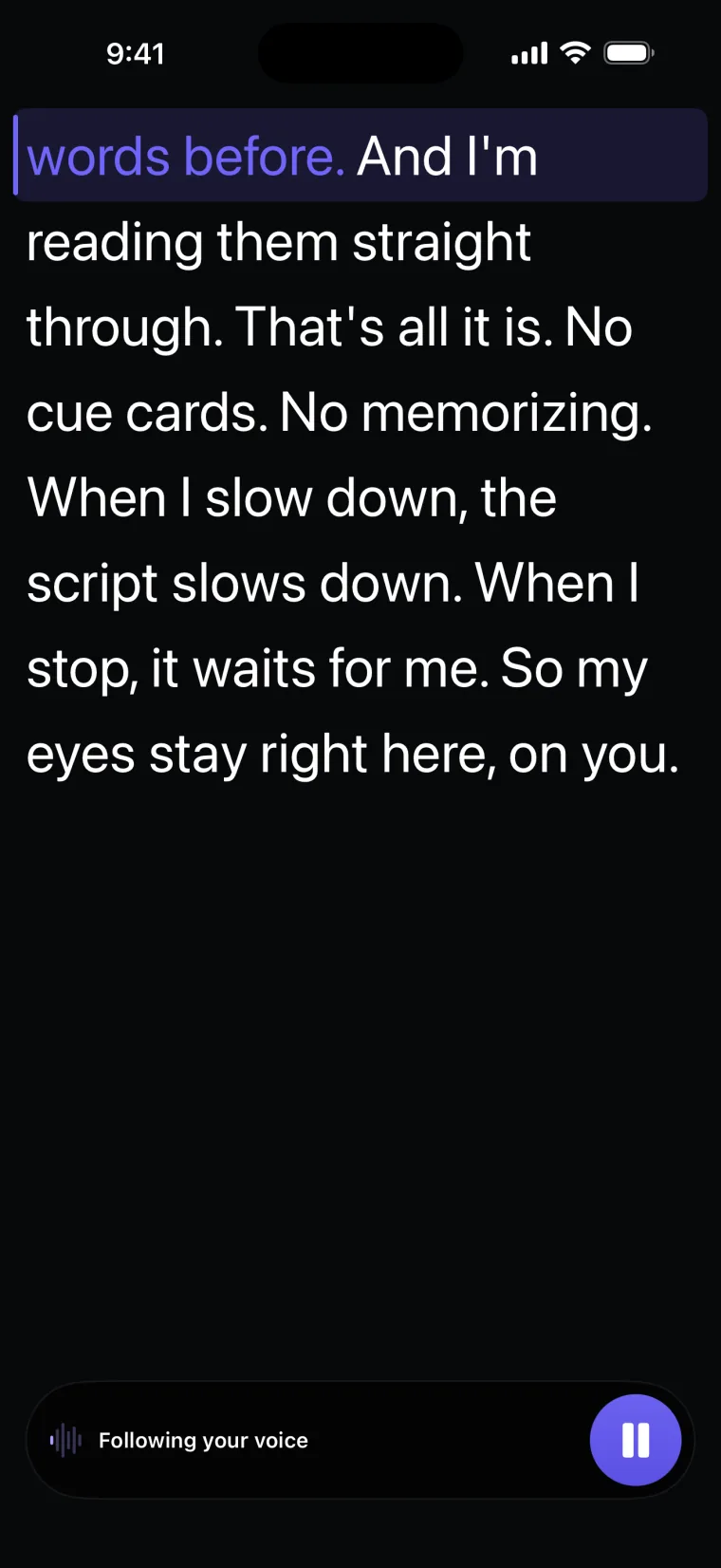
Turn on Voice and the app listens while you read. The words you have said change colour, and the script moves on as you go. When you stop to think, it stays where you are.
If you change a word or skip one, it keeps your place. If the room is loud or you read in a language it does not follow, switch to Auto and set a speed.
Captions from what you said
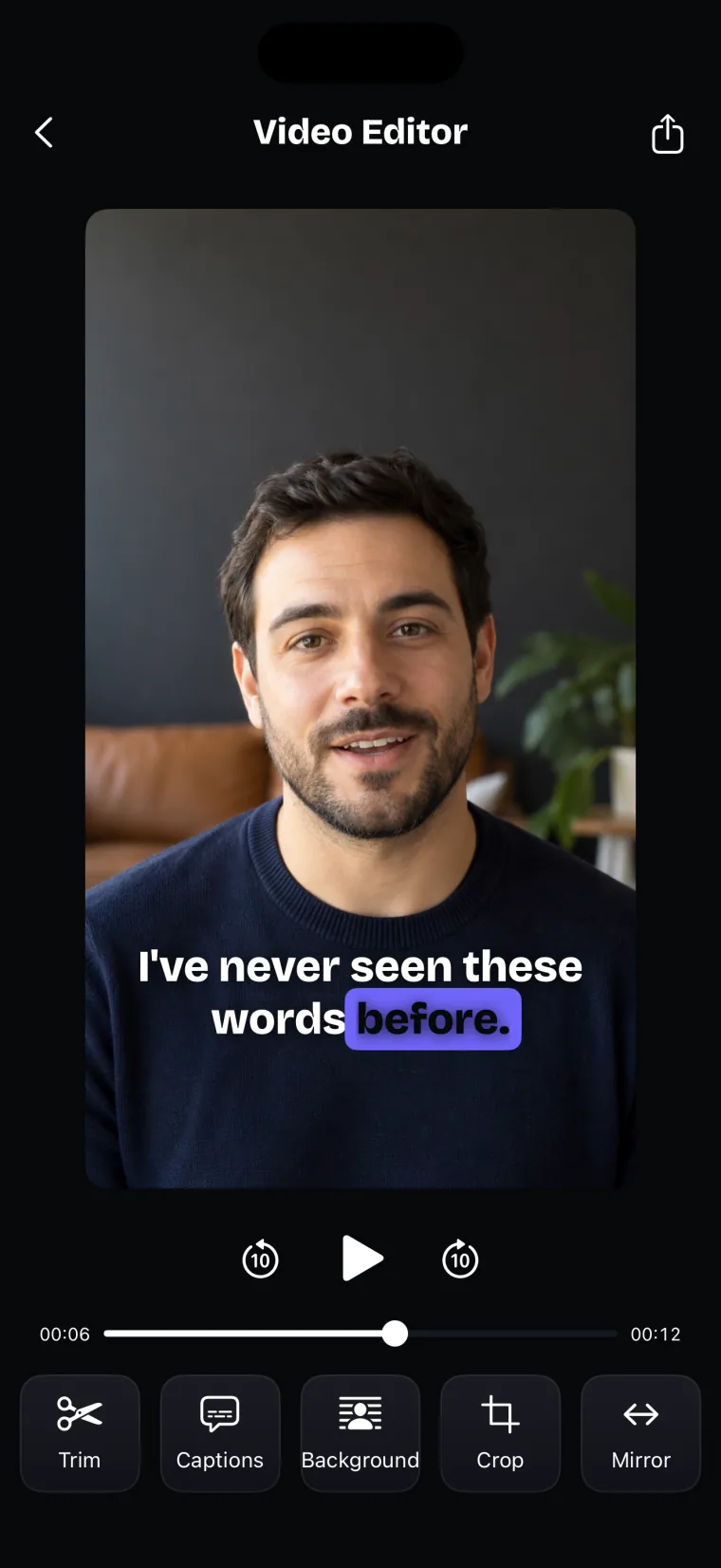
After you record, the app listens to the take and writes captions in the language you spoke. Words that match your script take the script's spelling. Change any word, move a caption to the right moment, and choose a style.
In the same editor you can trim the take, crop it for 9:16 or 1:1, blur or replace the background, and flip the picture. The finished video, captions included, is saved to your Photos library.
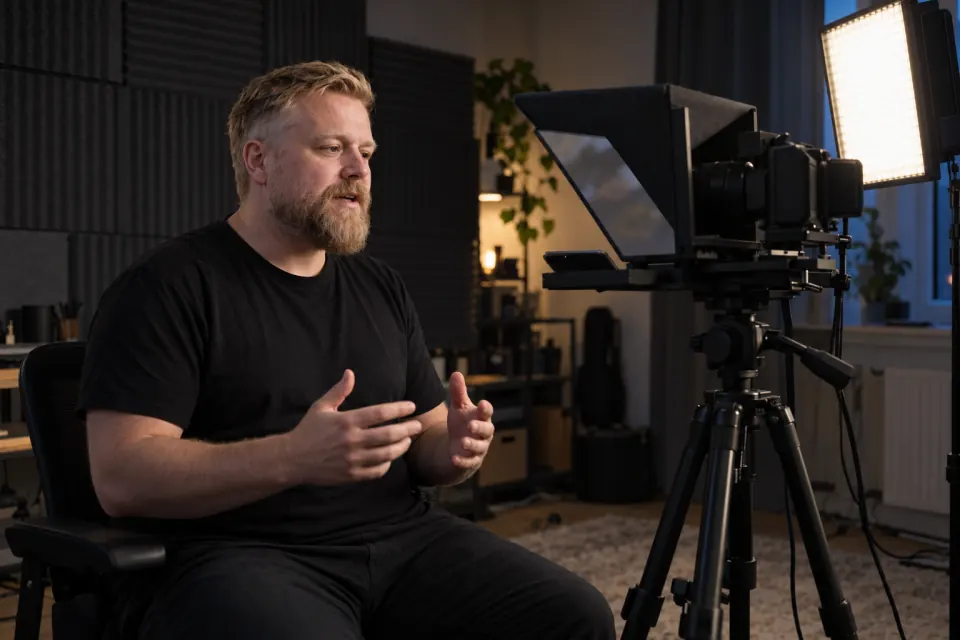
Works with a teleprompter rig
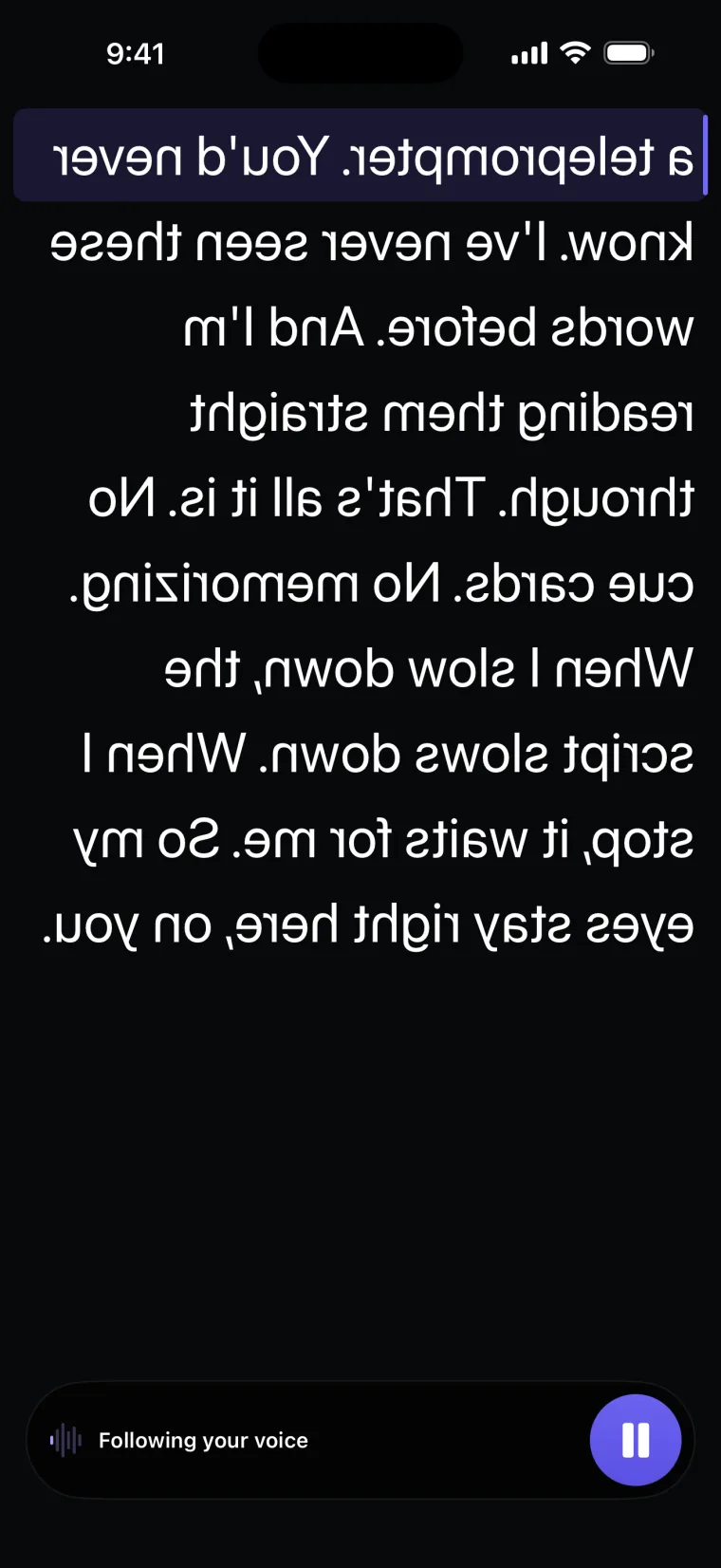
In a beam-splitter rig the phone lies under a sheet of glass and another camera films you through it. The words reach you as a reflection, back to front.
Open Mirror in the prompter and choose horizontal, vertical or both. Only the script is reversed; the buttons stay as they are.
Read in your language
Voice mode follows speech in nine languages: English, French, Spanish, Portuguese, Arabic, Russian, Chinese, Japanese and Indonesian; Spanish uses Apple's speech recognition for Spain (es-ES) and Portuguese uses Apple's for Portugal (pt-PT).
- English
- Español
- Português
- Français
- العربية
- Русский
- 中文
- 日本語
- Bahasa Indonesia
Questions people ask
How much does it cost?
Teleprompter: Video & Captions is free to download; a subscription unlocks your own scripts and projects, and prices are shown in the app before you pay.
Which devices does it work on?
iPhone and iPad with iOS or iPadOS 17 or later.
Do I have to use voice scroll?
No. Choose Auto and set a speed, and the script scrolls on its own at that pace.
Which camera does it record with?
The front camera, so you can see your script and yourself while you record. It does not record with the rear camera.
Where are my videos saved?
Your takes are kept with their project inside the app. When you save a finished video, it goes to your Photos library.