
Burned-in captions or a subtitle file
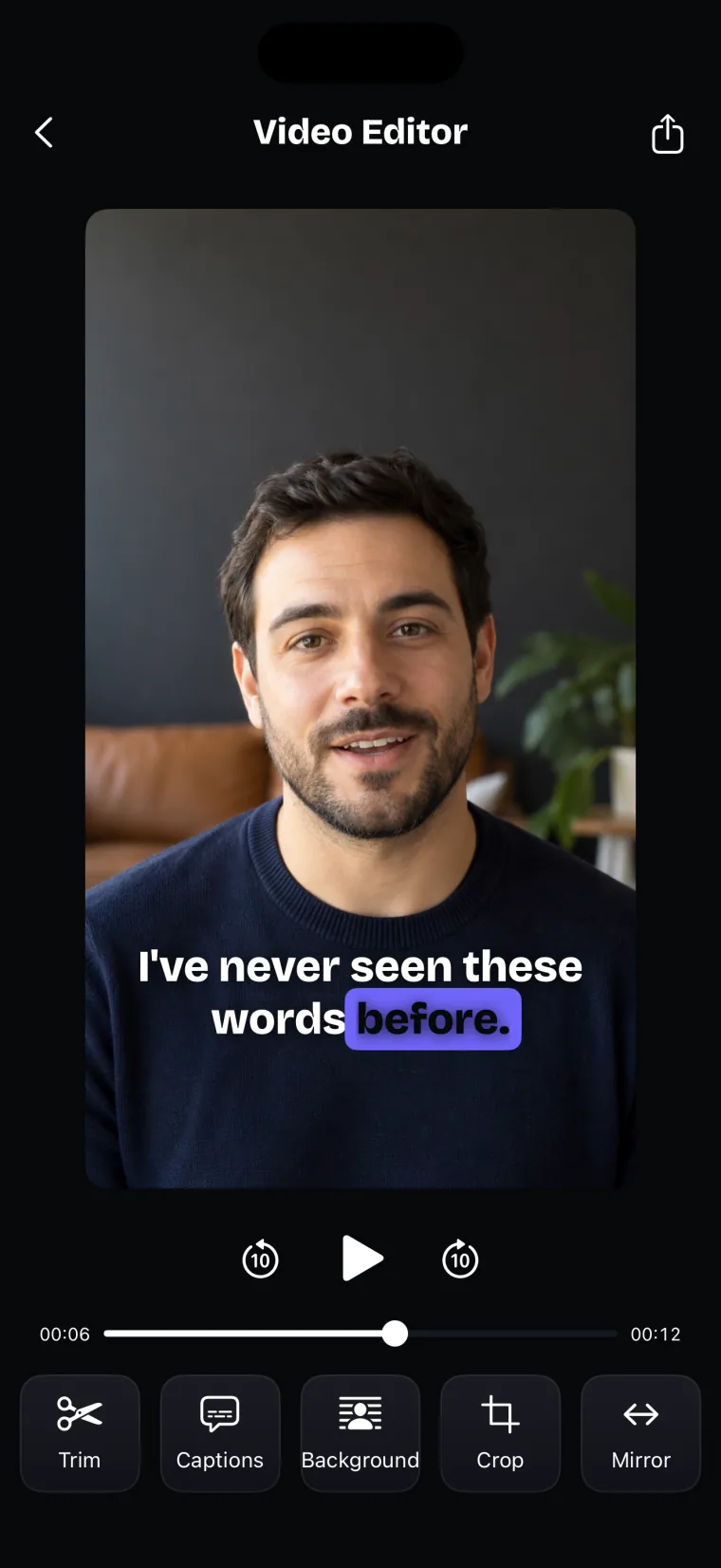
Captions reach viewers in one of two forms, and the choice decides where they will show. Burned-in captions are drawn into the picture, so they are part of the video everywhere it goes. A subtitle file is a separate text file of lines and times that you upload next to the video, and the player draws it on top.
| Question | Burned-in captions | Subtitle file |
|---|---|---|
| What it is | Words drawn into the picture | A text file of lines and times, such as .srt or .vtt |
| Where it shows | Everywhere the video plays | Only where the platform accepts the file |
| Can the viewer turn it off? | No | Usually, if the player offers it |
| Who decides the look | You: font, colour, size, position and animation | Mostly the player |
| Fixing a mistake after export | Export the video again | Edit the file and upload it again |
| Several languages | One video per language | One file per language, same video |
Burned-in captions suit short videos for people who watch with the sound off, and any video that has to look the same everywhere. A subtitle file suits long videos on a platform that takes one. YouTube, for example, lists SubRip (.srt) and WebVTT (.vtt) among the caption files it accepts (YouTube Help, “Supported subtitle and closed caption files”, read 2026-10-27).
Teleprompter: Video & Captions makes burned-in captions only. It does not export a subtitle file; if you need one, use a different app for that video.
What the iPhone does on its own
The iPhone has a built-in captions feature, Live Captions, which Apple describes as a way to follow audio. Apple’s support page describes Live Captions as a real-time transcription of spoken audio, shown on screen in any app or from a conversation around you, on iPhone 11 or later, and not in every language or region (Apple Support, “Get live captions of spoken audio on iPhone”, read 2026-10-27). The page does not describe saving those captions into a video.
Apple’s Clips app could add Live Titles, captions that appear on the video as you speak (Apple Support, Clips User Guide, read 2026-10-27). Apple says Clips is no longer updated and is no longer available for new users to download as of October 10, 2025; people who already have it can keep using it on iOS 26 and iPadOS 26 or earlier (Apple Support, “Save your Clips videos”, read 2026-10-27). For a new video with burned-in captions, you need an app.
Step by step in Teleprompter: Video & Captions
This is how captions work in Teleprompter: Video & Captions, from the take to the saved video. The app transcribes the take with Apple’s speech recognition, in the spoken language you confirm, and draws the captions on the video as you edit them.
- Record the take in the app; when you tap Stop, the Video Editor opens on it.
- Tap Captions in the row of tools under the video.
- On “What language is this take in?”, check the spoken language the app picked and the note under it: “Runs on this iPhone, no connection needed” or “Needs a connection for this language”.
- Tap Generate captions and wait while the app reads your take.
- Pick a look in Caption style and tap Apply captions.
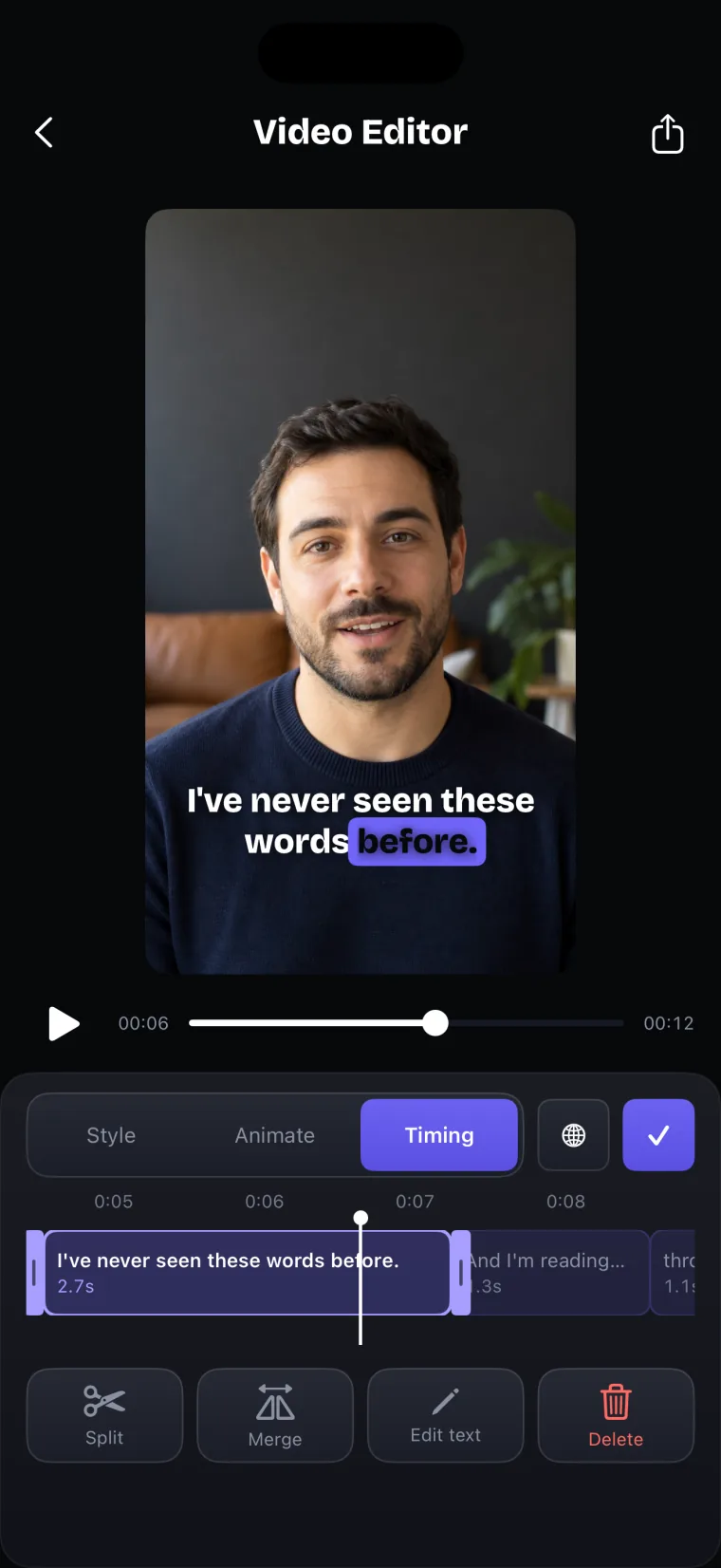
- Play the video, and in the Timing tab fix any wrong caption with Edit text, Split, Merge or Delete, or drag its start and end.
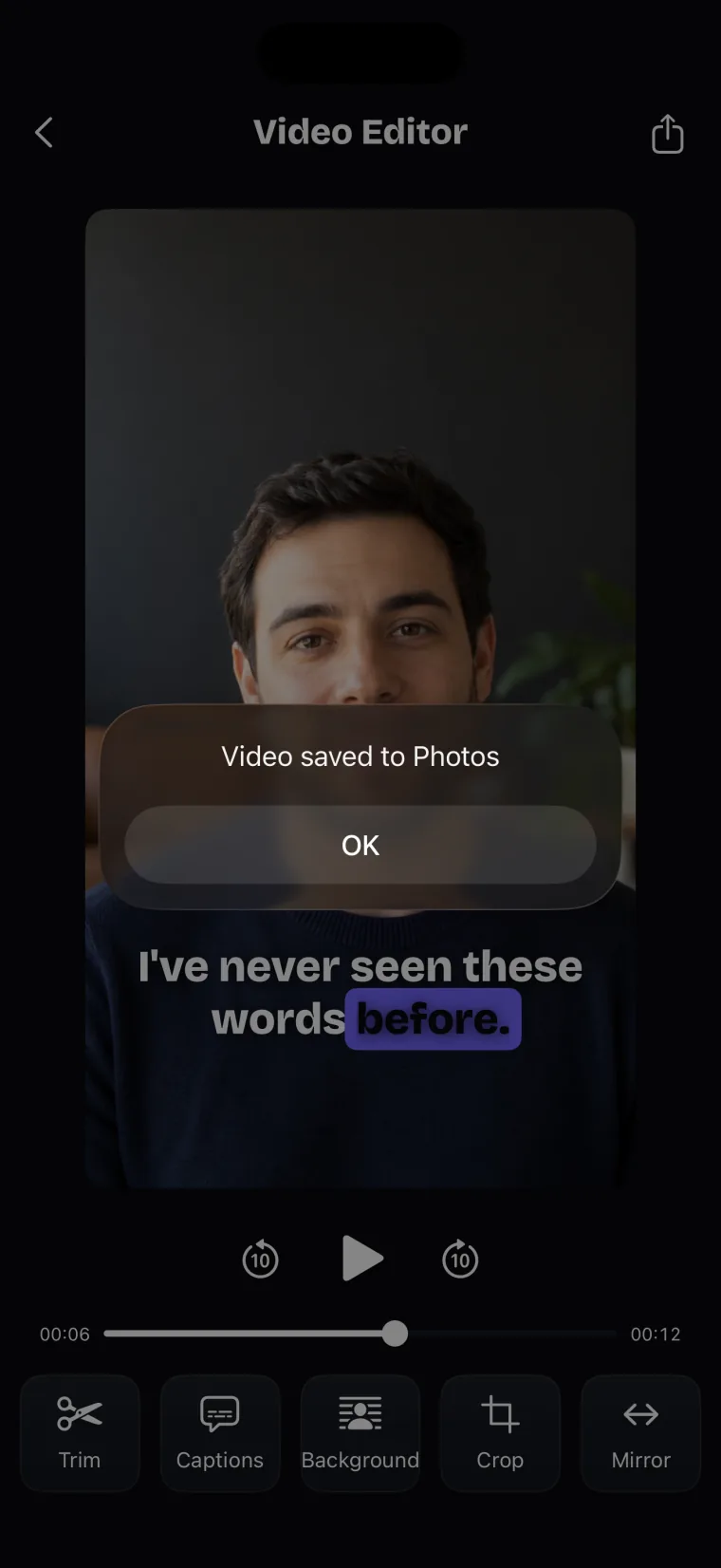
- Tap the share icon at the top of the editor to save the video, with the captions burned in, to Photos.
The language step matters most, because the app listens to the take in the language you confirm. The app pre-selects a language from the take’s earlier captions, the language of your script, your voice-follow language, or the iPhone’s language, so check it before you tap Generate captions. If it was wrong, the editor can redo the captions in another language.
Each caption holds at most five words, and captions break on pauses and punctuation. The Style tab sets the look: a preset, the font, the colour or highlight colour, the size, and the position (Top, Centre or Bottom, or drag the caption on the video). The Animate tab sets how each caption enters. Changes show on the video as you make them. On iPad, the controls sit in a side panel, and saving is the “Save to Photos” button in that panel.
How your script spells the captions
Teleprompter: Video & Captions compares the transcript with the script you read from. Where a heard word is the same word as in the script, the caption takes the script’s spelling, capitals and punctuation. A different word is never changed into a script word, so if you said something else, the caption shows what you said.
This helps most with names and terms you wrote correctly in the script. It does not help with words that are not in the script, which can still come out wrong; check those first. Script spelling is not applied to Chinese or Japanese, whose captions stay as heard. The guide on writing a script that captions well covers how to spell names in the script so the captions come out right.
Captions in another language
Captions in Teleprompter: Video & Captions are written in the language that was spoken; the app does not translate them. You can pick any language Apple’s speech recognition supports on your iPhone, which is not limited to the nine languages of voice following, and the app picks the regional variant for your region. If you need captions in a language you did not speak, translate them in another app.
Where this stops working well
Teleprompter: Video & Captions has caption limits that decide whether it is the right tool for a given video. It records with the front camera only, adds captions only to videos recorded in the app, and saves finished videos to Photos; it does not post to social networks or export subtitle files.
- There is no way to bring in a video from Photos to caption it. For a video recorded elsewhere, use another editing app.
- The app does not translate captions.
- A language without an on-device model needs a connection. If the recogniser stops responding, captioning stops after 25 seconds of silence with a message.
- There is no button to add a new caption by hand. Captions come from the transcript, and you then edit, split, merge or delete them.
- Captions made right after recording are not stored with the new take. If you reopen that take later from the take list, the captions are generated again. Captions made on a take opened from the take list are stored with it. Add captions and save to Photos in the same visit to the editor.
For teleprompter apps that caption in other ways, read which teleprompter apps also caption. For specific uses, the guides cover captions on or off for brand videos and captions for recorded lessons.
Questions people ask
Can an iPhone add captions to a video automatically?
Not on its own. The iPhone’s Live Captions feature shows a transcription on screen while audio plays, and Apple’s page does not describe adding it to a video. An app does that: Teleprompter: Video & Captions transcribes takes recorded in it, lets you fix the words, and burns the captions into the video it saves to Photos.
Are the captions burned into the video or saved as a separate file?
In the app they are burned into the video, so they show on every app and player and cannot be turned off. The app does not export .srt or .vtt subtitle files. If a platform needs a subtitle file, use a different app to make one.
Can I add captions to a video that is already in my Photos?
Not with the app. It adds captions only to takes recorded in the app, and it has no way to import a video. For a video that is already in Photos, use a different editing app that imports videos and adds captions.
Do captions need an internet connection?
It depends on the language and on your iPhone. The language step in the app marks each language “Runs on this iPhone, no connection needed” or “Needs a connection for this language”. When a language has no on-device model, the audio is sent to Apple’s speech recognition service.
How do I fix a wrong word in the captions?
Open the Timing tab, select the caption, and tap Edit text. Split breaks a long caption in two, Merge joins two captions into one, and Delete removes a caption; you can also drag a caption’s start and end. Words that match your script already use its spelling, so check names and words that are not in the script first.