Videos a small business can script
A small business can make several short videos out of the questions its customers already ask. Each video in the table has one job, and you are the one talking to the camera.
| Video | What it says | What to read exactly |
|---|---|---|
| What we do | What you sell, who it is for, where to find you | The business name and address |
| How to order | The steps a customer takes, in order, and what happens next | Each step, and any deadline |
| A product explained | What it is, what it is for, and the question people ask about it | Sizes, materials or ingredients |
| An answer to a common question | The question in the customer’s words, then your answer | Anything the customer will act on |
| A seasonal change | What changes, from when, and what stays the same | Dates and opening hours |
Anything a customer will act on, such as a date, opening hours or a phone number, is read from the script rather than said from memory. Prices change, so leave them out of a video you want to use for a long time and say where the current price can be found. If you sell property, talking-to-camera videos for selling property covers the videos made around a listing.
Writing the script in three parts
A script for a business video can follow three parts in this order:
- Who you are and what you sell, in one or two sentences.
- The one thing this video is about: the product, the steps, or the answer.
- What the viewer should do next, said once and plainly: visit, order, call or book.
Here is that shape with brackets where your details go:
We are [business name], [what you do] in [your area]. This month we have [the one thing this video is about]. [One or two sentences about it.] You can [order, visit or call] at [where], and we are open [days and hours].
Write the way you talk to a customer at the counter: short sentences, everyday words, no slogans. Every extra point makes the video longer and harder to follow, and keeping the script short explains what to cut first. The script editor in Teleprompter: Video & Captions shows a word count, which helps when you compare two versions of a script. If a supplier or a brand you stock sends you lines to say about its product, scripts written from a brand brief shows how to keep the required wording exact.
Recording in the shop or at home
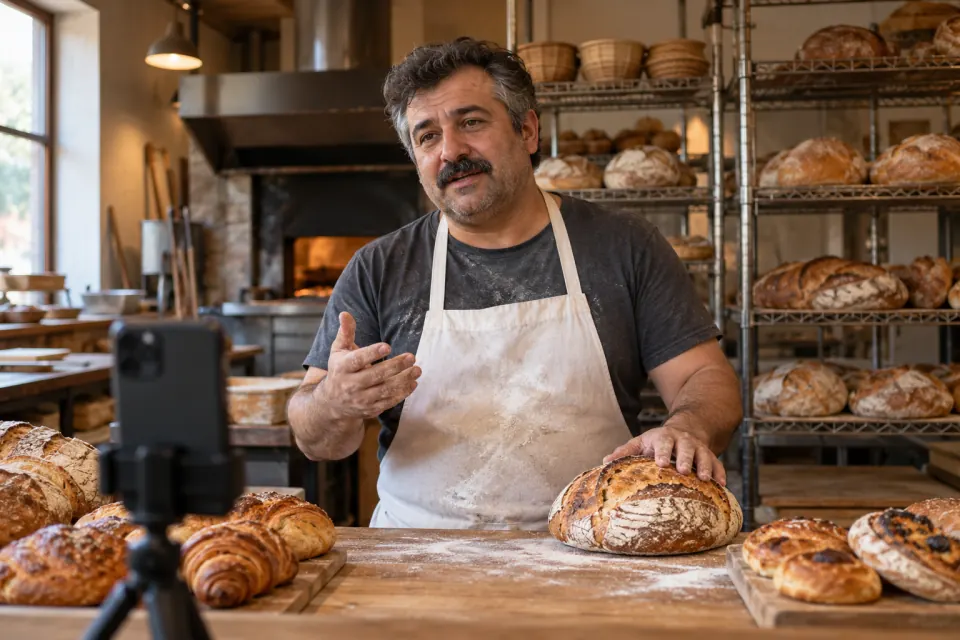
Recording where you work shows customers the place they will visit. Choose a time when the shop is closed or quiet, and put the phone at eye level on a small tripod on the counter or a shelf.
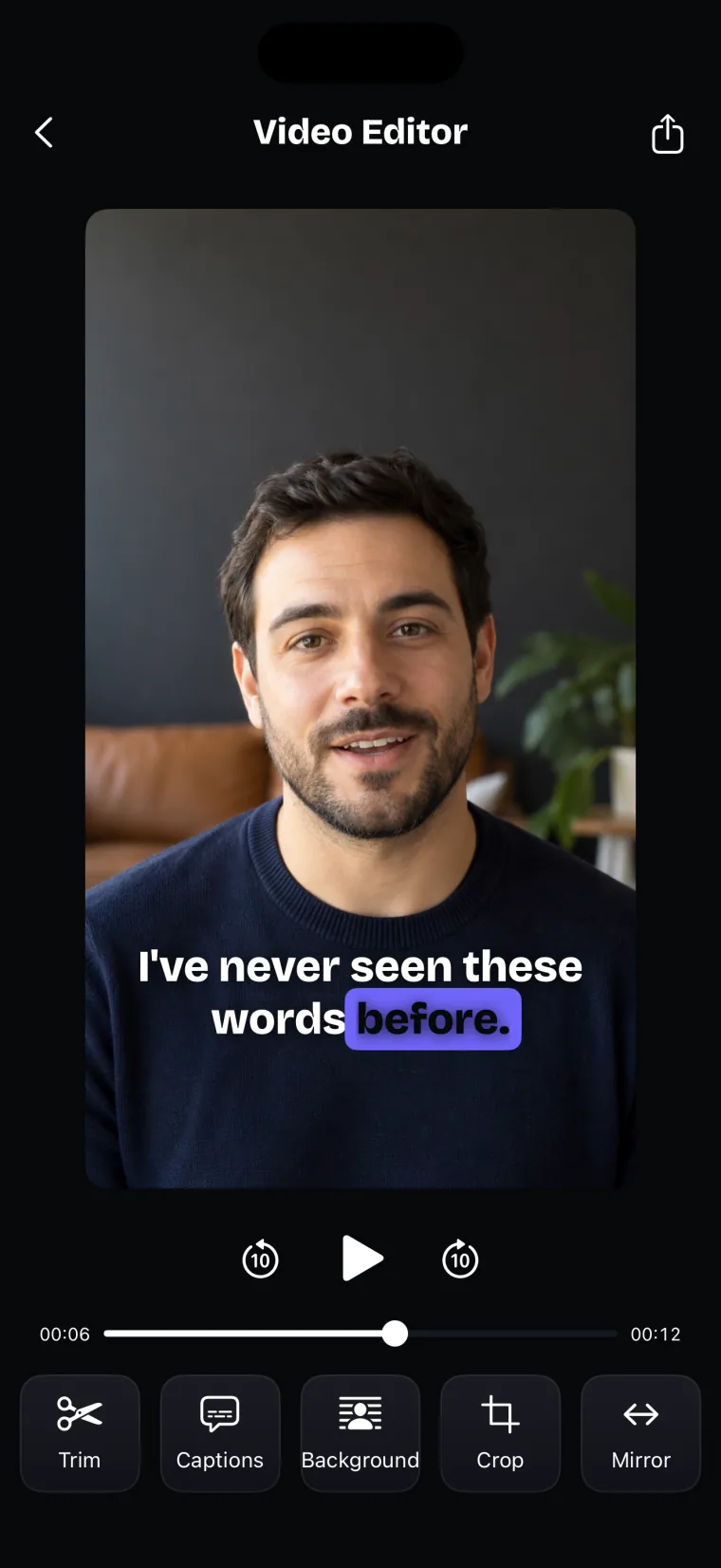
A busy or messy background can be handled after recording. Teleprompter: Video & Captions has tools for trimming, cropping and blurring the background, all applied to the take once it is recorded. The Background tool separates you from what is behind you, then blurs the background with a strength slider, or replaces it with one of three pictures included in the app or a photo from your library. It uses Apple’s person segmentation on the iPhone, so it needs no green screen and nothing is uploaded. If you hold a product up while you talk, play the result through and check the product is still sharp before you save. A photo you add as a background is not kept for next time, so keep it in your photo library.
Noise in a shop affects the two scroll modes differently. In Voice mode, the script follows your words through Apple’s speech recognition, and how well that copes with a fan, music or customers talking depends on Apple’s recogniser; the app gives no figure for it. Before a real take, read a paragraph in Voice mode with the shop’s usual sounds around you. If voice following stops during a take, for example when a call comes in, the recorder carries on at the set speed from your place and shows “Voice follow is off for this take — scrolling at your speed”. Stop calls from ringing through on the phone you record with, and set a Scroll speed you can read at even with Voice recognition on. In a noisy room, Auto scrolls at the speed you set whatever the noise; use Test to check it before you press Record.
One take, several formats
Crop in Teleprompter: Video & Captions cuts the take to a preset shape, so one recording can become a version for each place you post. The presets are Free, 1:1, 4:5, 9:16 and 16:9; the Free preset lets you drag the corners to any shape.
| Preset | Shape | Where it fits |
|---|---|---|
| 9:16 | Tall, fills a phone held upright | YouTube counts a square or vertical video up to three minutes long as a Short (YouTube Help, read 2026-10-27) |
| 1:1 | Square | Also counted as a Short by YouTube under the same rule |
| 4:5 | A little taller than square | Not covered by the sources read for this guide; check the help pages of the place you post |
| 16:9 | Wide | YouTube’s standard aspect ratio on a computer (YouTube Help, read 2026-10-27), and a wide video player on your own website |
The YouTube rules come from “Understand three-minute YouTube Shorts” and "Video resolution & aspect ratios", both read 2026-10-27.
A crop throws picture away, so record in the shape of the place that matters most to you. A 16:9 crop from a take recorded upright keeps only a band across the middle, which is enough for a head-and-shoulders shot at most. If you need a good wide version and a good tall version, record twice, once with the phone upright and once sideways.
- Right after recording, trim the start and end and set the background, then leave the editor. A new take is stored in the version you leave the editor with.
- Open the take from the project’s take list and add captions. Captions made on a take opened from the list are stored with it.
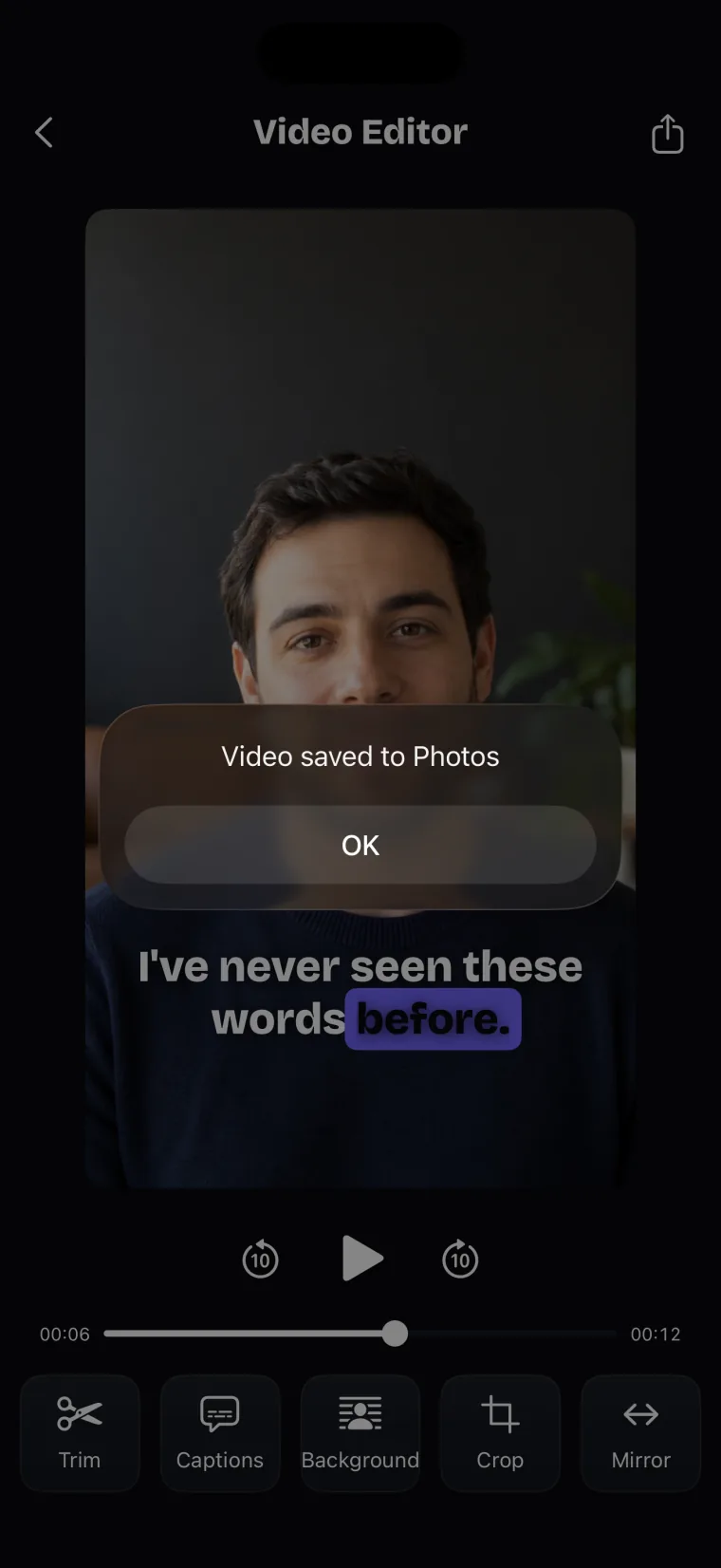
- Tap Crop, pick the first preset, and save the result to Photos with the share icon.
- Open the take again from the list and repeat step 3 for the next shape. Crop changes made to a reopened take are not written back to it, so the take opens uncropped each time.
Play each version through before you save it, and check that the captions and the edges of the picture look right in that shape.
Captions
Captions in Teleprompter: Video & Captions are made from the take’s audio, in the spoken language you confirm, and burned into the video when you save it to Photos. Where a heard word is the same word as in your script, the caption takes the script’s spelling, capitals and punctuation, so spell your business and product names in the script the way you want them shown. A name the recogniser hears as a different word is not corrected from the script; fix it with Edit text in the captions Timing tab.
The app does not translate. If your customers speak two languages, record the video once in each language, and make the captions for each take in the language spoken in it.
Where this stops working well
Teleprompter: Video & Captions makes the talking-to-camera part of a business video. Several things a business video can need are outside it.
It records with the front camera only, adds captions only to videos recorded in the app, and saves finished videos to Photos; it does not post to social networks or export subtitle files.
- Logos, intros and brand graphics. The editor’s tools are Trim, Captions, Background, Crop and Mirror. None of them adds a logo, a title card, an intro or text other than captions; add those in a video editor that imports clips.
- Shop tours and product close-ups. No back camera and no camera switch. Film those with the iPhone’s Camera app, which switches between the front-facing camera and the one on the back (Apple iPhone User Guide, “Take a selfie”, read 2026-10-27). Teleprompter: Video & Captions cannot import those clips to join them to your talking take.
- Posting. No share sheet and no posting to Instagram, YouTube or a website. Upload each version from Photos.
- Green screen. There is no chroma key, so a physical green screen behind you is not removed. The Background tool works from the person instead.
- Background quality and photos. A take with a blurred or replaced background is written at up to 1920 by 1080, and a background photo you add is not kept for next time.
- Edits on a reopened take. Trim, crop, background and mirror changes made to a take reopened from the take list are not written back to it; saving to Photos keeps them.
Questions people ask
What should a short video about my business say?
Say who you are and what you sell, then the one thing this video is about, then what the viewer should do next: visit, order, call or book. Read anything a customer will act on, such as dates, hours or a phone number, from a script, and leave prices out of a video you want to keep using.
Can one video work for Instagram, YouTube and my website?
One recording can, cropped into a version for each place. YouTube’s help pages, read 2026-10-27, say the standard aspect ratio on a computer is 16:9 and that a square or vertical video up to three minutes long counts as a Short. For Instagram, check the sizes it accepts in Instagram’s own help pages before you crop; this guide does not state them because they could not be confirmed on 2026-10-27. Teleprompter: Video & Captions crops one take to 9:16, 1:1, 4:5 or 16:9.
How do I hide a messy background in a business video?
Tidy what you can, then use a background tool after recording. In the app, the Background tool blurs what is behind you or replaces it with a picture, using person segmentation on the iPhone, so no green screen is needed. Check that anything you hold up stays sharp before you save.
Can I add my logo in Teleprompter: Video & Captions?
No. The editor’s tools are Trim, Captions, Background, Crop and Mirror, and none of them adds a logo, a title card or an intro. Save the video to Photos and add the logo in a video editor that imports clips.