How beam-splitter glass works
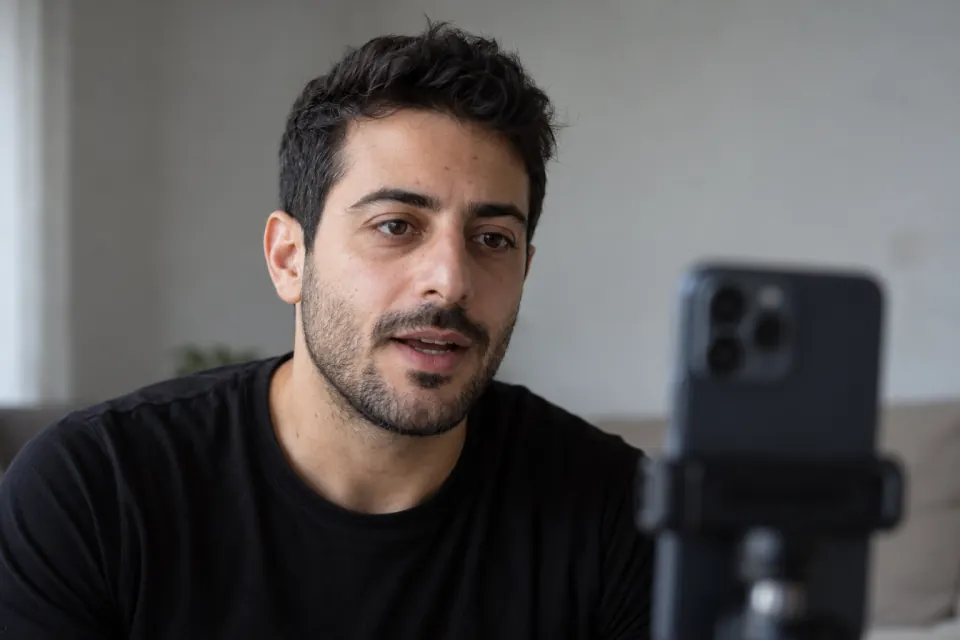
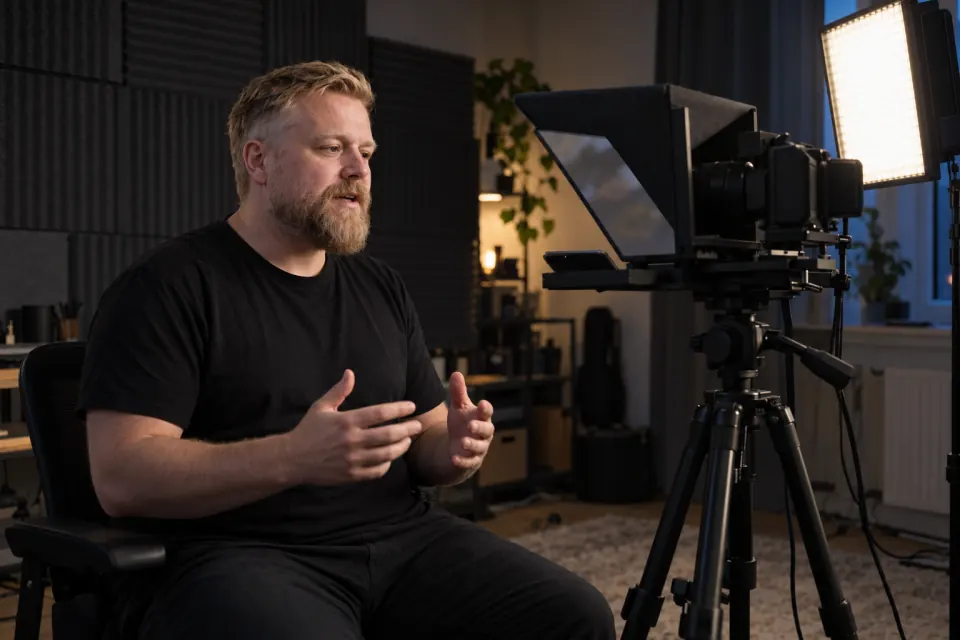
A beam-splitter teleprompter rig puts the script in front of the camera lens without the camera seeing it. A hood surrounds the lens, and a sheet of glass sits in front of the lens at an angle of about 45 degrees. The iPhone lies screen-up under the glass. The glass reflects the light from the screen toward you, and it lets the light from you pass through to the camera behind it.
The words you read therefore appear to sit over the lens. When you look at the script, you are looking down the camera’s line of sight, so the video shows you looking into the camera. The script reflects toward you and away from the lens, so it does not appear in the recording.
| Part | Where it sits | What it does |
|---|---|---|
| Camera | Behind the hood, lens pointing at you | Records the video through the glass |
| Beam-splitter glass | In front of the lens, at about 45 degrees | Reflects the screen toward you and lets the camera see through it |
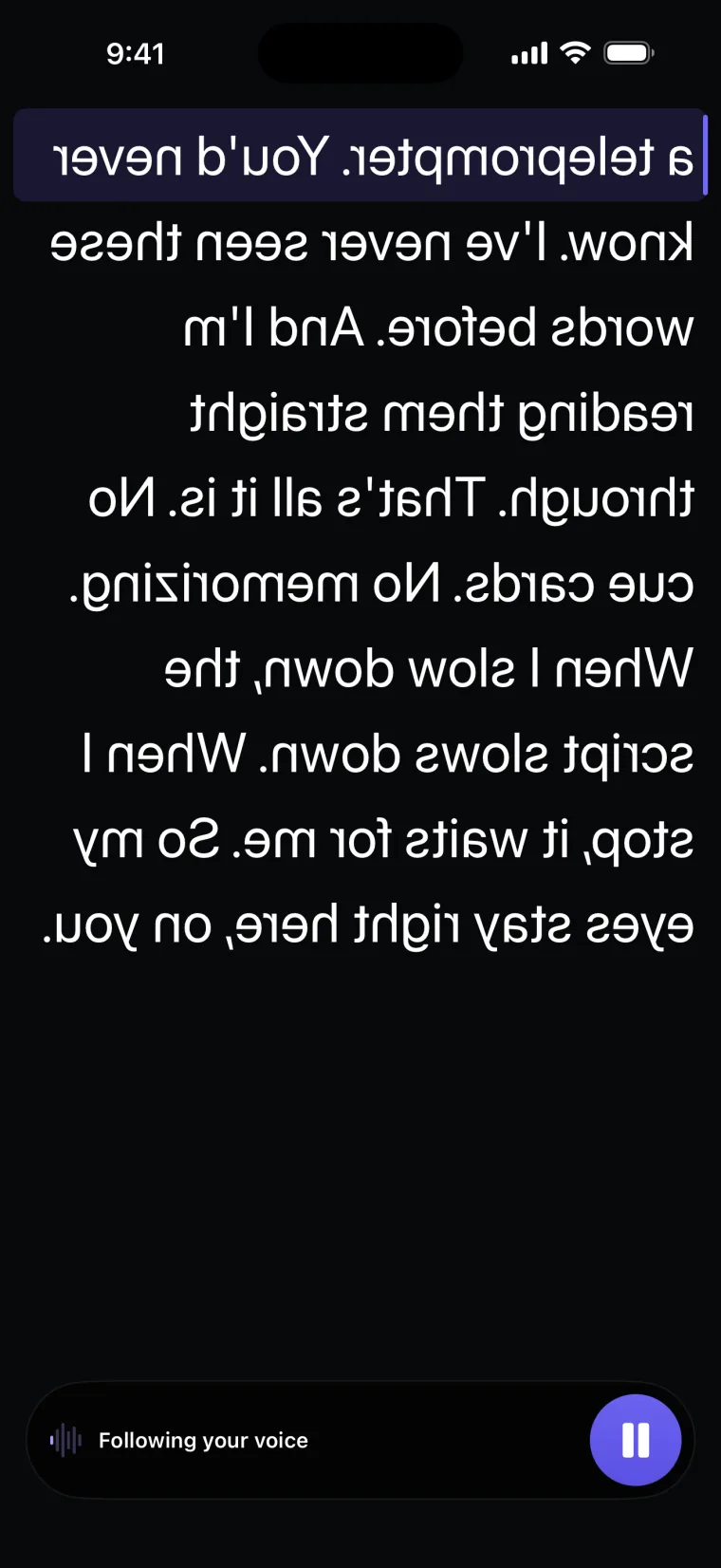
| iPhone | Under the glass, screen up | Shows the script, drawn mirrored |
| Hood | Around the lens and the glass | Keeps room light off the glass and out of the lens |
The iPhone in a rig shows the script and does not record. Its front camera points up at the underside of the glass, so the video comes from the separate camera behind the hood. If you want the iPhone to be the camera, you do not need a rig at all: the recording screen of a teleprompter app can put the script just under the front camera instead.
Step by step
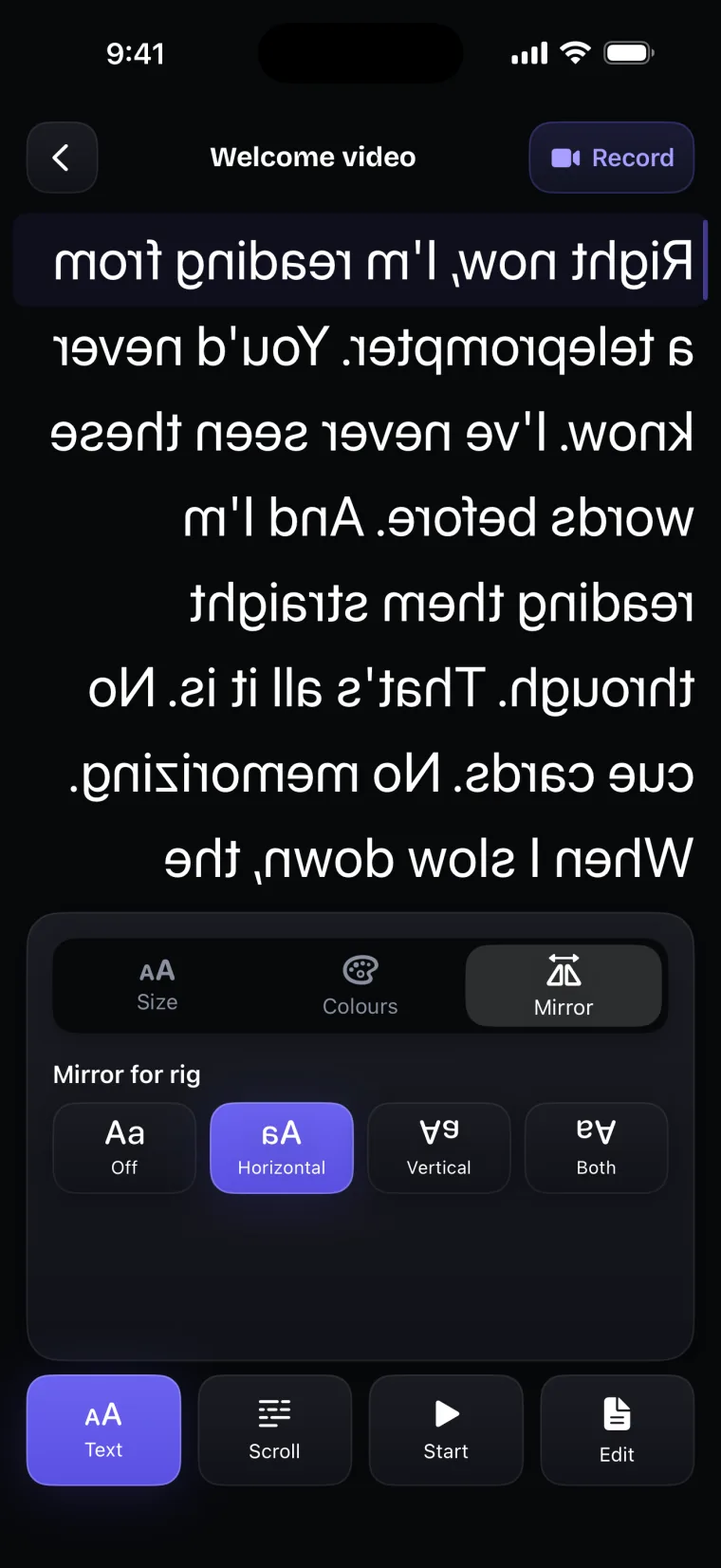
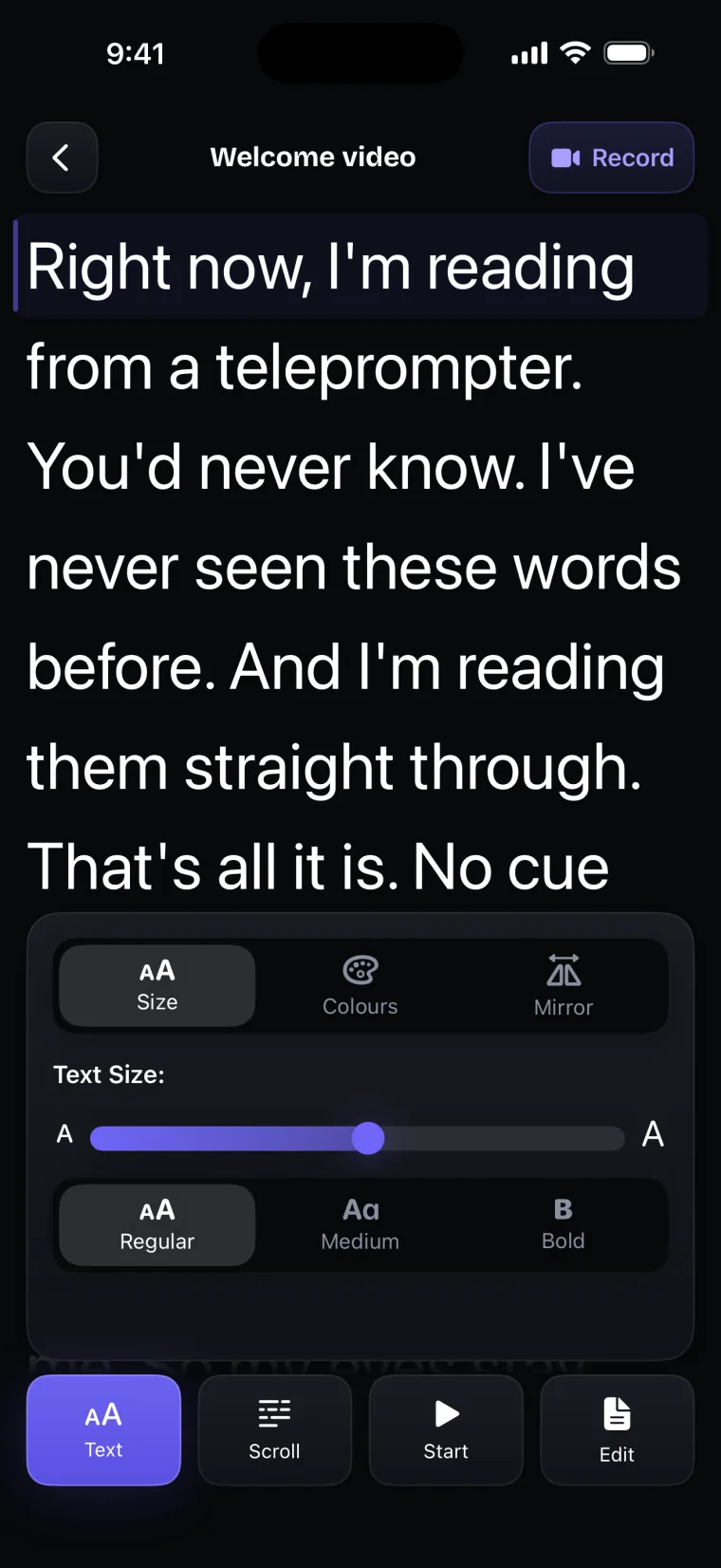
Teleprompter: Video & Captions keeps the four mirror settings in the Text panel of its prompter screen, next to text size and colours. The steps below assume the camera, hood and glass are already put together.
- Put the camera on its tripod behind the hood, centre the lens on the glass, and frame your shot.
- Lay the iPhone screen-up in the tray under the glass, centred, with its top edge pointing toward you.
- Open your project in the app, tap Text, and open the Mirror tab.
- Choose Horizontal, then look at the glass from your seat and change the setting if the words do not read normally.
- Open the Size tab and set the text size and weight so you can read a whole line from your seat.
- Tap Scroll and choose Auto with a speed, or Voice with the language you will speak.
- Tap Start, read a few paragraphs through the glass while the camera records a test, and watch the test before the real take.
Text size in the app goes from 14 to 64 points, with a choice of Regular, Medium or Bold. Set it from the place where you will sit, because text that looks fine with your face over the rig can be too small from your seat. The Colours tab sets the text and background colours. Light text on a dark background is the easier choice for glass, because the glass reflects the bright parts of the screen and a dark background adds little glare around the words.
The app keeps the screen from dimming or locking while the prompter is open, so you do not need to change Auto-Lock for the rig. Turn the screen brightness up, and turn on Do Not Disturb so that a notification does not land on top of the script.
Which mirror setting fits your rig
The right mirror setting in Teleprompter: Video & Captions depends on how the iPhone lies under the glass, and the quickest way to find it is to look. Set Mirror to Off, sit where you will record, look at the glass, and match what you see to a row of this table.
| What you see in the glass with Mirror set to Off | Setting to choose |
|---|---|
| The lines are the right way up, but the words run from right to left, like writing seen in a mirror | Horizontal |
| The text is upside down, and the words still run from left to right | Vertical |
| The text looks like a page turned upside down: upside down, with the words running from right to left | Both |
| The text reads normally | Off |
When the iPhone lies flat with its top edge toward you, one sheet of glass reverses left and right, and Horizontal is the setting. If the top edge points toward the camera instead, the reflection comes out upside down, and Vertical corrects it; turning the phone around and using Horizontal works too. Rigs that bounce the picture off more than one mirror, or that hold the screen above the glass, can need Vertical or Both. The app remembers the setting, so you choose it once for a given rig.
Starting and following the script without a remote
Teleprompter: Video & Captions does not work with Bluetooth remotes, keyboards or foot pedals, so in a rig you start the script with one tap on the iPhone and let the scroll do the rest. Two modes keep you from reaching into the rig during a read.
Voice mode is the closer of the two to hands-free. Tap Start and sit back; the bar shows “Listening — start reading” until you speak. The script then moves to the words you are saying and waits whenever you stop. The words you have already read change colour, so a glance at the glass shows where you are. The guide on letting the voice drive the scroll explains how the matching works and when it fails.
Auto mode scrolls at the speed you set from the moment you tap Start, and there is no countdown before it begins. Set the speed with Test before you sit down, because changing it during a read means reaching to the speed control on the bar at the bottom of the phone.
If you lose your place in either mode, tap the line you are on or drag the script, and reading continues from there. In a rig, the iPhone’s microphone listens from under the glass, further away from you than when you hold the phone. How well it hears you there depends on the room and on Apple’s speech recognition, which the app does not measure, so read a paragraph in Voice mode as a test before the real take.
Building a rig yourself
A home-made teleprompter rig needs the same four parts as a bought one: a camera, a hood or a dark cloth, a frame that holds glass at about 45 degrees in front of the lens, and a flat tray for the phone. The glass makes the biggest difference. Ordinary window glass reflects from both of its faces, so the script can show twice, slightly offset, and the reflection is faint. Beam-splitter glass has a coating on one side that reflects more of the screen toward you.
Check these before the first take with a home-made rig:
- The camera sees you through the glass and nothing else: no frame edges, no reflection of the room, no glow from the phone.
- The phone lies flat and still, so the reflection does not tilt or shift during the take.
- The top and sides of the glass are covered, because room light falling on the glass washes out the script.
- The lens sits close to the glass, so the edges of the glass stay out of the frame.
A rig puts the text on the line between your eyes and the lens, which takes care of where your eyes point. Your voice can still sound read, and the guide on where reading shows on camera covers that side.
Where this stops working well
Teleprompter: Video & Captions mirrors the script only on its full-screen prompter screen, and that shapes how it fits into a rig. It records with the front camera only, adds captions only to videos recorded in the app, and saves finished videos to Photos; it does not post to social networks or export subtitle files.
- The mirror setting does not apply on the recording screen, so the same iPhone cannot be both the prompter and the camera in a rig. Record with a separate camera, or leave the rig out and record with the iPhone, reading from the script window under the front camera.
- The app does not work with Bluetooth remotes, keyboards or foot pedals. A tap on the phone and Voice mode are the ways to control the scroll.
- Voice mode follows nine languages. For any other language, use Auto.
- The script is drawn in the system font. You can change its size, weight and colours, but not its typeface.
To see how other iPhone apps handle mirroring and remotes, read how iPhone teleprompter apps compare for rig work.
Questions people ask
Why does text need to be mirrored on a teleprompter?
The glass in a teleprompter rig shows you a reflection of the screen, and a reflection reverses the image. If the app drew the script normally, you would read it backwards in the glass. Drawing it reversed on the phone means the reflection reads the right way round. Teleprompter: Video & Captions reverses only the script, so its buttons stay readable on the phone.
Which mirror setting should I use for my rig?
With the iPhone flat under the glass and its top edge toward you, use Horizontal. If the words appear upside down but still run from left to right, use Vertical. If they look like a page turned upside down, use Both. To check, set Mirror to Off, look at the glass from your seat, and compare what you see with the table in this guide.
Can the iPhone in the rig also record the video?
No. The iPhone in a beam-splitter rig lies under the glass with its camera facing the glass, so it cannot film you. The app also does not mirror the script on its recording screen. Use a separate camera behind the glass, or skip the rig and record with the iPhone, reading from the script window under the front camera.
How do I start the scroll without touching the phone?
You need one tap. In Voice mode, tap Start and then take your position: the script does not move until you start speaking, so the tap does not have to be timed. In Auto mode the scroll starts as soon as you tap, with no countdown, so tap Start from your seat when you are ready to read. The app does not support Bluetooth remotes or foot pedals.