How voice tracking works, step by step
Voice tracking on a teleprompter is speech recognition joined to a search through your script: the app asks where in the script the words you just said appear. Each moment of a read goes through the same four steps:
- The microphone picks up your voice.
- A speech recogniser turns the sound into words, and keeps revising the last few as you go on speaking.
- The app compares your most recent words with the script, but only in a stretch around the place you have reached, not across the whole text.
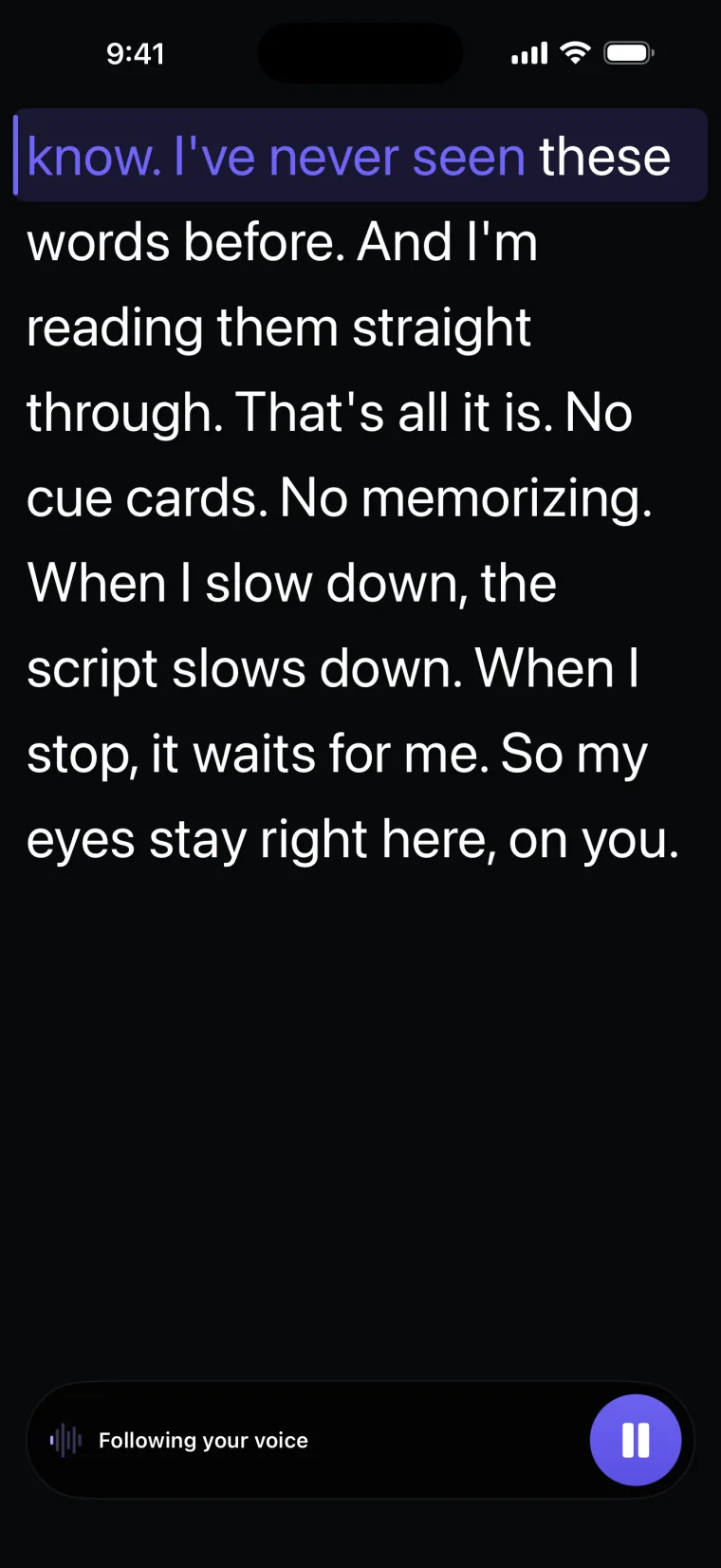
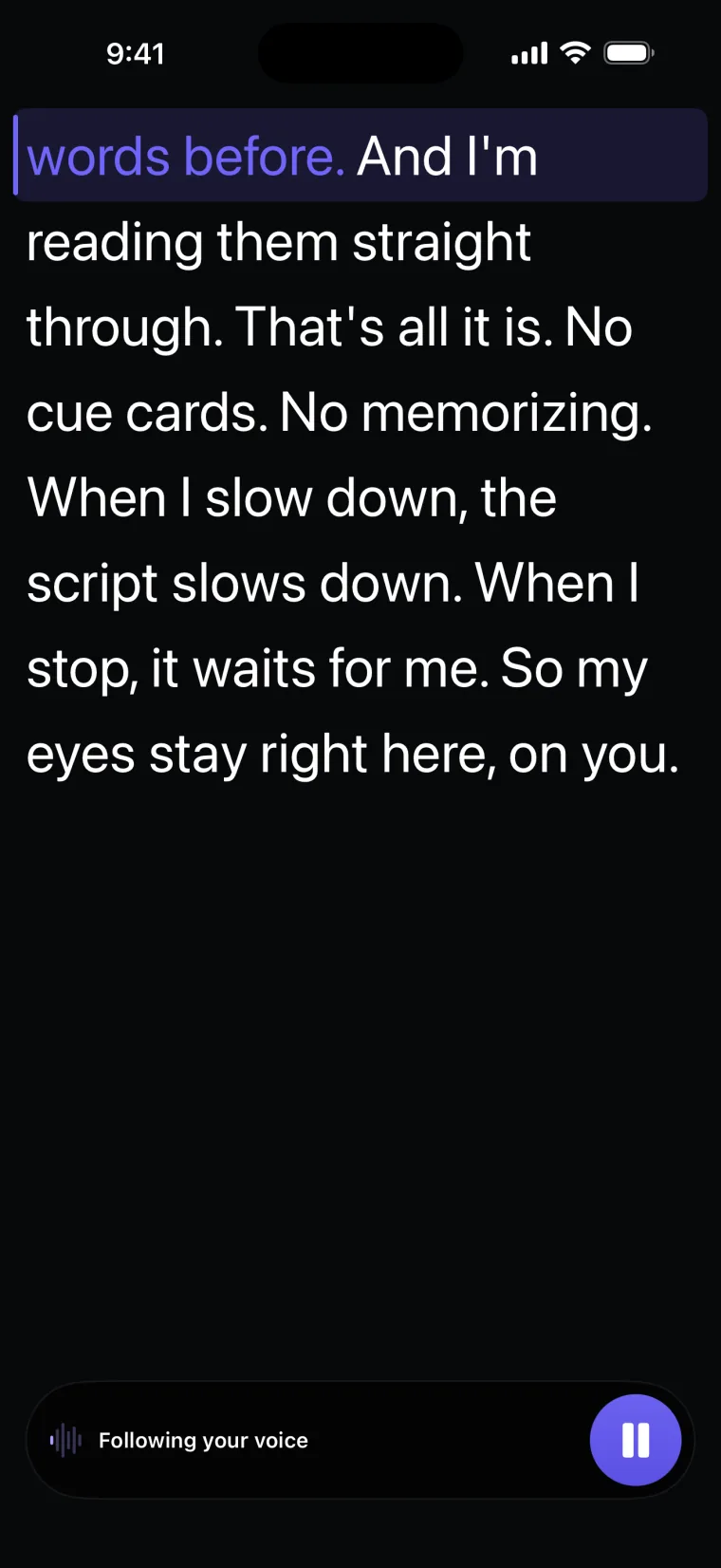
- When enough words match, the app moves the script so that the line you are saying sits on the reading line. When no new words arrive, nothing moves.
Teleprompter: Video & Captions uses Apple’s speech recognition for step 2. For step 3, it lines up your last eight words with the script from about 30 words behind your place to about 45 words ahead, ignoring capital letters, accents and punctuation. The line you are on sits on a fixed reading line near the top of the screen, close to the camera, and the words you have read change colour.
What voice tracking handles well
Voice tracking handles the things a fixed-speed scroll cannot know about, because it reacts to what you actually say.
- Pauses. When you stop to breathe, think or look at your notes, no new words arrive and the script stays where it is.
- A changing pace. You can slow down for a hard sentence and speed up through an easy one, and the script keeps to your words.
- A changed or added word. Teleprompter: Video & Captions compares several words at once, so a word you swap or add is outvoted by the words around it. In words of four letters or more, a partly heard word or a one-letter difference, such as “color” and “colour” or a plural, still counts as a match.
- A small skip. Skipping a few words ahead is fine. A short step forward needs one clear match; a bigger jump forward needs two matching words, so one common word such as “the” cannot throw the script ahead.
What breaks voice tracking
When voice tracking fails, the usual sign is that the script stops where it is while you keep talking. These are the causes.
- Noise. Music, other voices, traffic or a fan reach the recogniser along with your voice. How accurate Apple’s recogniser is in noise is not something Teleprompter: Video & Captions measures, and no figure for it exists.
- The wrong language. The recogniser listens for one language, chosen before you start. If you read in another language, the words it returns do not match the script.
- Names, brand names and jargon. Speech recognition can spell an unusual name differently from your script. One unmatched word is outvoted by the words around it, but a line made mostly of names can hold the script still until you reach ordinary words.
- A long jump ahead. If you skip more than about 45 words, or talk away from the script for a while, the app leaves the script where it was rather than guess. Drag the script to your line and it carries on from there.
- Permissions and a busy microphone. Voice tracking needs the microphone and speech recognition. When voice following cannot start, the app shows a banner that says why: the microphone was refused or is busy with a call or another app, speech recognition was refused, or the language cannot run right now. The banner offers “Use auto scroll”.
Fixed speed: how to find yours
A fixed-speed scroll has no correct number, because the right speed depends on how fast you speak, how big the text is and how wide the lines are. Find your own speed by reading, not by copying someone else’s setting.
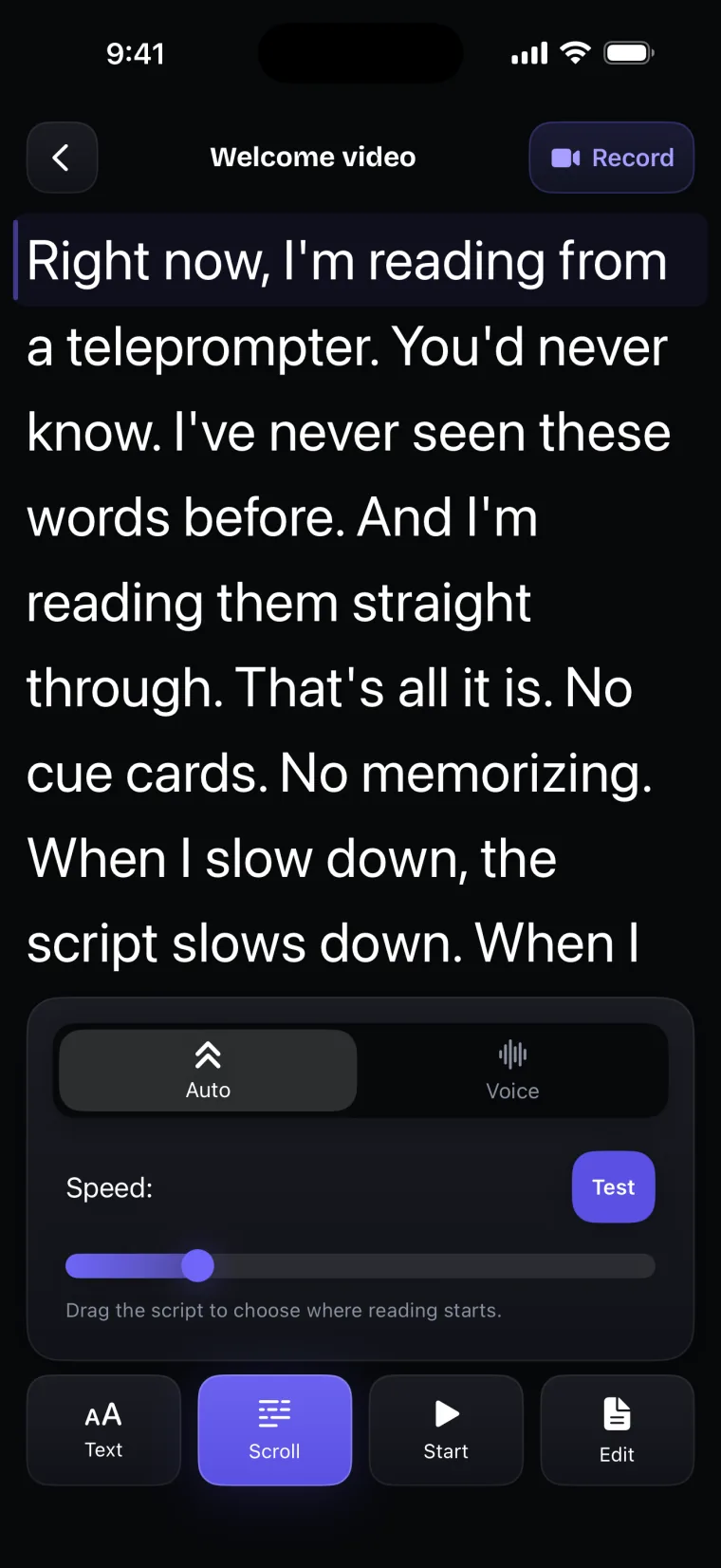
In Teleprompter: Video & Captions, choose Auto in the Scroll panel and set the speed on a scale from 1 to 50. Test runs the script behind the panel, so you can watch the speed before you start. Then read one paragraph aloud at the pace you want to sound, and adjust:
- If you finish a line and have to wait for the next one, the speed is too slow.
- If the line you are reading leaves the reading line before you finish it, the speed is too fast.
- Change the text size before the speed, because larger text puts fewer words on a line and changes how fast the lines need to move.
On the prompter screen, which reads without recording, the bar at the bottom keeps Pause and a speed control while you read, and dragging the script chooses where reading starts. On the recording screen, the scroll starts when you press Record, so test the speed first.
Voice tracking and fixed speed side by side
The table compares the two modes in the situations where they behave differently.
| Situation | Voice tracking | Fixed speed |
|---|---|---|
| A quiet room | Follows your words | Moves at the set speed |
| Background noise, music or other voices | Can stall or lose your place | Not affected |
| You pause, slow down or speed up | Waits for you and keeps up | Keeps moving at the set speed |
| A language the app does not follow | Not available | Works, because it does not listen |
| You add a sentence that is not in the script | Holds its place until your words match the script again | Keeps moving, so you may have to drag the script back |
| You skip far ahead | Stays where it was until you drag it | Carries on at its own pace |
| A rig, with the phone out of reach | Moves only once you speak, after one tap on Start | Starts moving on the tap, so you need to be in place first |
How Teleprompter: Video & Captions does both
Voice scroll in Teleprompter: Video & Captions is one of two scroll modes, and you can switch between them before any read. On the prompter screen, the Scroll panel has Auto and Voice, the speech language, and the speed with Test. On the recording screen, the settings panel has voice follow on or off, its language, the speed with Test, and the text size and weight.
Voice mode follows speech in nine languages: English, French, Spanish, Portuguese, Arabic, Russian, Chinese, Japanese and Indonesian; Spanish uses Apple’s speech recognition for Spain (es-ES) and Portuguese uses Apple’s for Portugal (pt-PT). If English is not your first language, the guide on voice following when English is not your first language covers accents and when to switch to Auto.
Speech is recognised on the iPhone itself when Apple provides an on-device model for that language on that device. Otherwise, the audio goes to Apple’s speech recognition service over the network. The app passes some words from your script to the recogniser as hints only when recognition runs on the device.
If voice following cannot start when you press Record, or stops during a take because of a call or a lost microphone, the take carries on at the set speed from your place, and the script window says “Voice follow is off for this take — scrolling at your speed”. It is worth setting a sensible Auto speed even when you plan to use Voice. On the prompter screen, which does not record, the read stops instead and the screen explains why.
For the whole recording setup, from putting the script in to saving the take, read the full recording setup. For a rig, where Voice mode saves you reaching for the phone, read using voice scroll in a rig.
Where voice tracking stops working well
Teleprompter: Video & Captions has limits in voice tracking that are worth knowing before a take. It records with the front camera only, adds captions only to videos recorded in the app, and saves finished videos to Photos; it does not post to social networks or export subtitle files.
- Voice mode follows one language at a time, chosen before reading, from the nine listed above. How well the Spain and Portugal models follow Latin American Spanish or Brazilian Portuguese has not been measured.
- Whether voice following works without a connection depends on Apple’s on-device model for that language and on the device. The app cannot promise offline use for a given language.
- Accuracy in a noisy room is the accuracy of Apple’s recogniser, which the app does not measure.
- A skip of more than about 45 words, or a long stretch off script, leaves the script where it was. Drag it to your line.
- Voice mode needs microphone and speech recognition permission. Without speech recognition permission, the recording screen switches to fixed speed.
Other apps track voices in other ways and in other languages; see which iPhone apps offer voice tracking.
Questions people ask
What is a good teleprompter scroll speed?
There is no single good speed, because it depends on how fast you speak and how large the text is. Read a paragraph aloud at the pace you want to sound and adjust until you neither wait for the next line nor lose the line you are on. In Teleprompter: Video & Captions, Auto speed is set on a scale from 1 to 50, and Test shows the speed before you start.
Does voice scrolling work without an internet connection?
It does when Apple has an on-device speech model for your language on your iPhone. When it does not, the app sends the audio to Apple’s speech recognition service, which needs a connection. The app cannot promise offline use for any particular language. If the language cannot run, a banner says so and offers “Use auto scroll”.
What happens if I skip a line or say something that is not in the script?
A skip of a few words or a short line is followed, because the app looks up to about 45 words ahead of your place and moves once two words match. Words you change or add are outvoted by the words around them. If you skip further, or talk off script for a while, the script stays where it was until you drag it to your line.
Why does voice scrolling stop following me?
The usual causes are noise, the wrong speech language selected, a stretch of names the recogniser spells differently, or a jump of more than about 45 words. It also stops if the microphone or speech recognition is refused, or if a call takes the microphone. While recording, the app then carries on at the set speed and says so; on the prompter screen, it stops and explains why.