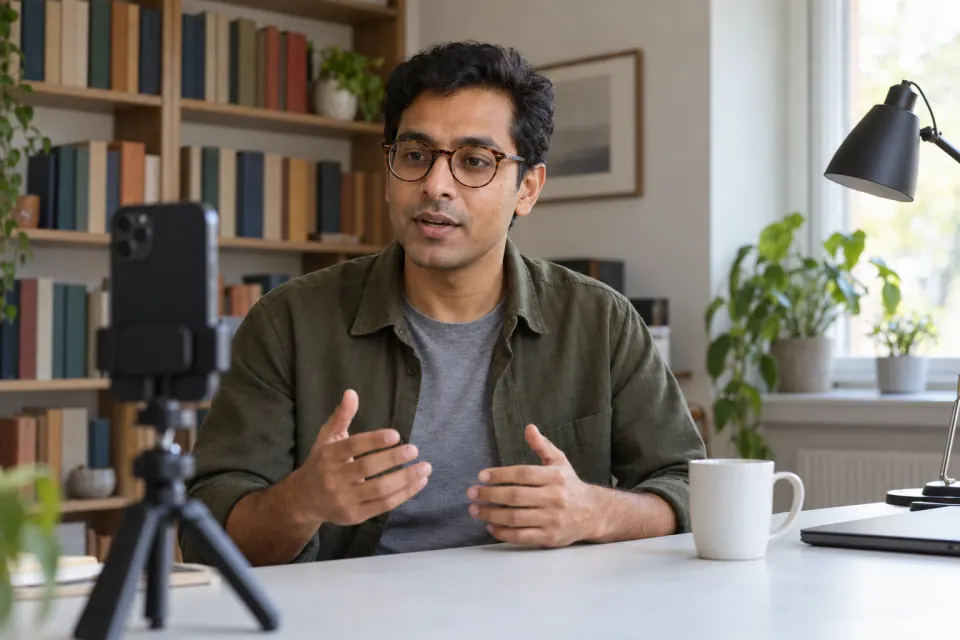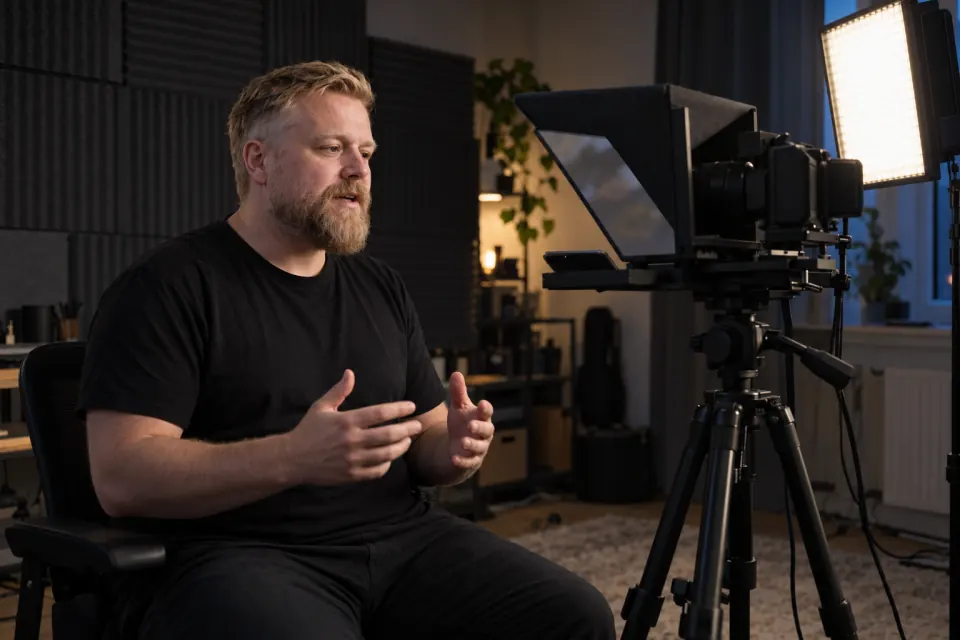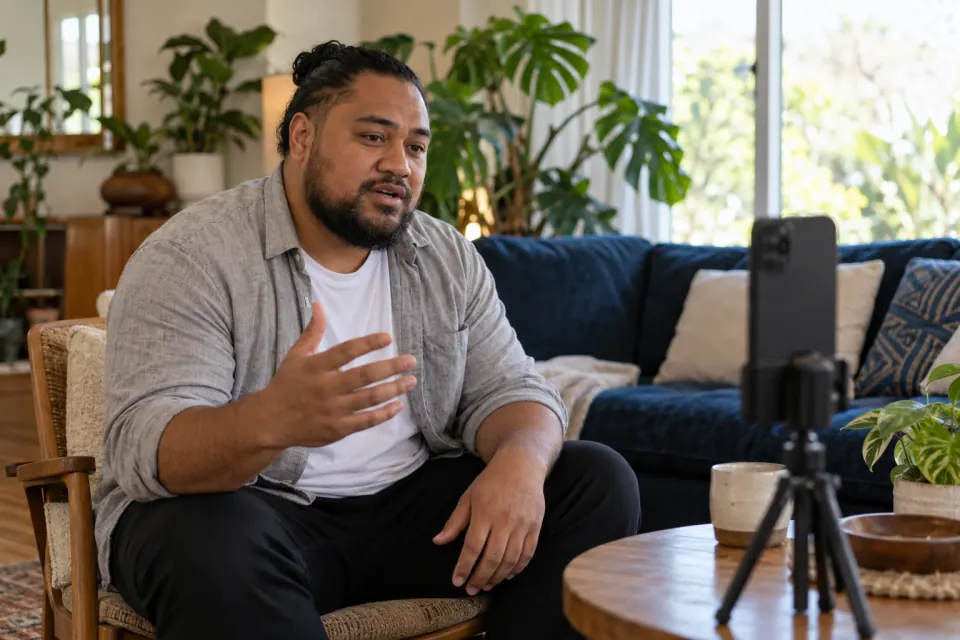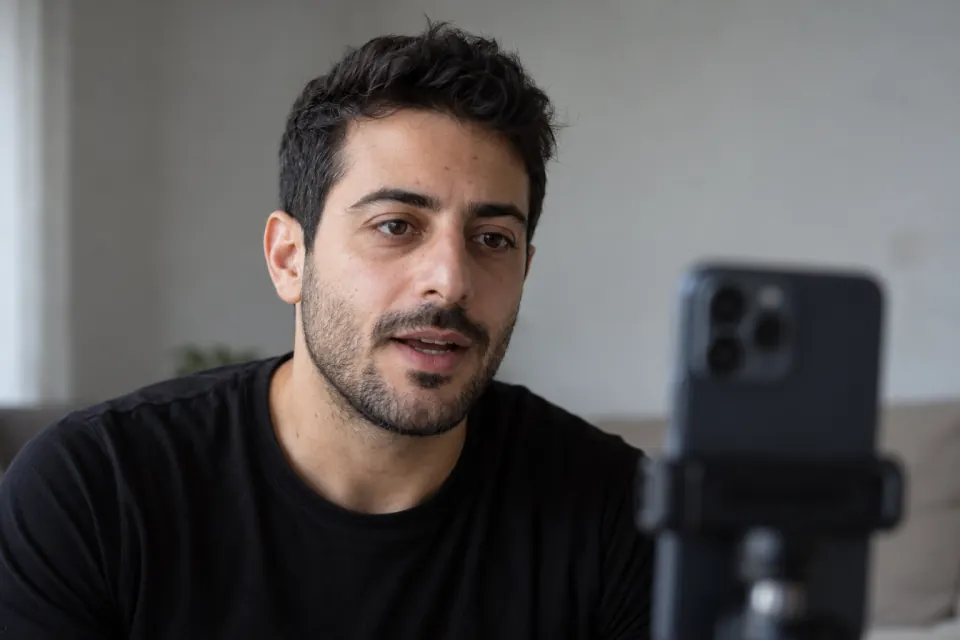
The two things that give reading away
Reading on camera shows in the eyes and in the voice, and each has its own cause.
The eyes give it away when they point slightly below the lens, sweep from left to right along each line, and jump back at the start of the next one. A viewer may not be able to say what is wrong, but the look is different from someone talking to them.
The voice gives it away when the sentences were written to be read rather than said. Written sentences run longer, use words people rarely say out loud, and leave no obvious place to breathe. Read aloud, they come out at one steady pace, with the same fall at the end of every sentence.
The eyes are mostly a question of where the text sits and how far away you are. The voice is mostly a question of how the script is written and how fast you go. The sections below take them one at a time.
Fix the eyes
Put the reading line next to the lens
The front camera of an iPhone held upright sits at the top edge of the screen. The closer the words you are reading are to that edge, the smaller the turn of your eyes away from the lens. Words in the middle or at the bottom of the screen pull your eyes down far enough for viewers to notice.
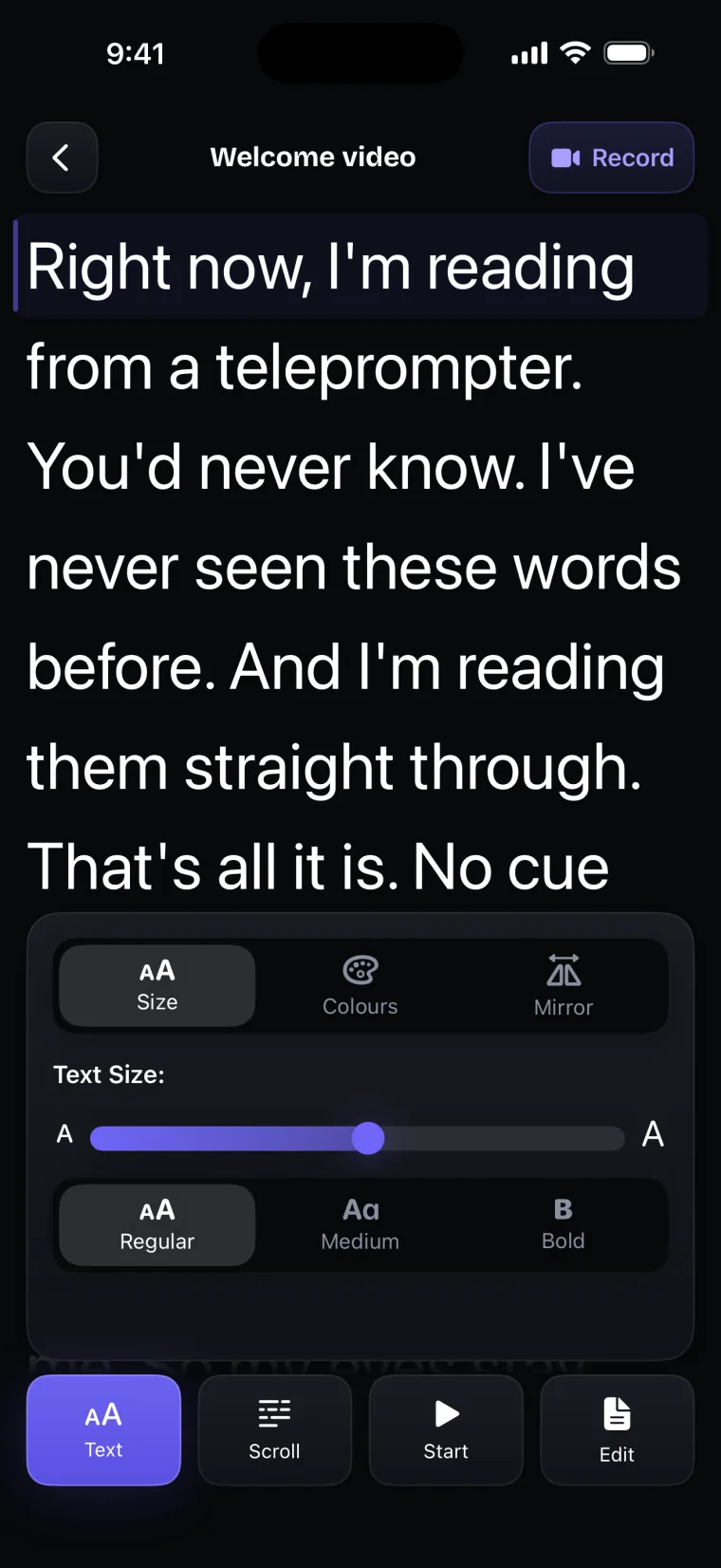
Teleprompter: Video & Captions keeps the line you are reading at the top of the script window that sits under the camera, so each new line arrives in the same place, just under the lens. Keep that window short by dragging the grip at its foot, so there is little text further down the screen to pull your eyes away.
Sit further back so each line looks shorter
The side-to-side sweep comes from the width of each line. On a phone held upright, a line of the script runs across the screen, so the phone sets the width. What you can change is your distance. The further you sit from the phone, the smaller the same line looks from where you are, and the smaller the movement of your eyes along it and away from the lens.
Larger text is what makes a greater distance possible. Set it so you can still read a line comfortably from where you sit, then move back a little and check again. On the full-screen prompter of the app, text goes from 14 to 64 points, in Regular, Medium or Bold. In the recorder, the Settings panel has Font size, from 16 to 40, and Font style.
Three setups compared
| Setup | Where the text is | Eye movement on camera | What you need |
|---|---|---|---|
| Phone on a stand at arm’s length | Under the lens, across the width of the screen | A slight downward look and a visible sweep along each line | A stand at eye level |
| Phone further away, larger text | Under the lens, fewer words on each line | A smaller downward look and a smaller sweep | A stand, and text large enough to read from there |
| Beam-splitter rig | Reflected in glass in front of a separate camera’s lens | Eyes look into the lens while they read | A rig, a separate camera, and mirrored text |
The third setup removes most of the problem, because a beam-splitter rig puts the text in front of the lens instead of beside it. A rig is more equipment to buy and set up, so try the first two setups before you get one.
Fix the voice
Write for speaking
A script that sounds spoken is written the way you talk. Use short sentences with one idea each. Use the words you would use with a friend across a table, including contractions such as “it’s” and “you’ll”. Read each paragraph aloud as you write it, and change any word that makes you stumble, because it is likely to trip you on camera too.
Mark pauses with line breaks
A pause is easier to take when you can see where it goes. Start a new line where you would take a breath, and leave a blank line between two ideas. When you reach the break while reading, it reminds you to stop for a moment.
Slow down
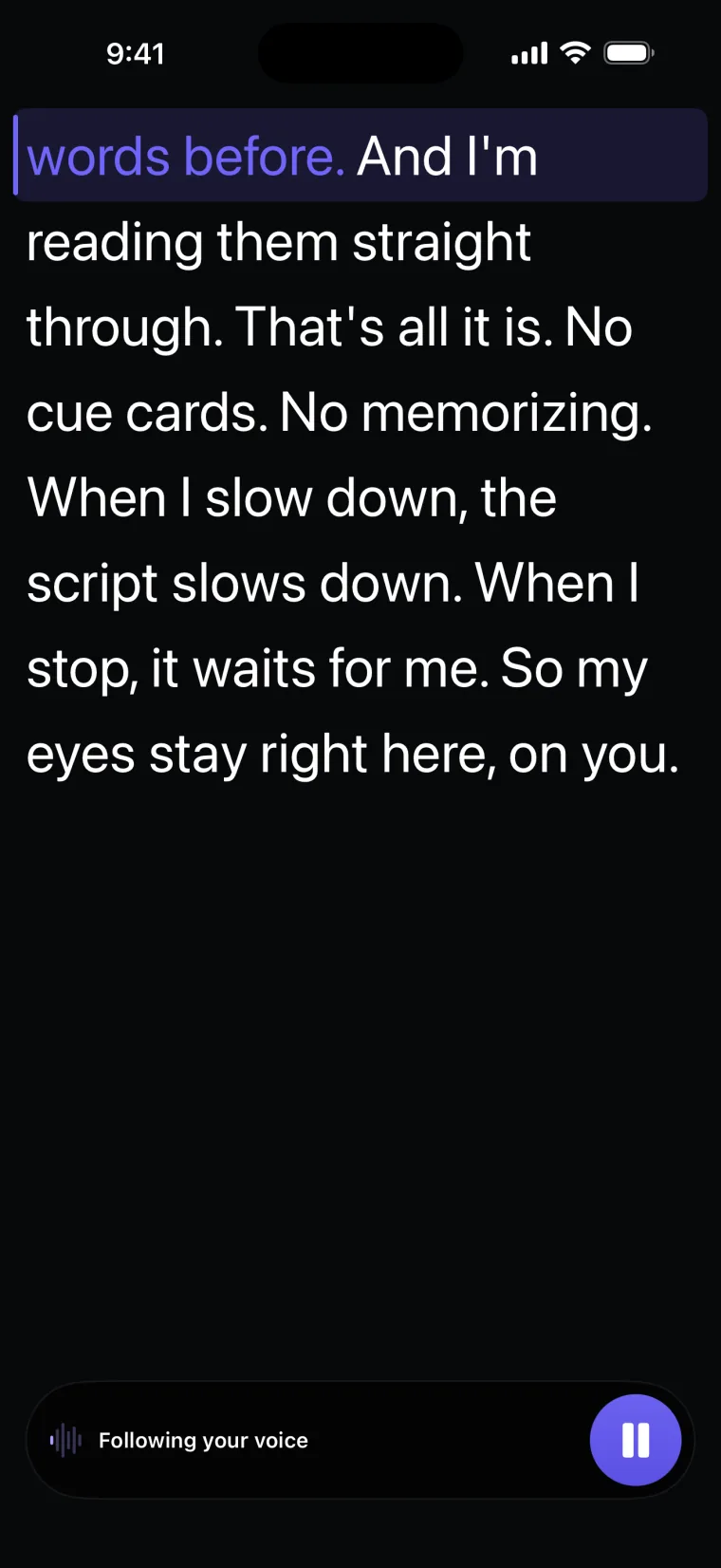
A take that sounds rushed when you play it back was read too fast. With Auto scrolling, lower the speed, and use the Test button to watch the script move before you record. With Voice scrolling in Teleprompter: Video & Captions, the script follows you, so the pace is yours to set. It waits while you pause, so you can leave a silence after an important sentence without the text running away from you.
The two-pass check of a test take
A test take shows you what a viewer will see, and two separate passes keep the eyes and the voice from distracting you from each other.
- Record a test take of the first part of your script, at least 5 seconds long, because shorter takes are not kept.
- Watch it once with the sound off and look only at your eyes: where they point, whether they sweep along each line, and whether they jump when a new line arrives.
- Play it again without looking at the screen and listen only to your voice: the pace, the pauses, and whether every sentence ends the same way.
- Change one thing, such as your distance, the text size, or a sentence that sounded written, and record the same part again.
- Compare the two takes in the same two passes, and keep the change if the second take is better.
Changing one thing at a time tells you which change helped. If you change the distance and rewrite a sentence together, you will not know which of the two made the difference.
If you are still setting up the phone, start with setting up the iPhone to record with a script. If the stiffness comes from nerves more than from the script, feeling less tense in front of the camera is a separate guide.
What Teleprompter: Video & Captions changes here, and what it does not
Teleprompter: Video & Captions helps mostly with the eyes. The line you read sits at the top of the script window, just under the front camera. Text size lets you sit further back. Voice mode waits while you pause, so a pause does not cost you your place.
The work described under “Fix the voice” stays with you, because the app shows your words as you wrote them. In the recorder the script is always white on a dark see-through window; the text and background colors you choose apply to the full-screen prompter only.
The app does not correct eye contact in the finished video. It keeps your eyes close to the lens, which makes the turn smaller, but it does not remove it. Some apps list software eye-contact correction: BIGVU Teleprompter Captions AI lists an “AI eye contact fix” among its Pro features (App Store listing, read 2026-10-27).
Where this stops working well
The app has limits that matter for this kind of recording. It records with the front camera only, adds captions only to videos recorded in the app, and saves finished videos to Photos; it does not post to social networks or export subtitle files.
- Front camera only. The app does not record with the back camera, so the camera that records you is always the one beside the script; for a separate camera, use a beam-splitter rig.
- Some eye movement remains. On a phone, the text sits beside the lens, not in front of it, so a small downward look and a sweep along each line stay in the take; a rig is the setup that removes them.
- Voice following needs to hear you. In a noisy room, how well Voice mode follows you depends on Apple’s speech recognition, and the app has no accuracy figure for it. If voice following stops during a take, the take carries on at the set scroll speed.
Questions people ask
Why do my eyes look like they are reading on camera?
Your eyes point at the words, not at the lens, and the camera records the difference. When the words sit away from the lens, your eyes look down; when each line runs across the screen, they move left to right and jump back. Put the line you read just under the lens, sit further back, and make the text larger so you can still read it.
How far from the phone should I sit when reading a script?
Sit as far back as you can while still reading a line comfortably. Start with the phone on a stand at about arm’s length, record a short test, then make the text larger and move back a step. Stop moving back when you have to strain to read, and compare the test takes with the sound off.
Does a teleprompter app correct eye contact automatically?
Teleprompter: Video & Captions does not; it reduces eye movement by placing the line you read just under the lens. Some apps list an eye-contact correction that edits your eyes after recording, such as BIGVU Teleprompter Captions AI (App Store listing, read 2026-10-27). Check the result closely, because this kind of correction changes how your eyes look in the video.
How do I stop sounding like I am reading?
Rewrite the script the way you talk, with short sentences and words you would say out loud. Put a line break where you would breathe, and slow down. Then record a test and listen to it without watching, so that you hear only your voice.