
What you need
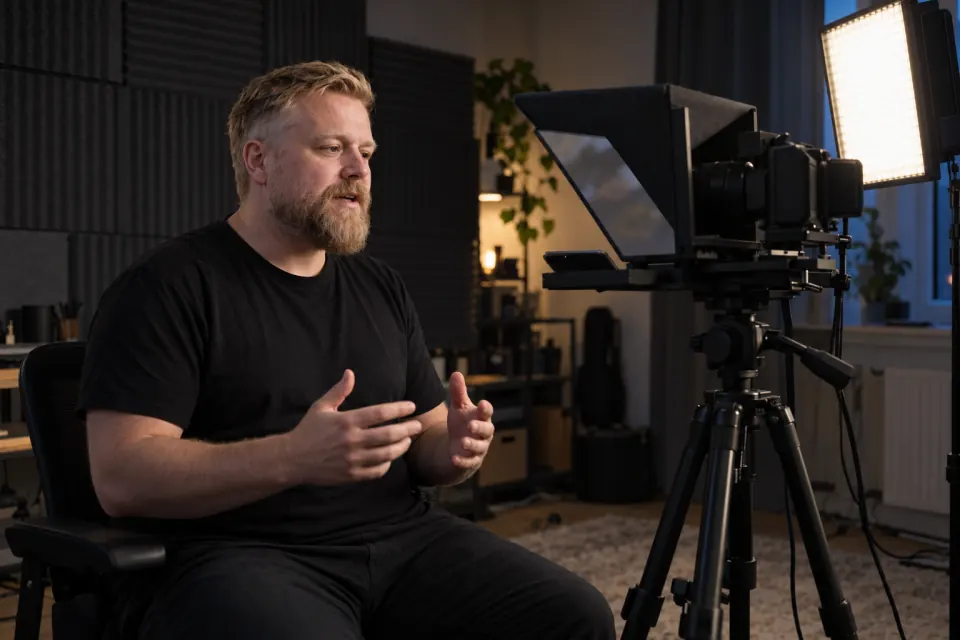
Reading a script while recording on an iPhone takes three things: the iPhone, something that holds it still at the height of your eyes, such as a small tripod or a stack of books, and the script as text.
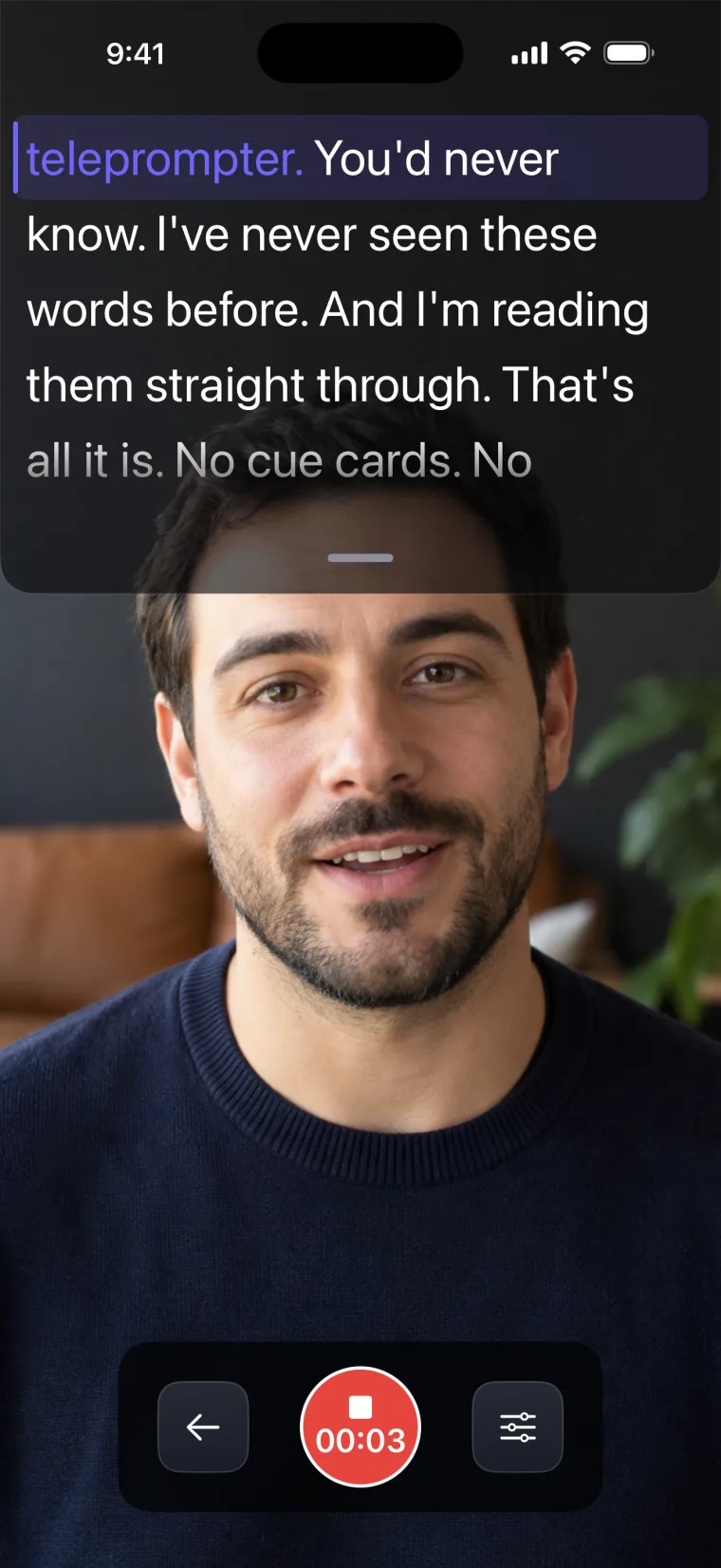
Teleprompter: Video & Captions runs on iPhone and iPad with iOS or iPadOS 17 or later, and handles recording with the script over the camera on one device: the front camera records you while the script scrolls in a window over the live picture. The front camera is the one on the screen side, which is the only camera you can look at while you read the screen.
Step by step
The steps below set up Teleprompter: Video & Captions for one recording, from an empty project to a video saved in Photos.
- Put the script in: tap New Project and type or paste the text into the script editor, or use Import File on the home screen to bring in a PDF or a plain-text file.
- Open the project, tap Text, and on the Size tab move the slider until you can read a line easily from where you will sit; Regular, Medium and Bold change the weight of the letters.
- Tap Scroll and choose Auto for a steady scroll at a speed you set, or choose Voice and the language you will speak for a script that follows your words.
- Tap Record at the top of the screen to open the recorder, and drag the grip at the foot of the script window to keep the window short.
- Drag the script until the line you want to start from sits at the top of the window.
- Tap the red Record button, read a few sentences as a test, tap it again to stop, and watch where your eyes point in the take.
- Record the real take, then use the editor to trim it, add captions, and save the finished video to Photos with the share icon.
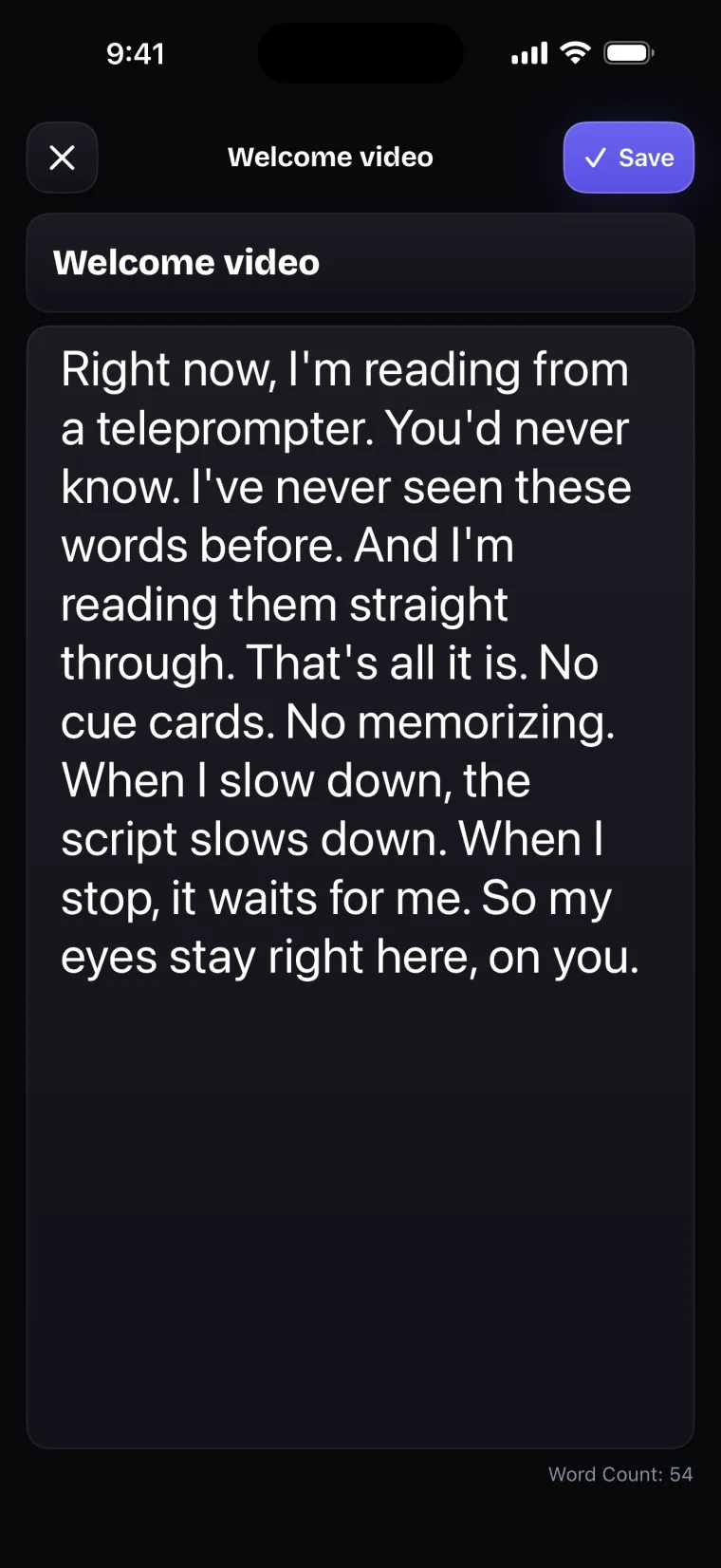
Recording starts the moment you tap Record, because the app has no countdown, so the start of each take shows your hand moving away from the phone; trim it in the editor. Recording needs microphone permission, and the Record button does nothing until you allow it. A scanned PDF with no text layer imports as an empty script, because the app does not recognize text in images, so copy the text in by hand instead.
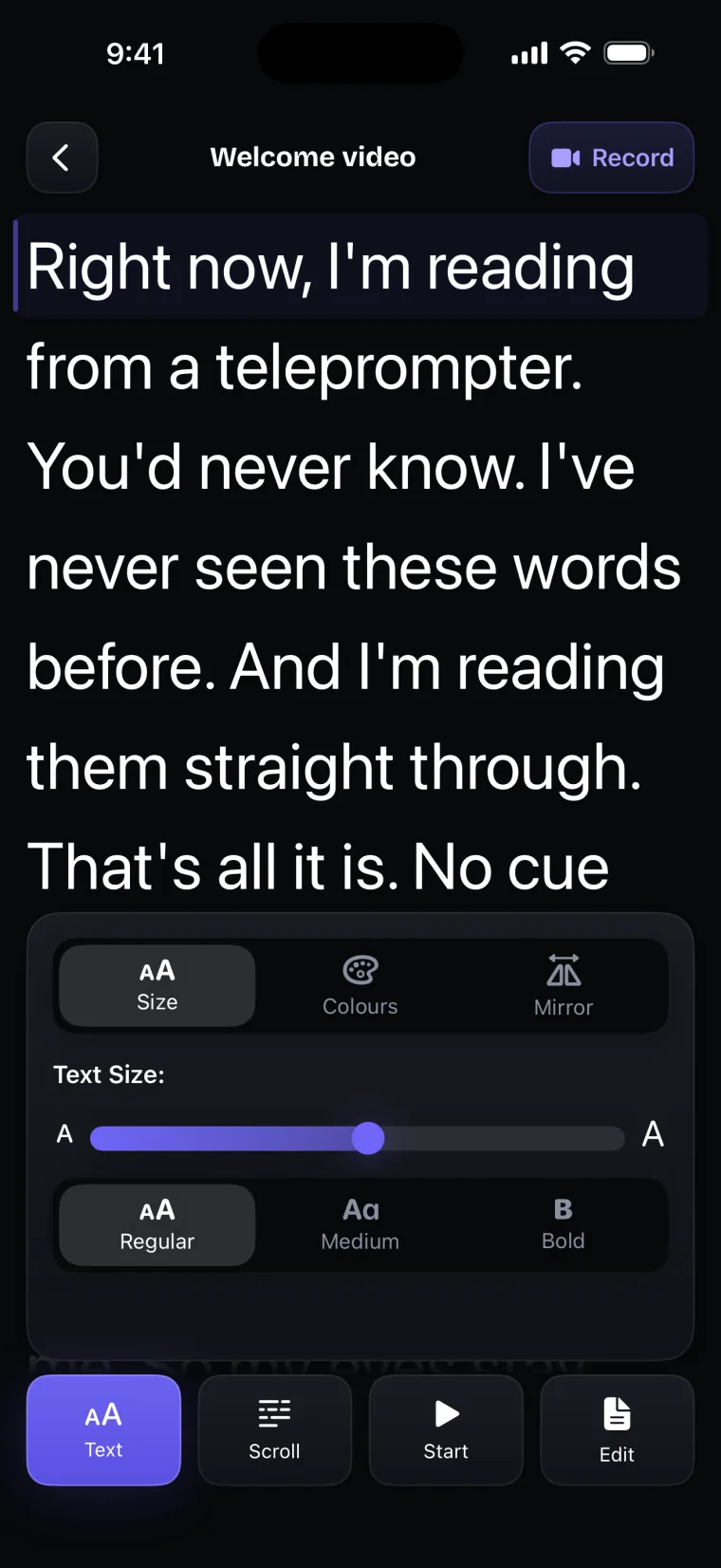
The recorder has its own Settings panel, opened with the button to the right of the Record button: a Voice recognition switch, the language, the scroll speed with a Test button, Font size from 16 to 40, and Font style. A take shorter than 5 seconds is not kept, and the app says so with the message “Record at least 5 seconds to keep a take.”
Why the text has to sit next to the lens
The camera records where your eyes point. When you look into the lens, a viewer sees you looking at them. When you look at words some distance away from the lens, your eyes turn away from it, and the camera records that turn as a look down or to the side. Two things set the size of the turn: how far the words are from the lens, and how far your eyes are from the phone. Words closer to the lens make it smaller. Sitting further back makes it smaller too, and larger text is what lets you sit further back and still read.
On an iPhone held upright, the front camera is at the top edge of the screen. Teleprompter: Video & Captions hangs the script window from that edge and keeps the line you are reading at the top of the window, just under the camera. Each new line arrives in the same place, so your eyes stay in one spot instead of moving down the screen. A short window helps, because there is less text below the reading line to pull your eyes down.
| Where the line you read sits | What the camera records |
|---|---|
| Just under the front camera | A small downward look, the smallest a phone screen allows |
| In the middle of the screen | A clear downward look that viewers notice |
| At the bottom of the screen | Lowered eyes, like someone reading notes on a desk |
| Moving down the screen as you read | Eyes that drift down and jump back up |
Each line still runs across the width of the screen, so your eyes also move left to right, and sitting further back makes that smaller as well. The test take in step 6 is how you check both: watch it with the sound off and look only at your eyes. There is more on keeping your eyes close to the lens, and on the part of reading that shows in your voice.
Auto or Voice for this take
Auto and Voice are the two scroll modes in Teleprompter: Video & Captions. Auto scrolls at a fixed speed that you set on a scale from 1 to 50, and on the prompter screen you can change it while you read. Voice listens to you, moves the script as you say the words, colors the words you have already read, and does not move while nobody is speaking.
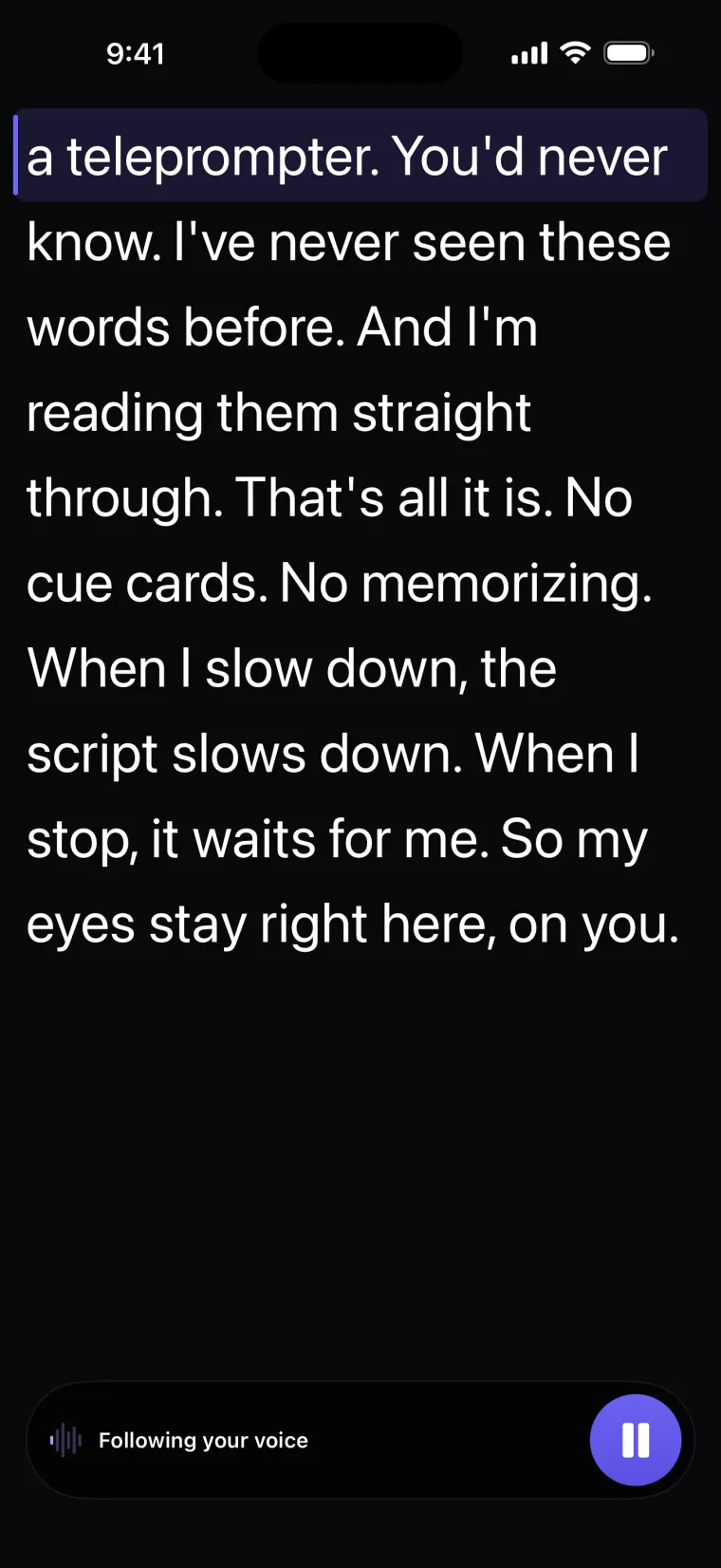
| Situation | Auto | Voice |
|---|---|---|
| A quiet room | Works | Works |
| Noise, music or other people talking | Works at the speed you set | Depends on how well Apple’s speech recognition hears you |
| You keep a steady pace | Works once the speed matches you | Works |
| You slow down or stop to think | Keeps moving at its speed | Waits, then follows |
| You speak a language outside the nine voice languages | Works | Not available |
| You leave the script for a while | Keeps moving | Stays where it is until you drag it to your line |
Set a speed even when you plan to use Voice. If voice following cannot start, or stops during a take, the app carries that take on at the set speed from your place and shows “Voice follow is off for this take”. For the full picture, see how voice tracking and fixed speed differ.
Other ways to do it
A teleprompter app is one of several ways to read while you record.
- Paper or a notes app beside the camera. This works for a few bullet points. For full sentences, your eyes travel far from the lens and back, and the camera sees it.
- A teleprompter inside another video app. CapCut’s help page says its Teleprompter is in the CapCut mobile app, uses the front camera by default, and can switch to the rear camera (CapCut Help, page dated 3 February 2026, read 2026-10-27). The app Captions: AI Edits Your Video lists a teleprompter for reading your script while you record in it (App Store listing, read 2026-10-27).
- A teleprompter rig with a separate camera. A sheet of glass in front of the camera’s lens reflects the script from a phone or tablet lying under it, so you read straight into the lens. Teleprompter: Video & Captions can mirror its full-screen prompter for a rig, but not its recording screen, so in a rig the separate camera does the recording.
If you would rather know the words than read them, it is worth deciding whether you should memorize the script instead before you set anything up.
Where this stops working well
Teleprompter: Video & Captions has limits that matter when you plan a recording around it. It records with the front camera only, adds captions only to videos recorded in the app, and saves finished videos to Photos; it does not post to social networks or export subtitle files.
- No back camera. The app does not record with the back camera; use CapCut’s teleprompter, which can switch to the rear camera, or a rig with a separate camera for that.
- Voice following depends on the language and the room. Voice mode follows speech in nine languages: English, French, Spanish, Portuguese, Arabic, Russian, Chinese, Japanese and Indonesian; Spanish uses Apple’s speech recognition for Spain (es-ES) and Portuguese uses Apple’s for Portugal (pt-PT). How well it follows you in noise depends on Apple’s speech recognition, and the app has no accuracy figure for it.
- No remote control. The app does not work with Bluetooth remotes, keyboards or foot pedals, so you start and stop each take by tapping the phone, and you trim that reach from both ends of the take.
Questions people ask
Can I read a script and record on the same iPhone?
Yes. A teleprompter app that records with the front camera shows the script on the screen while the camera above it records you. In Teleprompter: Video & Captions the script sits in a window at the top of the recording screen, just under the camera, over the live picture. When you turn the phone on its side, the script fills the left half of the screen and the controls stand on the right.
Should the script scroll at a fixed speed or follow my voice?
Choose Voice when the room is quiet and you speak one of the nine voice languages, because the script waits when you stop to think. Choose Auto in a noisy place or in another language, and set the speed with the Test button before you record.
Can I read a script while recording with the rear camera?
Not in the app, which records with the front camera only. CapCut’s help page says its teleprompter can switch to the rear camera (CapCut Help, read 2026-10-27). A teleprompter rig is another way: the phone shows the mirrored script under a sheet of glass, and a separate camera records through the glass.
Which file types can I import a script from?
The app imports PDF and plain-text files through the iPhone’s file picker, which shows Files, iCloud Drive and other providers. Word, Pages and RTF files are not supported, so save them as PDF or copy the text in. A scanned PDF with no text layer imports as an empty script. Importing a file is one of the things a subscription unlocks.