
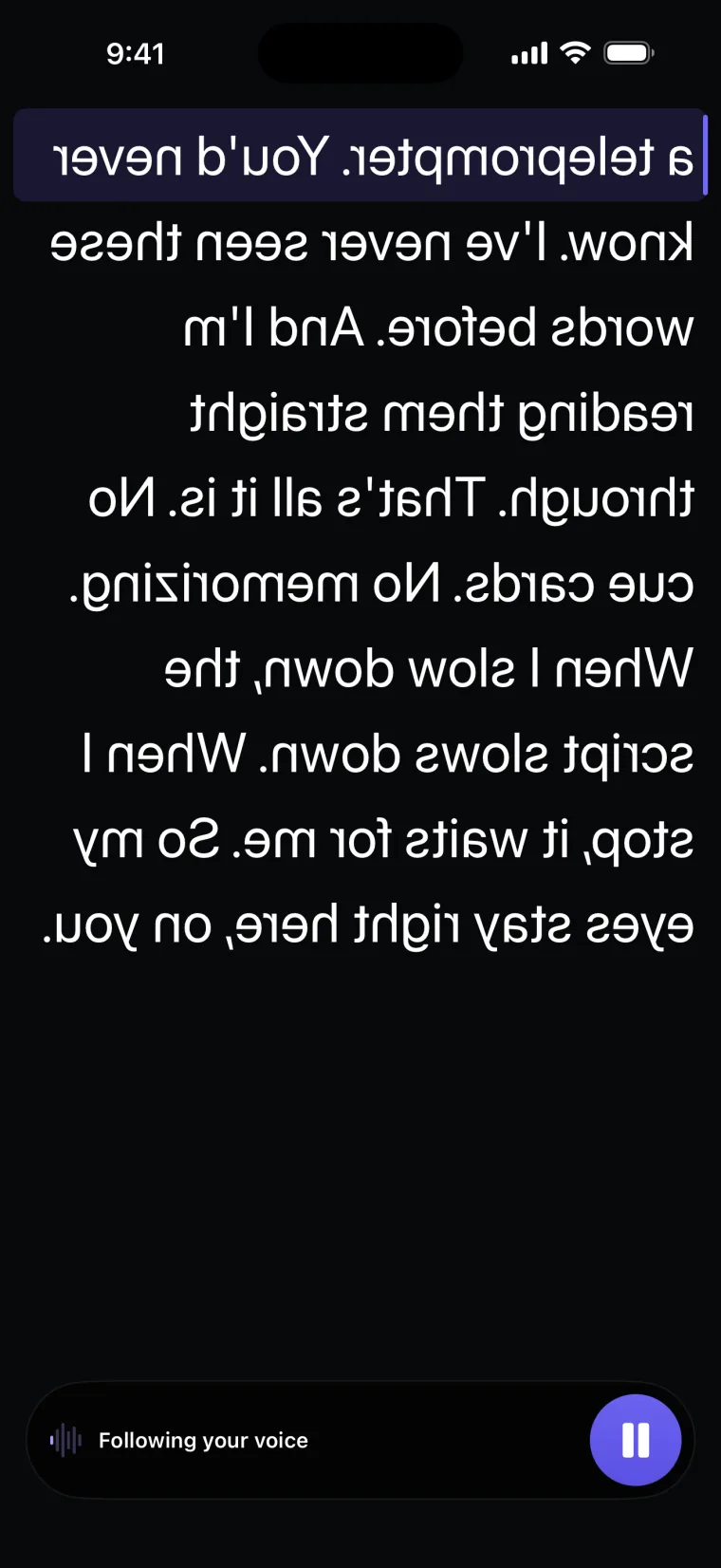
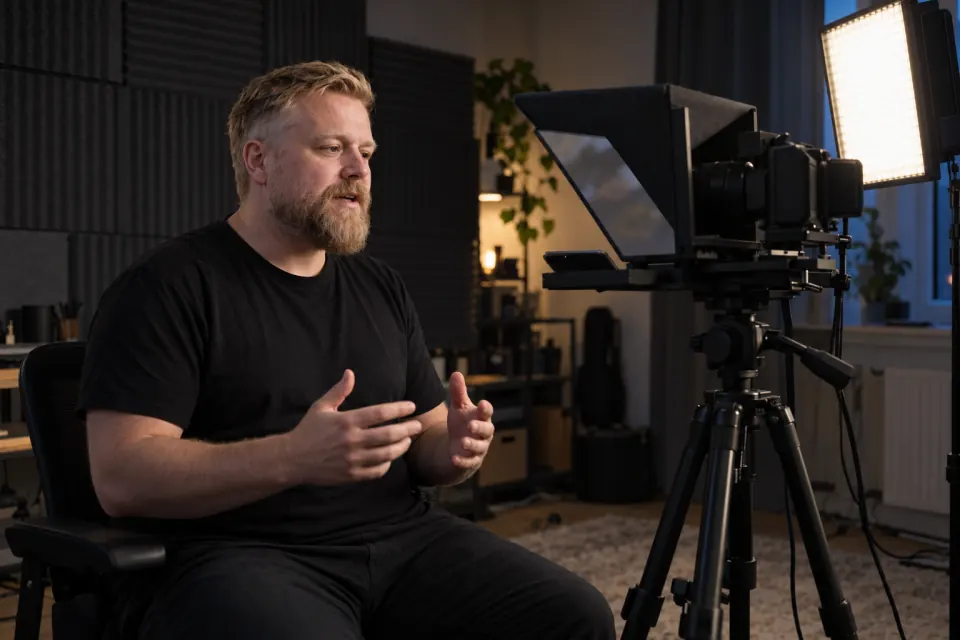
Mirror mode in Teleprompter: Video & Captions reverses the script left to right, upside down, or both, so it reads correctly in the glass of a beam-splitter teleprompter rig. Only the script is reversed; the buttons stay the right way round. Mirror mode works on the full-screen prompter only: in a rig, the iPhone or iPad shows the script and a separate camera records you.
Why a rig needs mirrored text
A beam-splitter teleprompter rig puts a sheet of angled glass in front of a camera lens. In a typical rig the phone lies under the glass with its screen facing up, the glass reflects the screen toward you, and the camera films you through the glass. A reflection reverses text, so the prompter has to show the script reversed for it to read the right way in the glass. Because the camera looks through the glass, the line you read sits in front of the lens.
The four settings
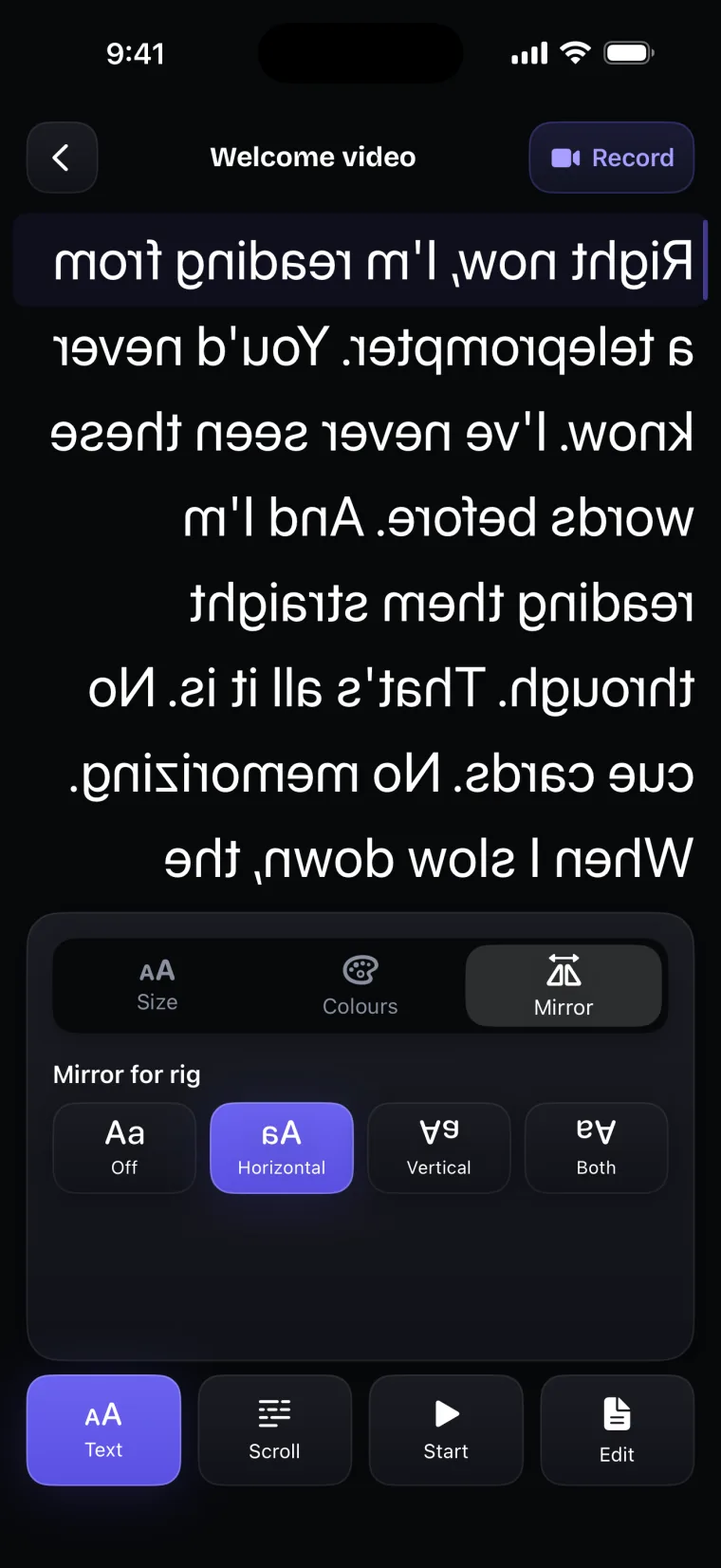
Mirror mode in Teleprompter: Video & Captions is in the Text panel of the prompter screen, under the Mirror tab, headed “Mirror for rig”. The app explains it in one line: “Reverses the script so it reads correctly in a beam-splitter teleprompter. Applies here only — not while recording video, and never to the controls.”
| Setting | What happens to the script |
|---|---|
| Off | Shown normally |
| Horizontal | Reversed left to right |
| Vertical | Flipped top to bottom, so it reads upside down |
| Both | Reversed left to right and flipped top to bottom |
Which setting you need depends on how your rig holds the phone. The right one is the setting where the text reads normally when you look at the glass from your seat, so check it with the rig assembled.
How to set up the prompter for a rig
- Open a project on the prompter screen and tap Text.
- Open the Mirror tab and choose Horizontal, Vertical or Both.
- In the Size tab, set the text size and weight so you can read it from your seat.
- Put the phone in the rig and look at the glass from where you will sit. If the text reads backwards or upside down, change the setting.
- Tap Scroll, choose Auto or Voice, then tap Start.
The mirror setting is remembered, so the prompter opens mirrored next time. Text size goes from 14 to 64 points, in Regular, Medium or Bold, with a choice of text and background colours in the Colours tab. The prompter works in portrait and landscape, and the screen does not dim or lock while it is open.
Voice scroll works with the script mirrored: the script moves as you say its words and waits when you stop. Auto scrolls at a speed you set from 1 to 50.
Where this stops working well
Mirror mode in Teleprompter: Video & Captions has these limits:
- The rig mirror applies to the full-screen prompter only, not to the recording screen. To film yourself with the phone’s own camera, use the recording screen with the script over the camera, where the script is shown normally.
- There is no control by Bluetooth remote, keyboard or foot pedal. Start, Pause and speed changes are made on the screen; in a rig, voice scroll is the way to move the script without touching the phone once reading has started.
- There is no choice of typeface. The script is drawn in the system font; size and weight are what you can change.
- The editor’s Mirror tool is a different setting. It flips the recorded video left to right when you save it, and it has no upside-down option; the editing page covers it.
Teleprompter: Video & Captions also has limits that apply to the whole app.
It records with the front camera only, adds captions only to videos recorded in the app, and saves finished videos to Photos; it does not post to social networks or export subtitle files.
Teleprompter: Video & Captions is free to download; a subscription unlocks your own scripts and projects, and prices are shown in the app before you pay.
Guides for rig work
- Setting up an iPhone in a beam-splitter rig
- Where reading shows on camera, and how to keep it from showing
- How iPhone teleprompter apps compare for rig work
Questions people ask
Does mirror mode reverse the buttons as well?
No. Mirror mode in Teleprompter: Video & Captions reverses only the script. The buttons and panels stay the right way round, so you can still read them while setting up.
Does Teleprompter: Video & Captions remember the mirror setting?
Yes. The setting is remembered, so the prompter screen opens with the same mirror setting the next time you use it.
Can I use voice scroll with the script mirrored?
Yes. Voice scroll follows your words on the mirrored prompter screen the same way as on a normal one. The bar at the bottom says “Following your voice” while it follows you.
Is the rig mirror the same as the Mirror tool in the video editor?
No. The rig mirror reverses the script on the prompter screen so it reads correctly in the glass. The Mirror tool in the editor flips the recorded video left to right when you save it to Photos.