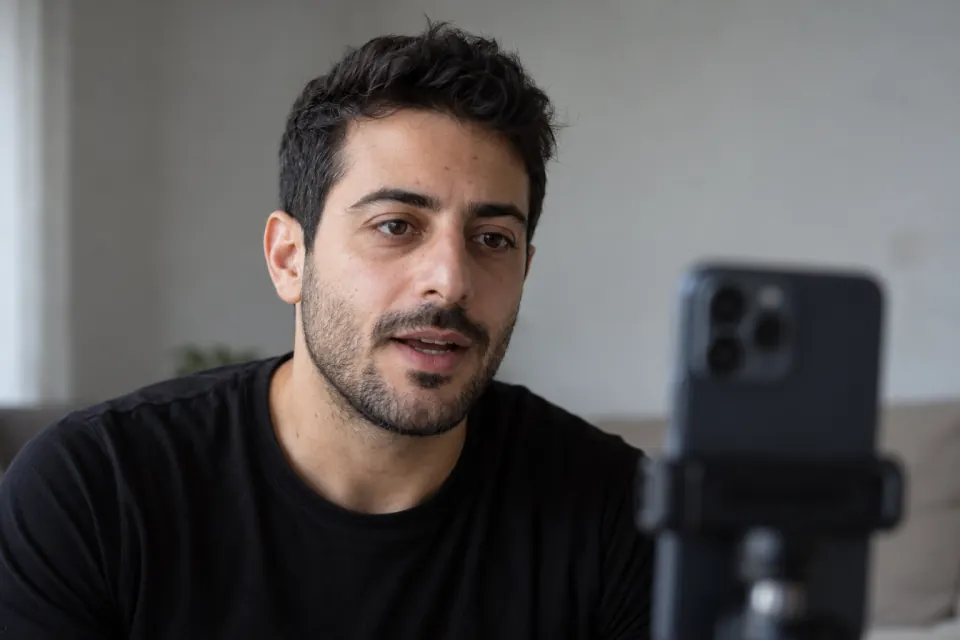

Write the script for your English, not a native speaker’s
A script you can say comfortably sounds better on camera than one full of words you have to think about. You record in English for work, a course, a job application or a channel, and in each case what matters is that the viewer understands you. Write the script the way you speak English now:
- Short sentences with one idea each. A long sentence is where you run out of breath or lose the grammar halfway.
- Words you already use. If a word is hard for you to pronounce and a simpler word means the same thing, use the simpler word.
- Numbers, dates and abbreviations written the way you will say them, such as “twenty thousand” or “the third of May”, so you do not have to convert them while you read.
- A comma where you want to breathe, and a full stop where you want to stop.
- Contractions only if you say them. Write “do not” if that is what comes out naturally.
If you write the script in your first language and then translate it, read the English version aloud and rewrite every sentence you would not say that way. Reading from a script still has to sound like speech, and reading so it sounds like talking covers that part.
Mark and rehearse the hard words
The words you hesitate on are where a take goes wrong, so they are the words to practice before you record.
- Read the whole script aloud once and mark each word or phrase you hesitate on, on paper or in a copy of the script.
- Listen to each marked word. Speak Selection, an iPhone accessibility setting, reads selected text aloud: turn it on, select the word, and tap Speak. In the current Apple iPhone User Guide it is under Settings, then Accessibility, then Read & Speak, where you can also choose the voice and dialect and the speaking rate (Apple, “Hear iPhone speak the screen, selected text, and typing feedback”, read 2026-10-27).
- Say each word several times, then say the whole sentence it is in.
- If a word still trips you up after practice, replace it with one you can say.
Keep pronunciation notes out of the script itself, so the prompter shows only the words you will say.
Read at your pace: Voice or Auto
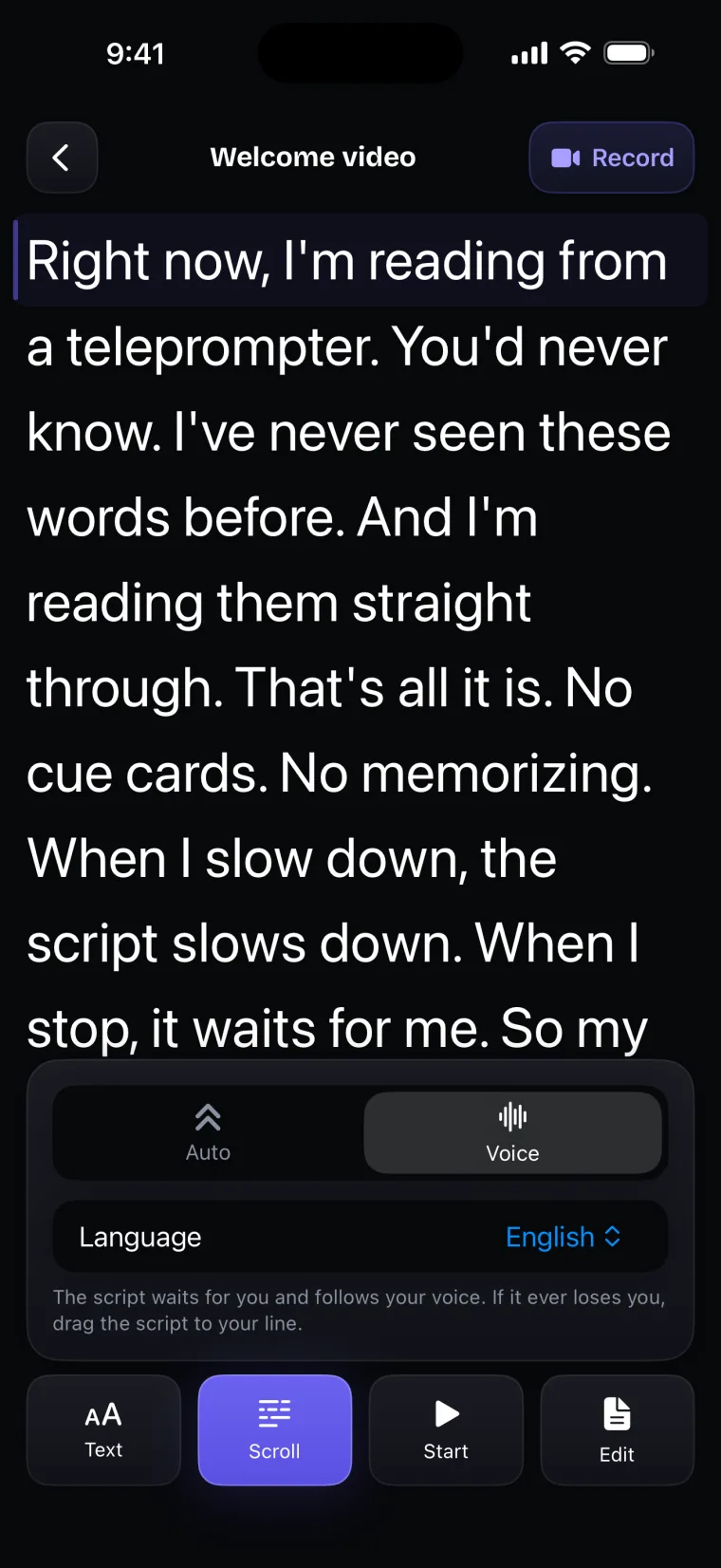
Teleprompter: Video & Captions has two scroll modes, Voice and Auto, and both let you read at your own pace rather than a native speaker’s.
Voice mode uses Apple’s speech recognition to turn what you say into words and lines them up with the script around your place. The words you have read change colour, and the script waits when you stop. A word you change or add is outvoted by the words around it, so one word said differently does not throw the script off.
Voice mode follows speech in nine languages: English, French, Spanish, Portuguese, Arabic, Russian, Chinese, Japanese and Indonesian; Spanish uses Apple’s speech recognition for Spain (es-ES) and Portuguese uses Apple’s for Portugal (pt-PT).
For English, voice following uses Apple’s recogniser for US English (en-US); the app offers no other variant of English for voice following. The voice-scroll page lists which languages voice following supports and how each is recognised. Speech is recognised on the iPhone when Apple has an on-device model for that language on your device; otherwise it goes through Apple’s speech service.
Voice mode listens in one language at a time, chosen before you read. If you chose your first language when you set up the app, change it to English before you read an English script: on the prompter screen it is Language in the Scroll panel, and in the recorder it is Language in the settings panel, under Voice recognition. The menu shows each language in its own spelling, such as English or Español.
How well voice following works with a non-native accent has not been measured, and the app gives no accuracy figure; it depends on how Apple’s recogniser hears you. Test it with your own script before a recording that matters: read a paragraph on the prompter screen in Voice mode and watch whether the coloured words keep up with you.
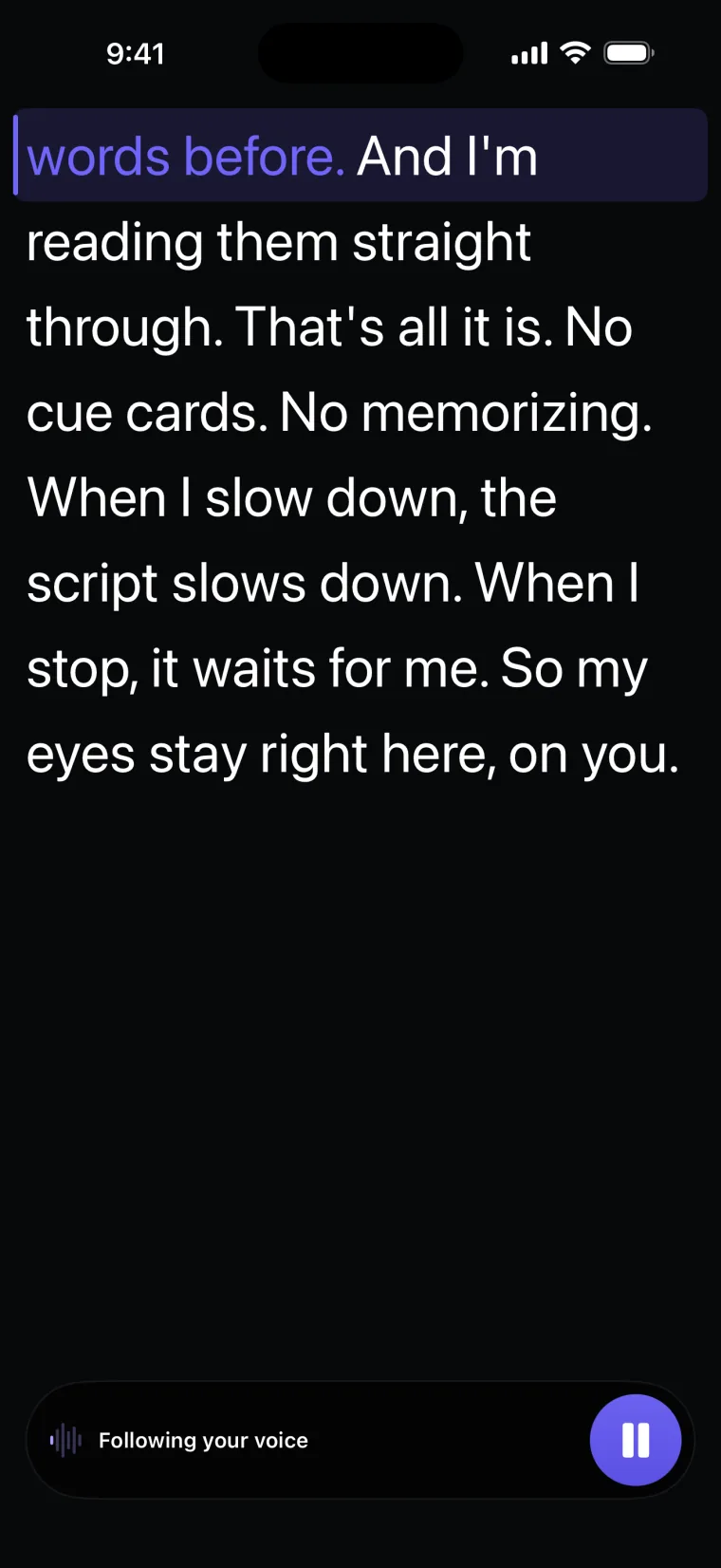
When voice following loses you, drag the script to your line. If it cannot start, a banner says why and offers “Use auto scroll”. If it stops during a take, the recorder carries on at the set speed from your place and says so. The guide on what to do when voice following loses you goes through each case.
Auto does not depend on how your speech is recognised. It scrolls at a speed you set on a 1 to 50 slider, and Test runs the script behind the panel so you can judge the speed before you start. Choose a speed you can hold through your hardest paragraph. On the prompter screen, the bar at the bottom keeps a speed control while you read; in the recorder, the scroll starts when you press Record.
English captions from your take
Captions in Teleprompter: Video & Captions are transcribed from what you said in the take. Tap Captions in the editor, and the app asks “What language is this take in?” with one language already chosen and the reason: “Used for this take before”, “Matches your script”, “Your reading language” or “Your iPhone’s language”. If your iPhone is set to your first language, check that the sheet shows English before you tap Generate captions; the sheet itself warns that “Getting this wrong is the one thing a redo cannot fix.” The app picks the regional variant of English for your region and marks whether it “Runs on this iPhone, no connection needed” or “Needs a connection for this language”.
Where a heard word is the same word as in your script, the caption takes the script’s spelling, capitals and punctuation. The app never changes a heard word into a different word from the script, so a word the recogniser heard as another word stays as heard, and names or words that are not in the script can come out wrong. Fix those in the Timing tab with Edit text, or use Split, Merge and Delete.
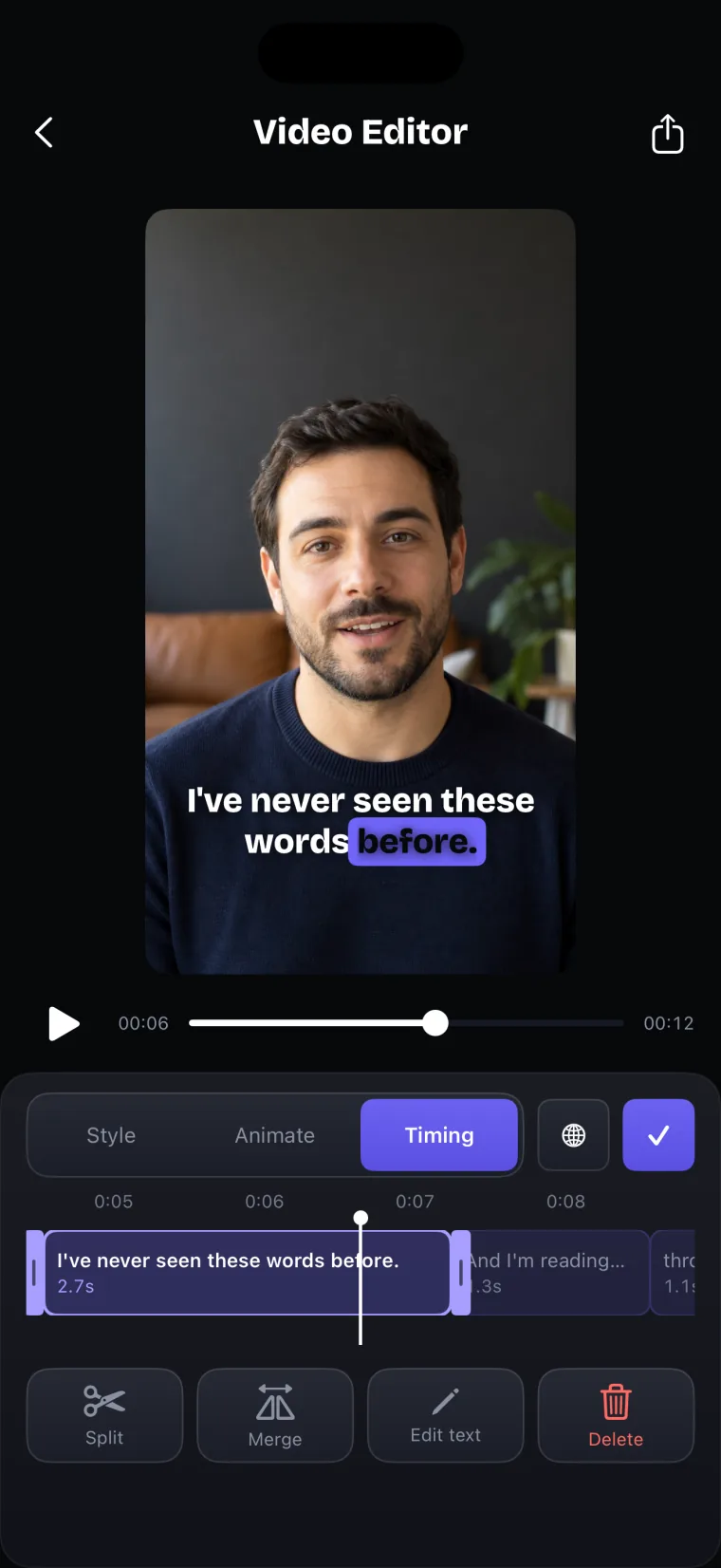
Captions are written in the language you spoke. The app does not translate the script or the captions; for subtitles in your first language as well, use a tool that translates subtitles.
Where this stops working well
Teleprompter: Video & Captions helps you read an English script on camera and caption the result. It does not teach English.
It records with the front camera only, adds captions only to videos recorded in the app, and saves finished videos to Photos; it does not post to social networks or export subtitle files.
- Accents not measured. How well voice following and captions handle a non-native accent has not been measured. If voice following keeps losing you, use Auto.
- No pronunciation feedback. The app does not listen for pronunciation or tell you how a word should sound. Use Speak Selection to hear a word, or ask a teacher or a native speaker to listen to a recording.
- No translation. Neither the script nor the captions are translated. Write the English script yourself or with a translator.
- One English variant for voice following. Voice following uses US English (en-US) only.
- One language at a time. Voice following listens in the one language you chose, so a phrase in another language inside an English script may not be followed. If the script stops there, drag it past the phrase.
If you are recording in English for a job, recorded job interview answers covers what to say and how to prepare.
Questions people ask
Does voice scrolling work with a non-native accent?
It has not been measured. Voice following in Teleprompter: Video & Captions uses Apple’s US English speech recognition, and how well it follows you depends on how that recogniser hears your accent. Test it with your own script before an important recording. If it loses you, drag the script to your line or switch to Auto, which scrolls at a fixed speed you set.
Should I write my English script in simpler words?
Yes, where the simpler word means the same thing. Short sentences and words you already use are easier to read aloud and easier for viewers to follow. Keep the words your topic needs, practice them, and replace the ones you still stumble on.
Can I add English captions to a video I recorded in English?
Yes, if you recorded it in the app. Check that the language step shows English, then generate the captions. Words that match your script take the script’s spelling; fix any other word with Edit text in the Timing tab. The app cannot caption a video recorded in another app.
Can Teleprompter: Video & Captions translate my script or captions?
No. The app does not translate. Captions are written in the language you spoke, and the script stays in the language you wrote it in. Use a translation tool for the script or for subtitles in another language.