
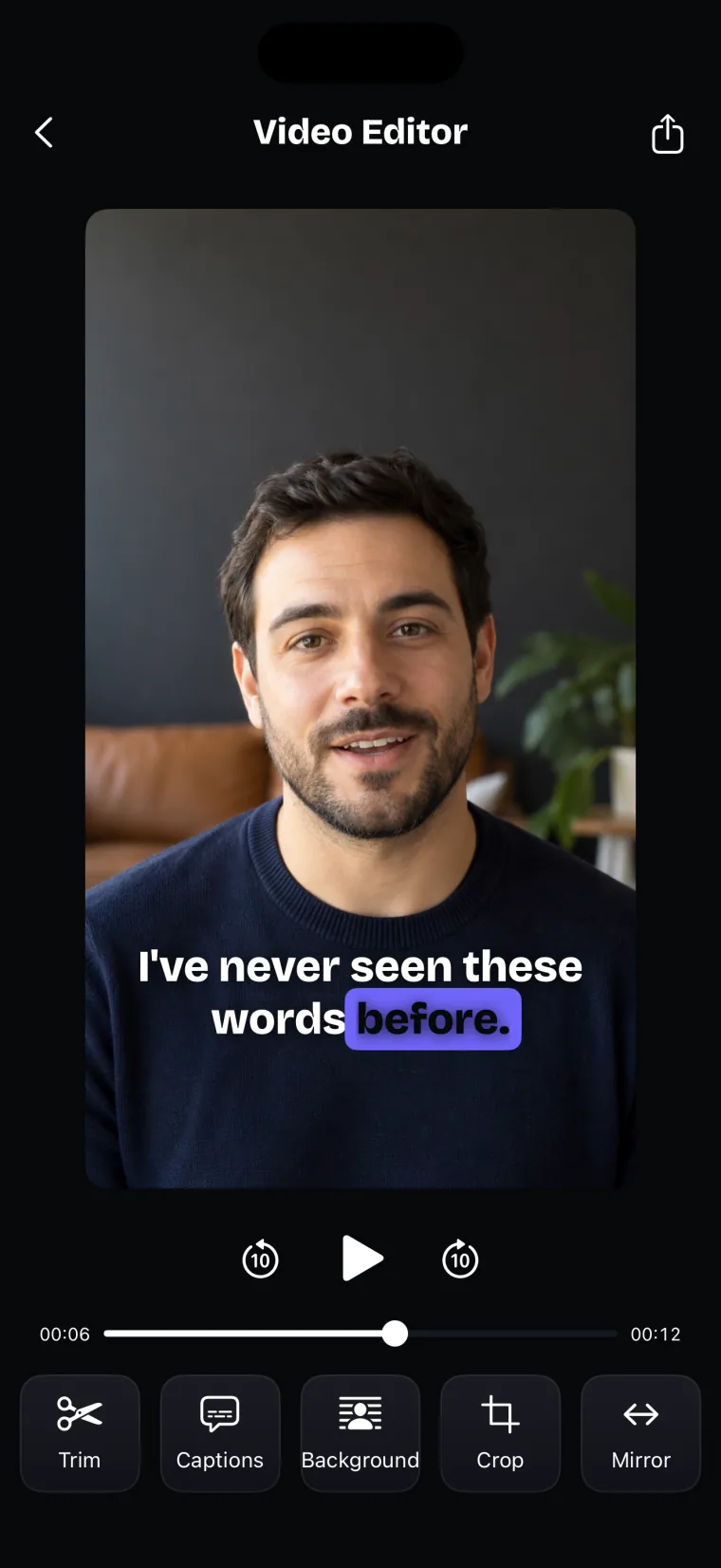
Editing in Teleprompter: Video & Captions happens in the Video Editor, which opens when you stop a take or when you open a take from a project’s list. Its tools are Trim, Captions, Background, Crop and Mirror, and the share icon saves the result to Photos. The editor works on takes recorded in the app. It does not post to social apps and has no share sheet; you upload the saved video from Photos.
Trim and split
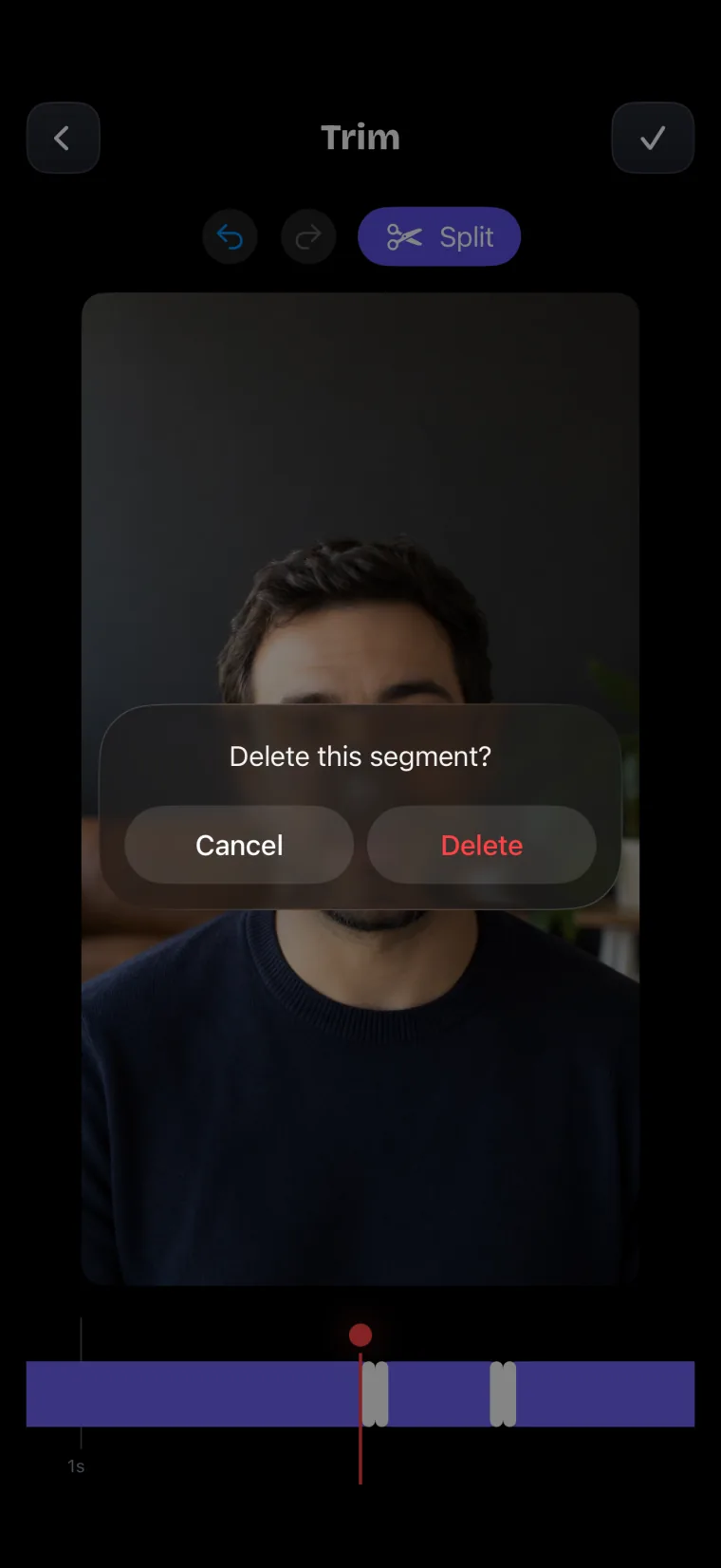
The Trim tool in Teleprompter: Video & Captions shows the take as segments on a timeline. You drag a segment’s handles to trim it, Split at the playhead, and delete the segments you do not want, with Undo and Redo. Saving joins the kept parts into a new video, and any captions already made are moved to match.
- Tap Trim in the editor.
- Move the playhead to where a mistake starts and tap Split, then do the same where it ends.
- Delete the segment with the mistake. The app asks “Delete this segment?” before it goes.
- Use Undo if you removed the wrong part, then tap the check mark to save.
Crop
The Crop tool in Teleprompter: Video & Captions lets you drag the corners of the crop frame or pick a preset: Free, 1:1, 4:5, 9:16 or 16:9. Use 9:16 for vertical feeds such as Reels, TikTok and Shorts, 16:9 for a horizontal video player, and 1:1 or 4:5 for square and portrait posts.
Background
The Background tool in Teleprompter: Video & Captions separates you from what is behind you, then blurs the background or swaps in a picture. There are three choices:
- Original keeps the background as it was recorded.
- Blur blurs it, with a slider for the strength.
- Custom puts one of three pictures included in the app, or a photo from your library, behind you.
The app does this with Apple’s person segmentation, frame by frame, on the device, so no green screen is needed and nothing is uploaded.
Mirror
The Mirror tool in the editor flips the take left to right, and the flip is applied when you save to Photos. Mirror in the editor changes the recorded video. It is a different setting from the mirror for a teleprompter rig, which reverses the script on the prompter screen.
Save to Photos
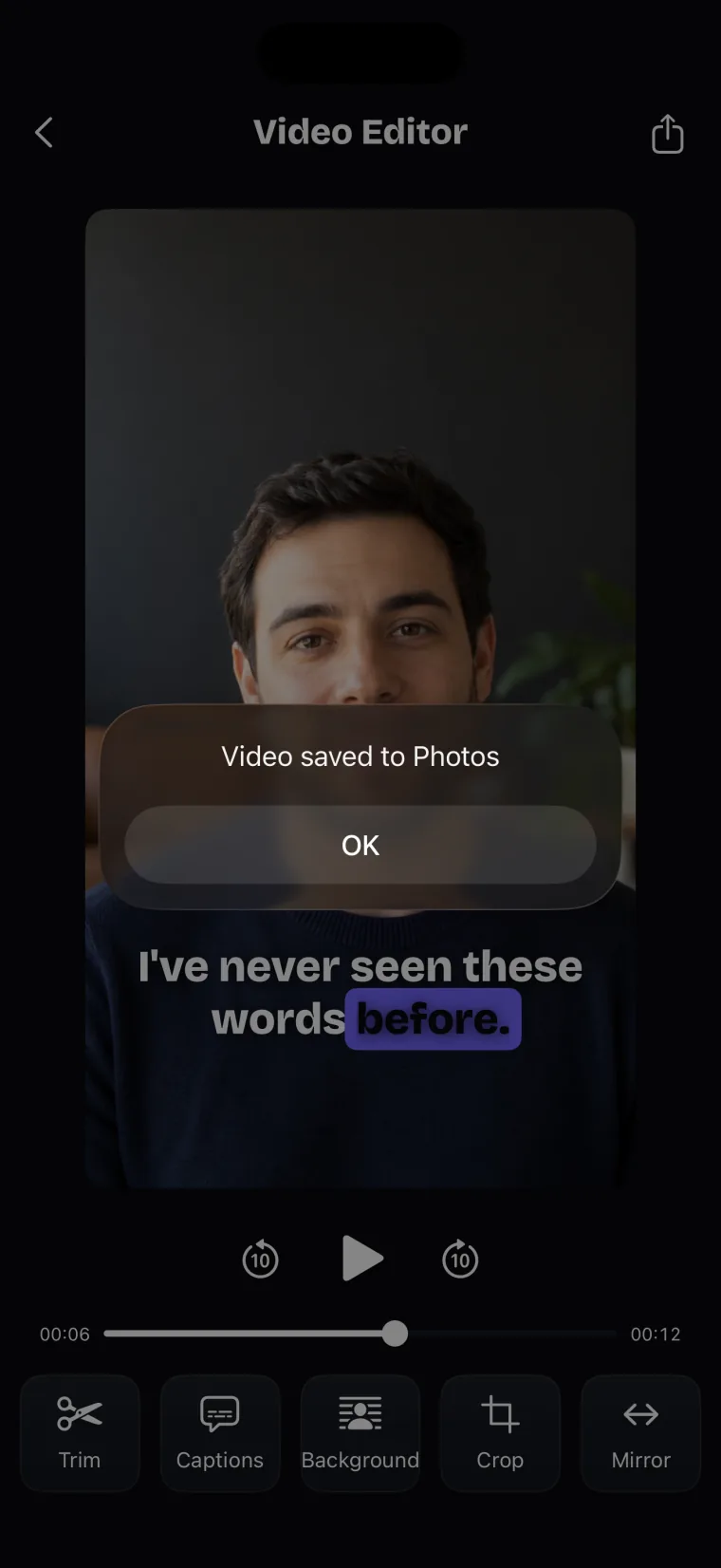
Saving in Teleprompter: Video & Captions starts from the share icon at the top right of the editor, or from Save to Photos in the side panel on iPad. The app asks for add-only access to Photos, renders the take with its captions and mirroring at the take’s own size and frame rate, and shows “Video saved to Photos” when it is done. A take with no captions and no flip is saved as it is, without being encoded again.
On iPad the editor puts the video on the left and the tools or caption controls in a panel on the right. The editor stays in portrait on both iPhone and iPad.
Where this stops working well
Editing in Teleprompter: Video & Captions has these limits:
- Trim, crop, background and mirror changes made to a take you reopen from the take list are not written back to that take; saving to Photos is how you keep them. For a new take, the version you leave the editor with is the one stored.
- Photos you add as backgrounds are not kept for next time. You pick the photo again for each take.
- After a background change, the video is written at up to 1920 by 1080 pixels.
- There is no chroma key. The app does not remove a physical green screen; it uses person segmentation instead.
- Mirror flips left to right only. There is no upside-down flip in the editor.
- There is no share sheet and no posting to TikTok, Instagram or YouTube from the app. You upload from Photos.
- If you refuse Photos access, nothing happens when you save and no message is shown. Turn Photos access back on in the Settings app.
Teleprompter: Video & Captions also has limits that apply to the whole app.
It records with the front camera only, adds captions only to videos recorded in the app, and saves finished videos to Photos; it does not post to social networks or export subtitle files.
Teleprompter: Video & Captions is free to download; a subscription unlocks your own scripts and projects, and prices are shown in the app before you pay.
Guides that use the editor
- One short video about a business, cropped for several places
- Talking-to-camera videos for selling property
- Writing a short script before you record
- What other teleprompter apps include for editing
- How captions are made and corrected
Questions people ask
Are my edits kept if I open the take again later?
For a new take, the version you have when you leave the editor is the one stored with the project. Trim, crop, background and mirror changes you make to a take reopened from the take list are not written back to it, so save that take to Photos to keep them.
Do I need a green screen to change the background?
No. Teleprompter: Video & Captions finds the person in each frame with Apple’s on-device person segmentation and blurs or replaces everything else. It does not key out a physical green screen.
Can I undo a cut in the Trim tool?
Yes. The Trim tool has Undo and Redo at the top, so you can bring back a segment you deleted before you save with the check mark.
Does saving to Photos lower the quality of a take?
A take with no captions and no flip is saved as it is, without being encoded again. With captions or a flip, the app renders it at the take’s own size and frame rate. A take with a changed background is written at up to 1920 by 1080 pixels.