
Recording with the script on screen in Teleprompter: Video & Captions means the script sits in a window over the live camera picture while the front camera records you. You read and record on the same iPhone or iPad, so you need no second screen. The recording screen does not use the back camera and does not count down before it starts.
What the recording screen shows
The recording screen in Teleprompter: Video & Captions changes with the way you hold the device. In portrait, the script window hangs from the top edge, near the lens. You drag the grip at the foot of the window to make it taller or shorter, up to about three quarters of the screen, and the app remembers the height. In landscape, the script fills the left half of the screen and the controls stand on the right.
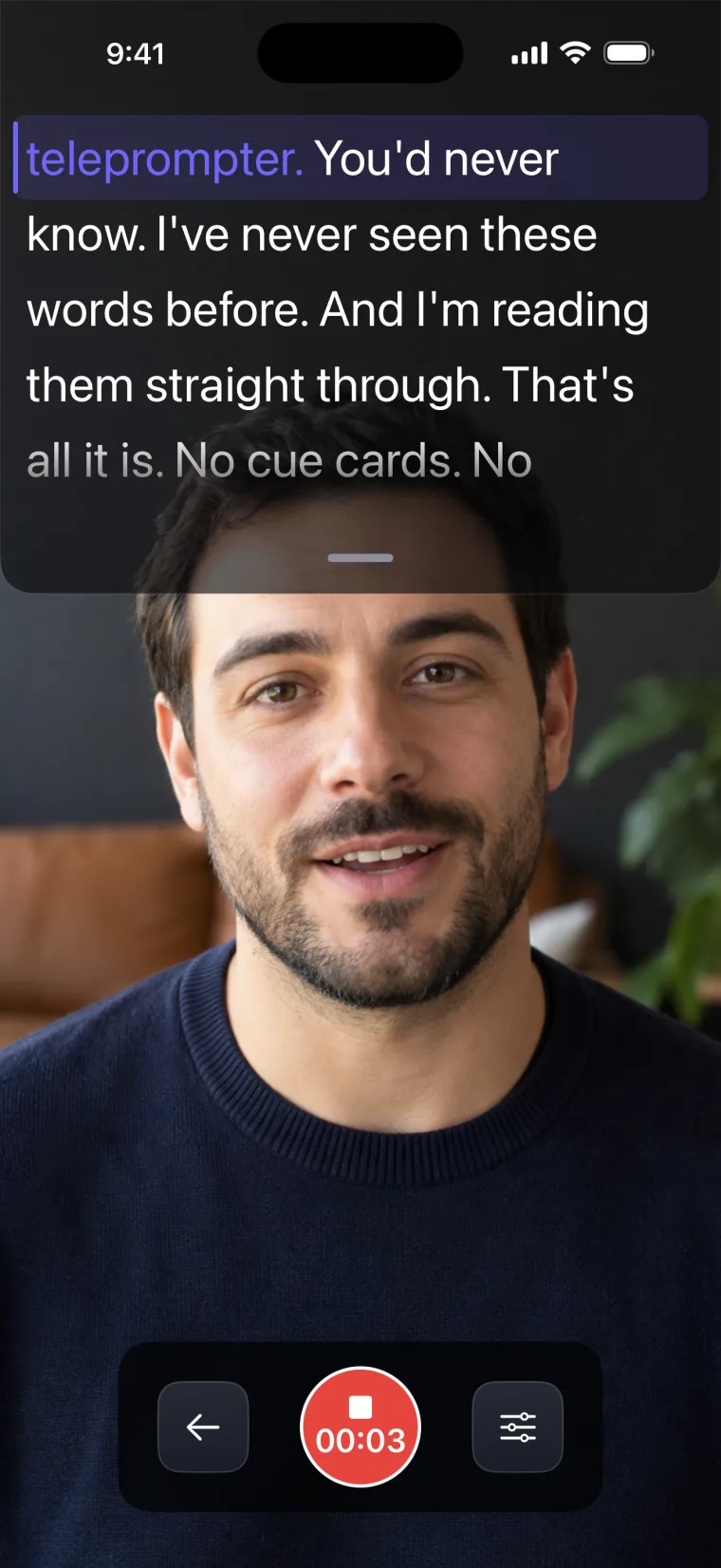
The control bar has three buttons: Back, Record (which becomes Stop with a running timer), and a settings button. Its panel holds the Voice recognition switch and its language, Scroll speed with a Test button, Font size from 16 to 40, and Font style. Words already read change colour, as on the full-screen prompter.
Teleprompter: Video & Captions records with the front wide-angle camera at the system’s “high” preset, with sound from the built-in microphone. The orientation of the recording follows how you hold the phone. The screen does not dim or lock while the recording screen is open, and the app sets no maximum length for a take; the storage left on your device is the practical limit.
How to record a take
- Open a project and tap Record at the top of the prompter screen.
- Allow the camera and the microphone when iOS asks. The Record button does nothing until the microphone is allowed.
- In portrait, drag the grip under the script window to set its height. A taller window shows more of the script; a shorter one covers less of the camera picture.
- Tap the settings button to turn Voice recognition on or off, pick its language, or set the scroll speed and text size.
- Press Record and start reading. With a fixed speed, the script starts scrolling when you press Record.
- Press Stop. The editor opens on the new take, and the take is added to the project when you leave the editor.
The voice scroll page explains how the script follows your words and what happens when it cannot.
Where your takes go
Every take you keep in Teleprompter: Video & Captions is stored with its project, newest first. A project’s take list shows a thumbnail for each take; tap one to open it in the editor, or swipe or long-press it to delete it. Takes stay in the app’s storage on your device until you delete them or their project. To put a take in your Photos library, you save it from the editor, where you can also trim, crop and change the background first.
Where this stops working well
Recording in Teleprompter: Video & Captions has these limits:
- Front camera only. There is no back camera and no camera switch.
- No resolution or frame-rate setting. The app records at the system’s “high” preset, so the result depends on the device.
- In the recorder the script is always white on a see-through dark window. The text and background colours you choose apply to the full-screen prompter only.
- A take shorter than 5 seconds is not kept. The app says “Record at least 5 seconds to keep a take.”
- There is no countdown. Recording starts as soon as you press Record.
- The recording screen does not mirror the script for a beam-splitter rig. With a rig you read from the mirrored prompter screen and record on a separate camera.
- There is no control by Bluetooth remote, keyboard or foot pedal.
Teleprompter: Video & Captions also has limits that apply to the whole app.
It records with the front camera only, adds captions only to videos recorded in the app, and saves finished videos to Photos; it does not post to social networks or export subtitle files.
Teleprompter: Video & Captions is free to download; a subscription unlocks your own scripts and projects, and prices are shown in the app before you pay.
Guides for recording with a script
- The full setup on one iPhone, with a test take
- Keeping your eyes close to the lens so the reading does not show
- Feeling less tense in front of the camera
- Planning a longer video in sections
- How other iPhone teleprompter apps handle recording
Questions people ask
How tall can the script window be while recording?
In portrait, you can drag the grip at the foot of the script window to make it taller, up to about three quarters of the screen, or shorter. Teleprompter: Video & Captions remembers the height for your next take. The line you are reading stays at the top of the window, near the lens, whatever its height.
Why is the script white on the recording screen when I picked other colours?
The text and background colours in Teleprompter: Video & Captions apply to the full-screen prompter only. On the recording screen the script is always white on a see-through dark window over the camera picture.
Is there a countdown before recording starts?
No. Recording starts as soon as you press Record. If you want a moment before you speak, start the take and trim the first seconds afterwards in the editor.
What video quality does Teleprompter: Video & Captions record?
The app records with the front camera at the system’s “high” preset and has no resolution or frame-rate setting. The resolution you get depends on your iPhone or iPad, so the app does not state one.
What happens to a take when I press Stop?
The editor opens on the new take. When you leave the editor, the take is added to its project. A take shorter than 5 seconds is not kept.