
What a one-way video interview is
A one-way video interview is a job interview with no interviewer on the call. Questions appear on the screen, you record your answers, and the employer watches them later. It is also called an asynchronous or on-demand interview.
HireVue is one of the platforms employers use for this. HireVue’s technical specifications say candidates complete on-demand interviews in the HireVue for Candidates mobile app or in a mobile or desktop web browser (HireVue technical specifications, version effective 1 February 2025, read 2026-10-27).
The rules of each interview, such as how long you have for each answer and whether you can record an answer again, are set for that interview. Look for them in the invitation and in the platform’s instructions, and read them before the day, not in the minutes before you start.
Can you use notes or a teleprompter?
Notes and teleprompters during a one-way interview depend first on the employer’s rules. If the instructions say no notes, do not use any. An interview is meant to show how you answer, so the answers have to be yours, in your own words.
Even where notes are allowed, reading a full answer word for word shows on camera. Your eyes move along the lines, and your voice takes on the even pace of reading. Short points that remind you what to say work better than written answers.
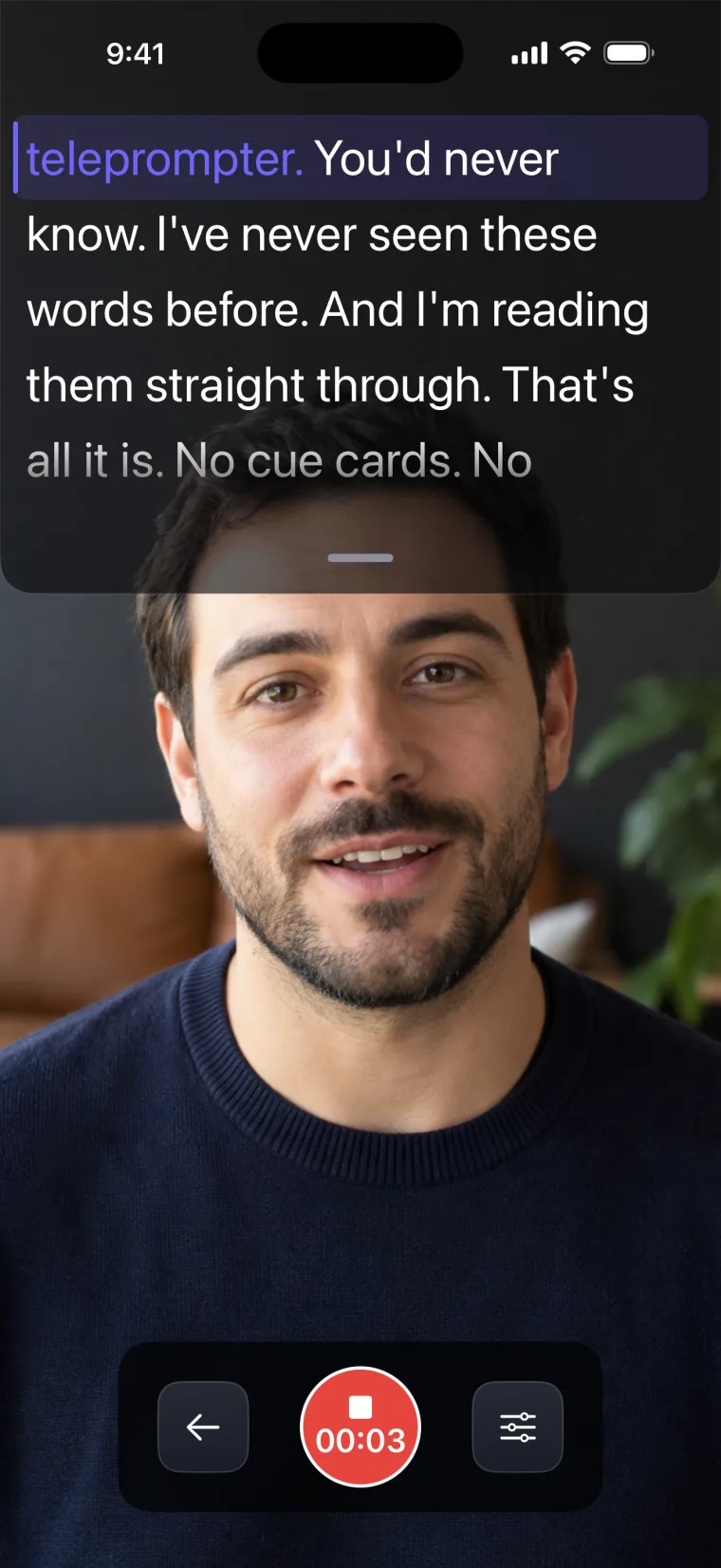
A teleprompter app is not a way into the interview itself. A teleprompter app that records with its own camera cannot place text over the camera of another app or a web page. Teleprompter: Video & Captions shows the script only in its own screens, so during the real interview it has no part to play. Where it helps is in the days before: rehearsing each answer on camera until you can give it from a few words of notes, or from none.
Rehearse each answer on camera
Rehearsing on camera shows you what the employer will see, which practicing in your head does not. The steps below take one question at a time.
- Write down the questions you expect, using the job description and the questions most interviews ask, such as why you want the role.
- For each question, write a few short points instead of full sentences: the answer in one line, an example from your own experience, and how it turned out.
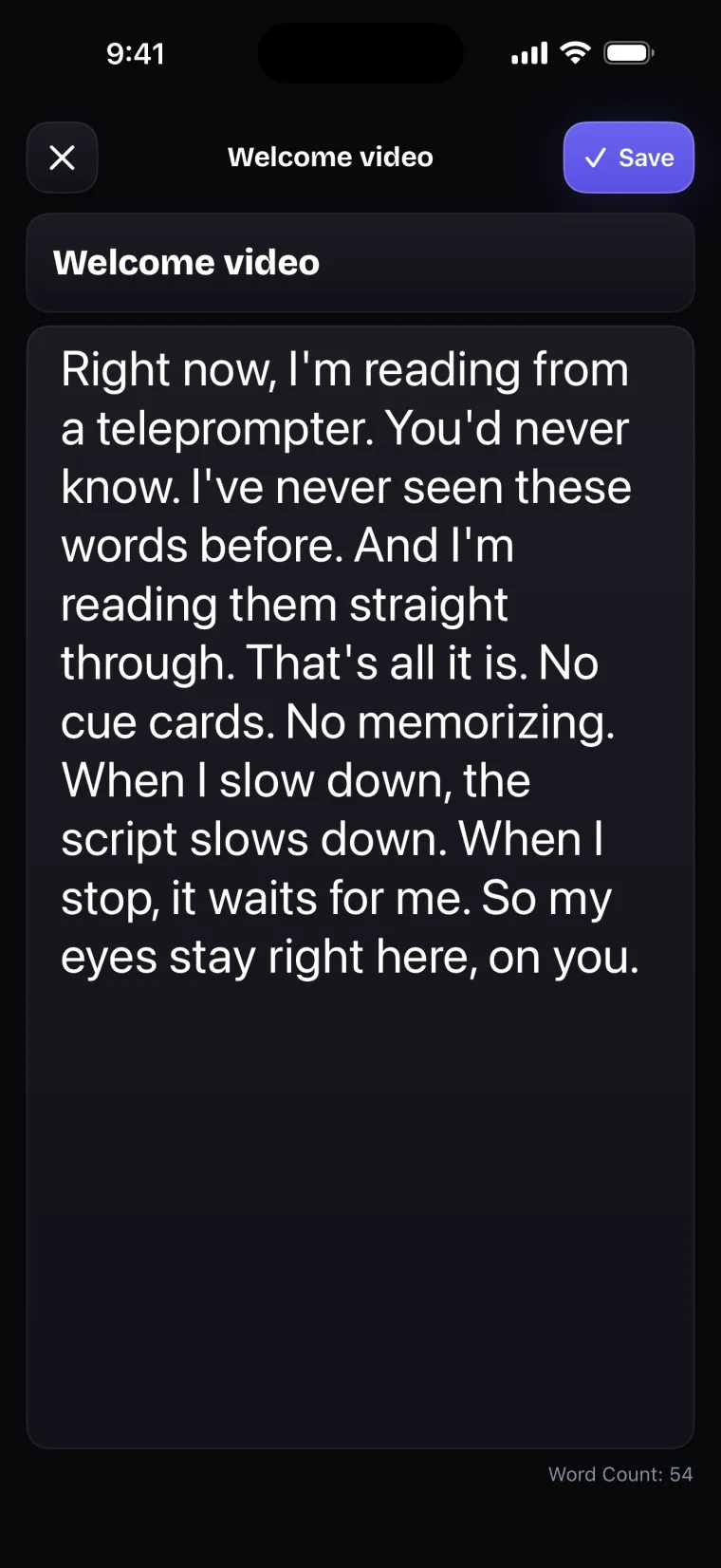
- Put the points for one question in a project, with the question itself as the first line.
- Record your answer while glancing at the points just under the lens.
- Watch the take: did you answer the question that was asked, did you finish in the time allowed, and where did your eyes go.
- Remove from your points anything that did not help the answer, and record again.
- For the last rehearsal, delete the points and keep only the question, so you practice answering it the way you will on the platform.
Step 7 matters most when the employer does not allow notes. The real interview shows you the question and nothing else, so the last rehearsal should too. There is a separate guide on rehearsing out loud at home, and if your answers will be in a language that is not your first, read the guide on answering in English when it is not your first language.
When the employer asks you to upload a video
Some applications ask for a short introduction video that you record yourself and upload through a form. This is the one part of the process that you can record entirely in a teleprompter app, because the video is yours from the start.
- Write what you will say: who you are, the role you are applying for, why you fit it, one example, and a closing line. Keep to any length the employer gives.
- Record it with the front camera, the phone at eye level, and the text close to the lens. The recorder shows a running timer, so you can see the length as you go.
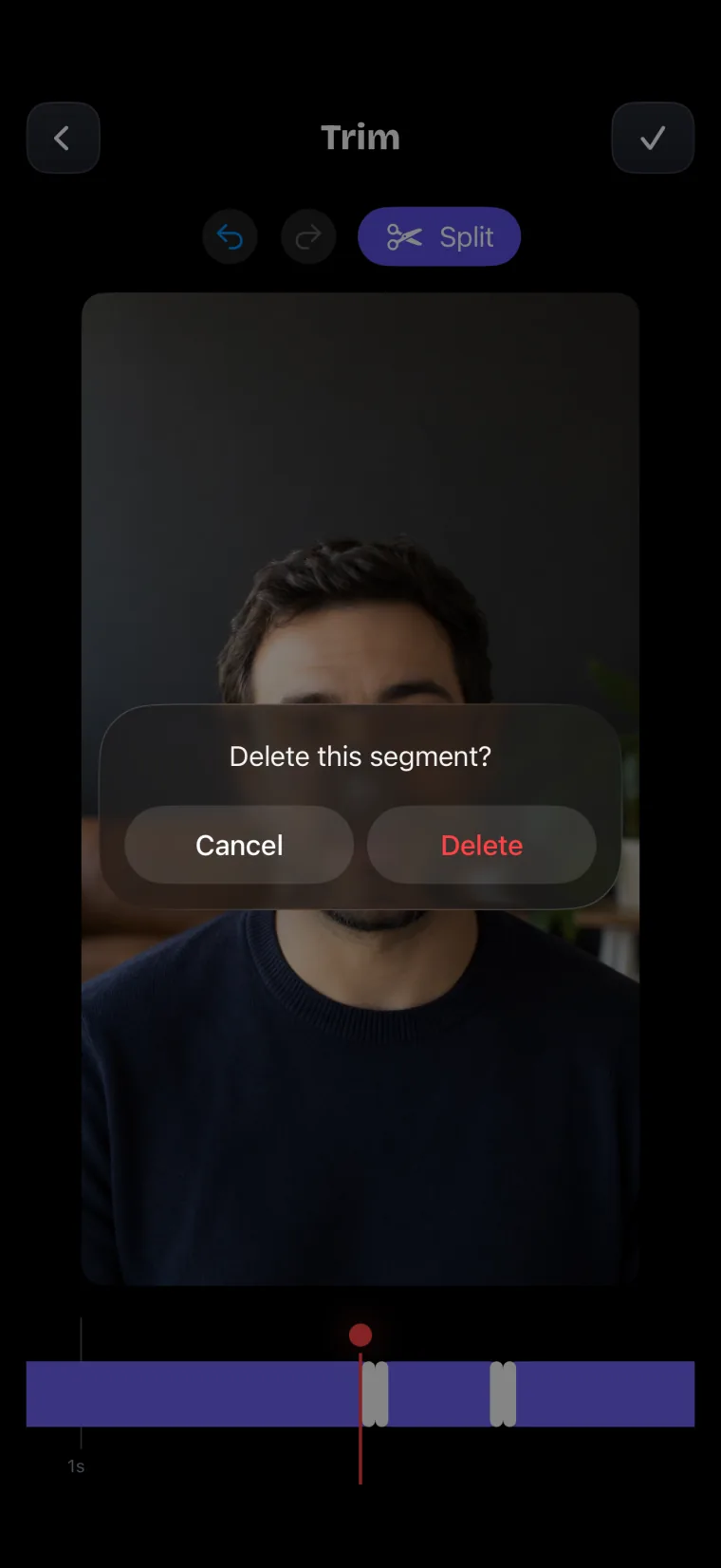
- Trim the start and the end, where you reach for the phone.
- Crop the picture if the employer asks for a shape: Free, 1:1, 4:5, 9:16 or 16:9.
- Save the video to Photos with the share icon, and choose it from Photos in the employer’s upload form.
A self-recorded introduction can be read from a script, but it should not sound read. Write it the way you talk, and see the guide on reading without it showing before you record the final take.
A checklist before the real one
The setup of a one-way interview is easier to fix before it starts than during it, so check these before you open the link.
- The rules. Notes, retakes, time per answer and the deadline, from the invitation.
- The device. HireVue’s candidate FAQ suggests choosing the device you are most comfortable interviewing on, whether a computer, tablet or phone, and keeping it charged or plugged in (HireVue candidate FAQ, read 2026-10-27).
- Light. A window or lamp in front of you, not behind you.
- Sound. A quiet room, with notifications on the device turned off.
- Framing. The camera at eye level, with your head and shoulders in the picture.
- Practice questions. If the platform offers a practice question, use it to check the camera, the sound and your framing.
- A dropped connection. HireVue’s candidate FAQ says that if your connection drops, you can pick up where you left off with the same link (HireVue candidate FAQ, read 2026-10-27).
Using Teleprompter: Video & Captions to prepare
Teleprompter: Video & Captions is useful for rehearsing with your notes beside the lens. The text sits in a window just under the front camera, over the live picture, so each rehearsal take shows how your answer comes across on camera. A PDF or plain-text file of your notes can be imported as a project. Every take you keep is stored with its project, so the rehearsals for one question stay together, and you can delete them from the take list.
Where this stops working well
The app is a rehearsal tool here, with clear limits. It records with the front camera only, adds captions only to videos recorded in the app, and saves finished videos to Photos; it does not post to social networks or export subtitle files.
- It cannot sit over another app. The app has no floating or picture-in-picture prompter, so it cannot show your notes over an interview platform; its use is rehearsal before the interview.
- It does not judge your answers. The app gives no feedback or score on what you say; you judge the takes yourself, or show them to someone you trust.
- It does not send the video. The finished video goes to Photos, and you upload it from there through the employer’s form.
Questions people ask
Can you read notes during a one-way video interview?
Only if the employer allows it, so read the instructions first. Where notes are allowed, keep them to short points and glance at them; reading full answers word for word shows in your eyes and your voice. Where they are not allowed, rehearse until you can answer from the question alone.
Can I use a teleprompter app during a HireVue interview?
HireVue’s technical specifications say on-demand interviews are completed in the HireVue mobile app or in a web browser (read 2026-10-27), so a teleprompter app that records with its own camera cannot put text over that recording. Teleprompter: Video & Captions shows text only in its own screens. Use it to rehearse before the interview, and follow the employer’s rules about notes.
How should I structure an answer in a recorded interview?
Start with a one-sentence answer to the question. Then give one example from your own experience: the situation, what you did, and how it turned out. End by connecting the example back to the role, and stop within the time the platform gives you.
How do I record a video introduction for a job application on iPhone?
Write a few sentences about who you are, the role, why you fit, and one example. Record them with the front camera at eye level, trim the start and end, crop to the shape the employer asks for, and save the video to Photos. Then choose it from Photos in the employer’s upload form.