Sections, not one take
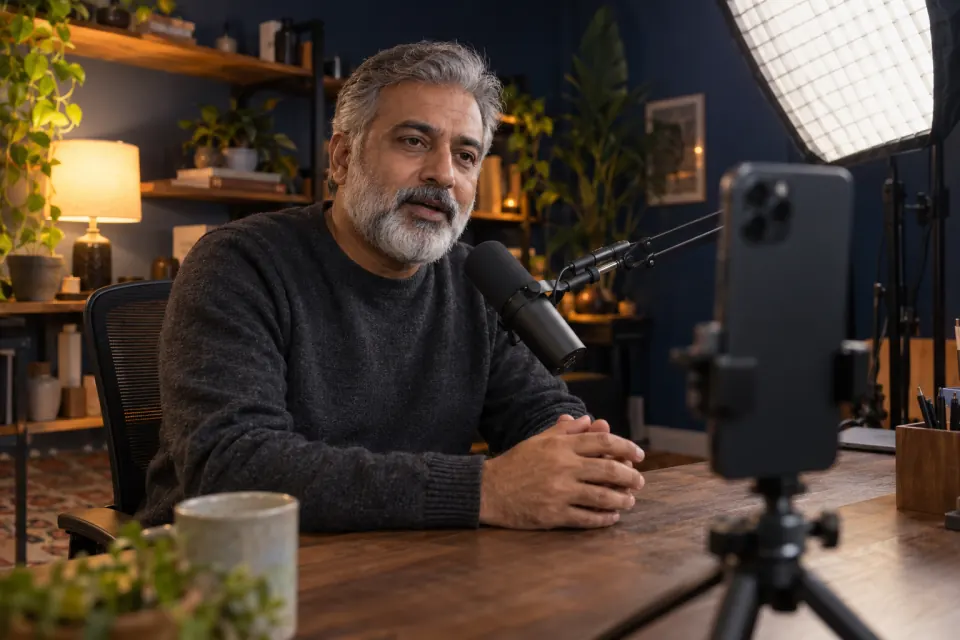
A long YouTube video is easier to record in sections than in one take, because a mistake near the end of a long take means reading the whole script again. With sections, a mistake costs you one section. You can also rest between sections, drink some water, and check the last take before you go on.
A section is a few paragraphs that belong together: the introduction, one point, one example, the ending. Mark the sections in your script before you record. A blank line between them is enough, as long as you know where each one starts.
There are two ways to arrange the takes in Teleprompter: Video & Captions:
- One project for the whole video. Keep the full script in one project. Before each take, drag the script so that the first line of the next section sits on the reading line, then press Record. All the takes stay together in the project’s take list, newest first.
- One project per section. Put each section’s text in its own project. Each project then holds only that section’s takes, which makes it easy to see which take belongs where. This suits scripts you rework section by section.
Record the sections in order, so the takes come out in the same order as the script.
Script length: time your own reading
The length of a YouTube script in words depends on how fast you speak, so no fixed number of words gives a fixed number of minutes. The reliable way to estimate is to time yourself.
Read one section out loud at recording pace and time it. Then compare that section with the whole script. If the section is about a tenth of the script, the full video will run about ten times as long, before you cut anything. The script editor in Teleprompter: Video & Captions shows the word count of the whole script, which is a quick way to see how much a cut has shortened it.
If the estimate is longer than you want, cut whole sections or points from the script before you record. Cutting on paper is faster than cutting video.
Landscape setup
A standard YouTube video is wide. YouTube’s help page says “The standard aspect ratio for YouTube on a computer is 16:9” (YouTube Help, "Video resolution & aspect ratios", read 2026-10-27). Record in landscape, and you will not need to crop a tall picture into a wide one later.
Teleprompter: Video & Captions offers landscape recording with the script beside the camera. The recording follows how you hold the phone. In landscape, the script fills the left half of the screen, over the camera picture, and the controls stand on the right. Turn the phone so that the front camera is on the left edge, on the same side as the script, so the words you read stay close to the lens.
Set the phone on a tripod with the lens at the height of your eyes, and set the text size in the recording screen’s settings panel so that you can read it from where you sit. The settings panel also holds voice follow on or off, its language, and the scroll speed with Test.
Keeping your place
Keeping your place through a long script comes down to the scroll mode and to knowing what to do when you get lost.
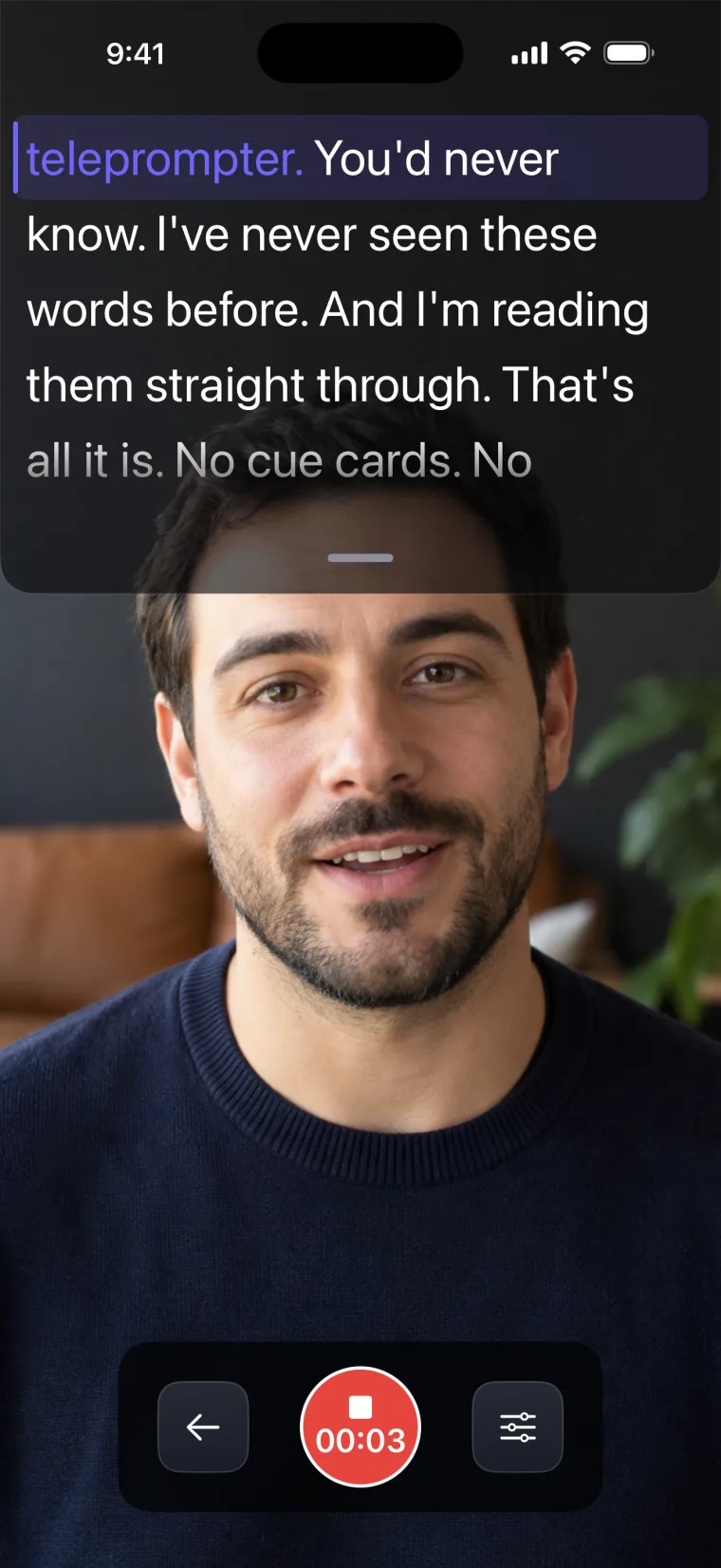
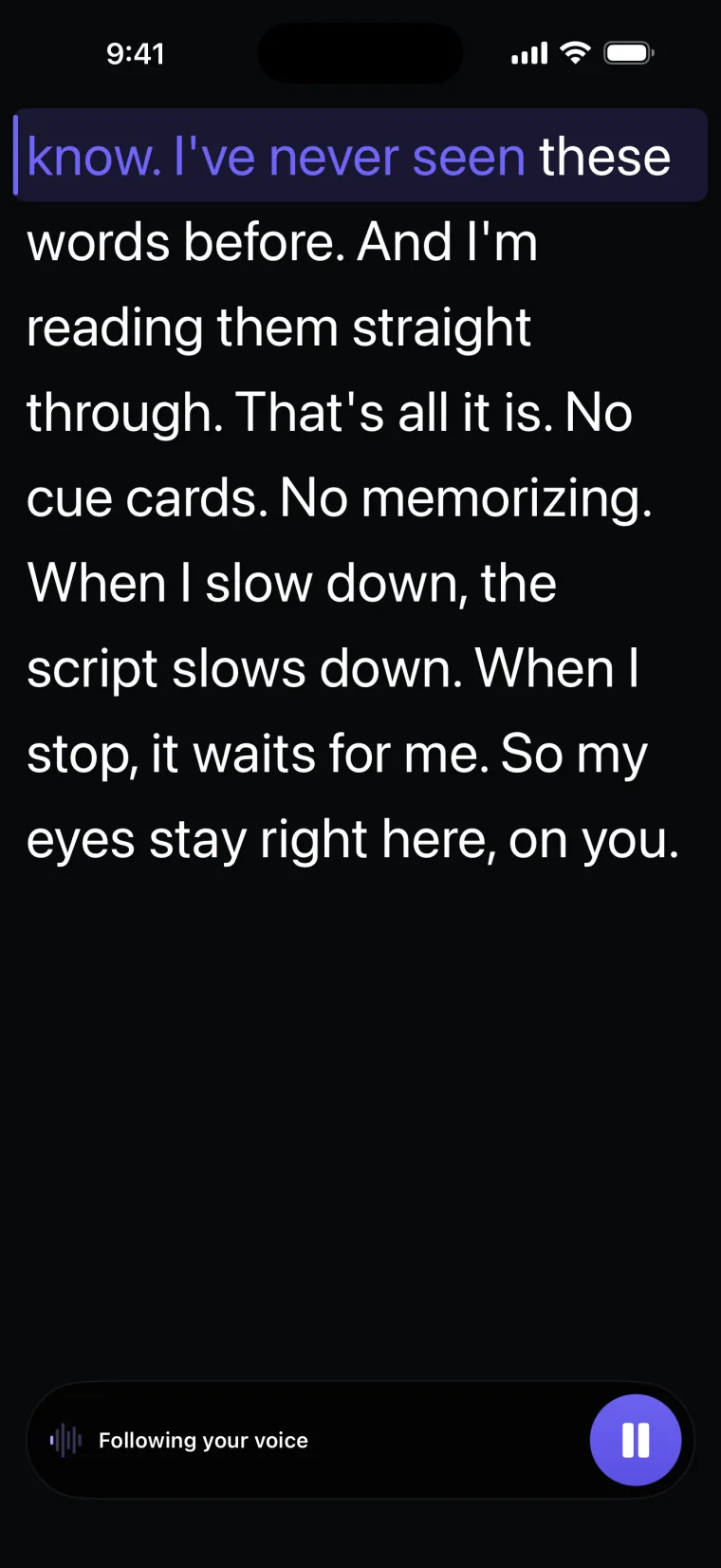
- Voice mode moves the script as you speak and waits when you stop talking, so you can look at your notes or think between sentences. The words you have read change colour. The guide on letting the scroll follow your pace explains when voice following loses you.
- Auto mode scrolls at a set speed. It suits a steady reader and a noisy room. Test the speed on a paragraph before the first take.
- If you get lost, drag the script to the right line and carry on from there. Say the sentence again from its start, so the repeat is easy to cut out later with Trim.
If voice following cannot start when you press Record, or stops during a take because of a call or a lost microphone, the take carries on at the set speed from your place, and the script window says “Voice follow is off for this take — scrolling at your speed”. Set a sensible Auto speed before a long session, even when you plan to use Voice.
Takes and joining them
Every take you keep in Teleprompter: Video & Captions is stored with its project. When you tap Stop, the Video Editor opens on the new take, and the take is added to the project when you leave the editor. A take shorter than 5 seconds is not kept. The app sets no maximum length for a take; the storage left on your iPhone is the practical limit.
The editor works on one take at a time. Its tools are Trim, Captions, Background, Crop and Mirror, and none of them joins takes together. For each section:
- Trim the false starts and the repeated sentences out of the take.
- Add captions if you want them burned into the video.
- Save the take to Photos.
Then join the sections in a video editor that places clips one after another on a timeline. Do the trimming and captioning for each section before you leave the editor, and save the section to Photos at the same time. Changes made to a take that you reopen later from the take list are not written back to that take; saving to Photos is how you keep them.
The same section approach works for other long recordings; the guide on recording a lesson in parts applies it to video lessons. If you have not written the script yet, start with writing the script before you record.
Where this stops working well
Teleprompter: Video & Captions is built around recording and finishing one take at a time, which shapes how it fits a long YouTube video. It records with the front camera only, adds captions only to videos recorded in the app, and saves finished videos to Photos; it does not post to social networks or export subtitle files.
- The app does not join takes. Each section is saved on its own, and the sections are joined in another editor.
- There is no back camera and no camera switch, and no setting for resolution or frame rate.
- The app does not upload to YouTube. Save the finished video to Photos, then upload it from there.
- Changes made to a take reopened from the take list are not kept with that take. Save each finished section to Photos before you leave the editor.
- The app does not work with Bluetooth remotes or foot pedals, so starting and stopping a take means a tap on the phone.
Questions people ask
How do I record a long YouTube video without losing my place?
Record it in sections of a few paragraphs, and before each take drag the script to the first line of the section. In Voice mode, Teleprompter: Video & Captions moves the script as you speak and colours the words you have read. If you get lost, drag the script to the right line and say the sentence again, then trim out the repeat.
Is there a time limit on recording in Teleprompter: Video & Captions?
The app sets no maximum length for a take. A take has to be at least 5 seconds long to be kept, and the storage left on your iPhone is the practical limit. For a long video, recording in sections is still easier than one long take.
Should I record a long video in one take or in sections?
In sections. A mistake then costs you one section instead of the whole script, you can rest between sections, and each take is shorter to check and trim. Join the sections afterwards in a video editor.
Can I record a YouTube video in landscape with the script on screen?
Yes. The app records in landscape when you hold the phone sideways. The script fills the left half of the screen over the camera picture, and the controls sit on the right. Turn the phone so the front camera is on the left, next to the script.