A rehearsal loop
Rehearsing a speech at home can follow a simple loop: run it, record it, review it, change one thing, and run it again. Each turn of the loop gives you a recording to compare with the last one.
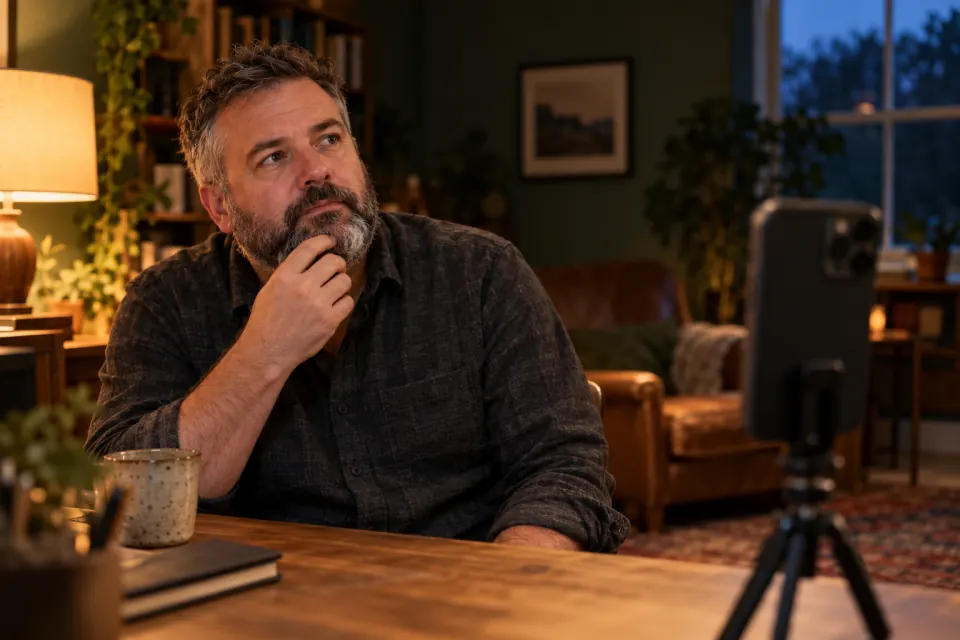
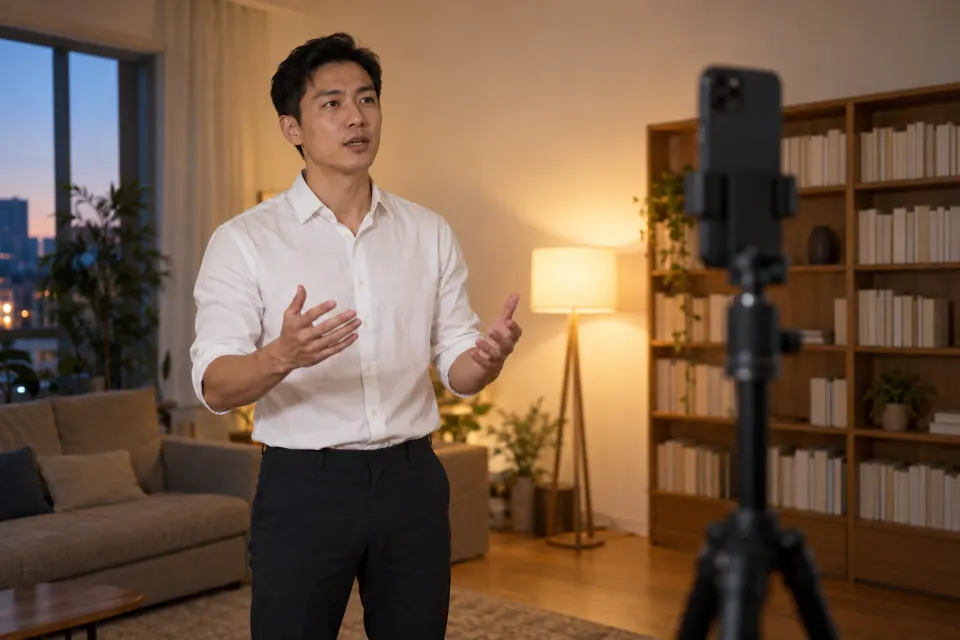
- Set up as close to the real room as you can: stand if you will stand, and put the phone where the audience’s eyes will be, on a tall tripod or a shelf.
- Run the whole speech once without stopping, even when you lose your place, so you also practice finding it again.
- Record the next full run, from the first word to the last.
- Watch the recording in two passes, using the table below.
- Choose one thing to change, such as a slower opening or a pause before your main point.
- Run the speech again, record it, and compare the new recording with the last one.
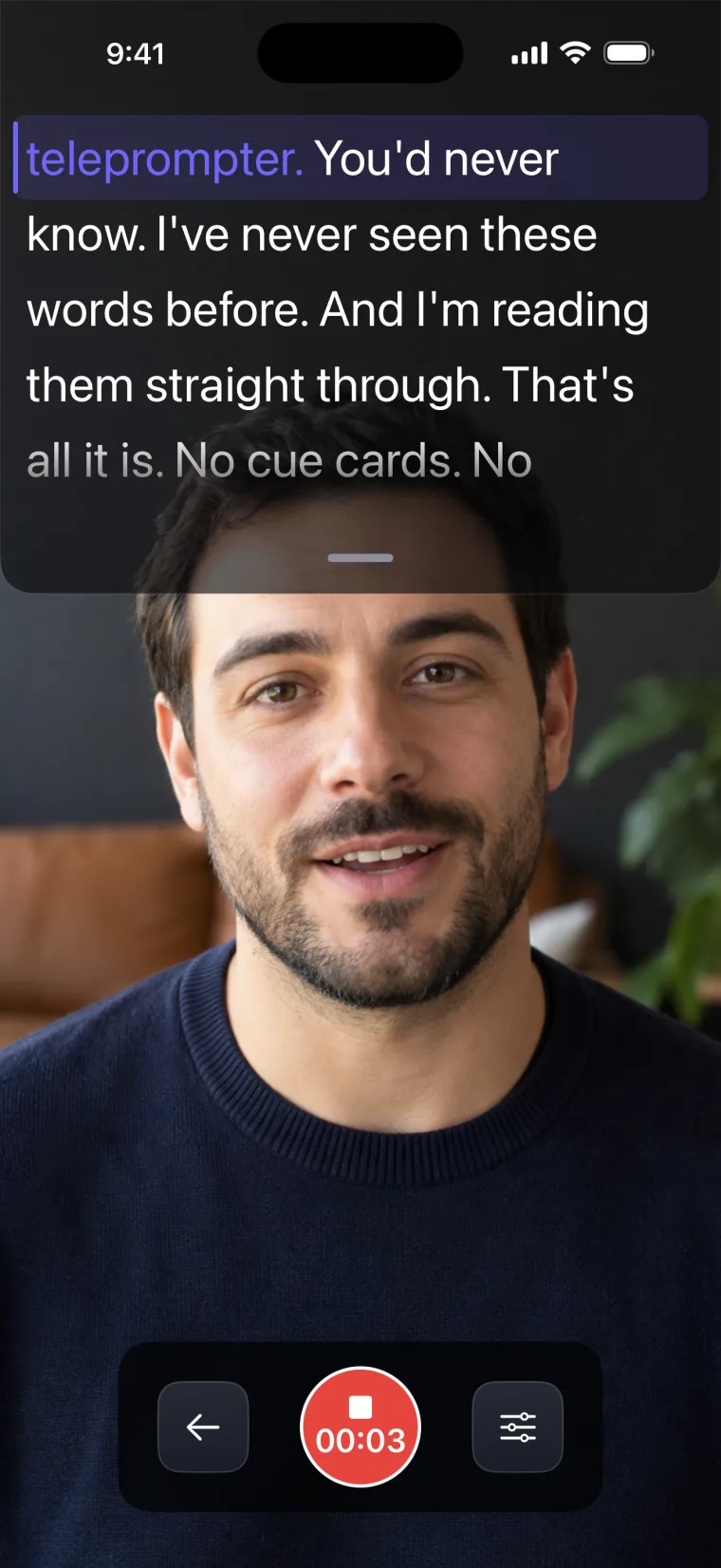
Changing one thing per run makes it clear what each change did. Time each run as well: if your slot has a time limit, the length of a full run tells you how much to cut. The recorder in Teleprompter: Video & Captions shows the running time on its stop button while it records.
Two-pass review
Watching a rehearsal recording twice, once without sound and once without looking, separates what the audience sees from what it hears. Each pass is easier to judge on its own.
| Pass | Watch or listen for | Signs to act on |
|---|---|---|
| Sound off | Posture, hands, where your eyes go, how often you look down | Swaying, hands that never move, eyes on the floor or on your notes |
| Sound on, not looking at the screen | Pace, pauses before key points, volume at the ends of sentences | A rushed opening, sentences that fade out, filler words between points |
You do the watching and the listening in this review. Teleprompter: Video & Captions records the run and plays it back; it does not measure your pace or count filler words.
Script first, notes later
A full script on a prompter helps in the early runs, while you are still learning the order of your points and the wording of the parts that have to be exact, such as a quotation, a figure or a list of people to thank. Once the order is in your head, move to notes of a few words per point, so you speak to the room instead of reading to it. The guide on how much to memorize covers which parts are worth learning by heart. If you will speak from notes on the day, rehearse from the same notes in your last runs.
Voice mode follows the words in the script, so it has little to match when you speak around short notes: talking off script leaves the script where it is. For a run from notes, use Auto at a slow speed, or drag the notes along yourself.
If watching yourself on video is the hard part, getting used to the camera covers that. If the talk is a recorded answer rather than a speech to a room, rehearsing answers for a recorded interview covers what changes.
Rehearsing with Teleprompter: Video & Captions
Teleprompter: Video & Captions gives you two places to rehearse: the prompter screen, which shows the script full screen without recording, and the recorder, which shows the script over the camera picture while it records you.
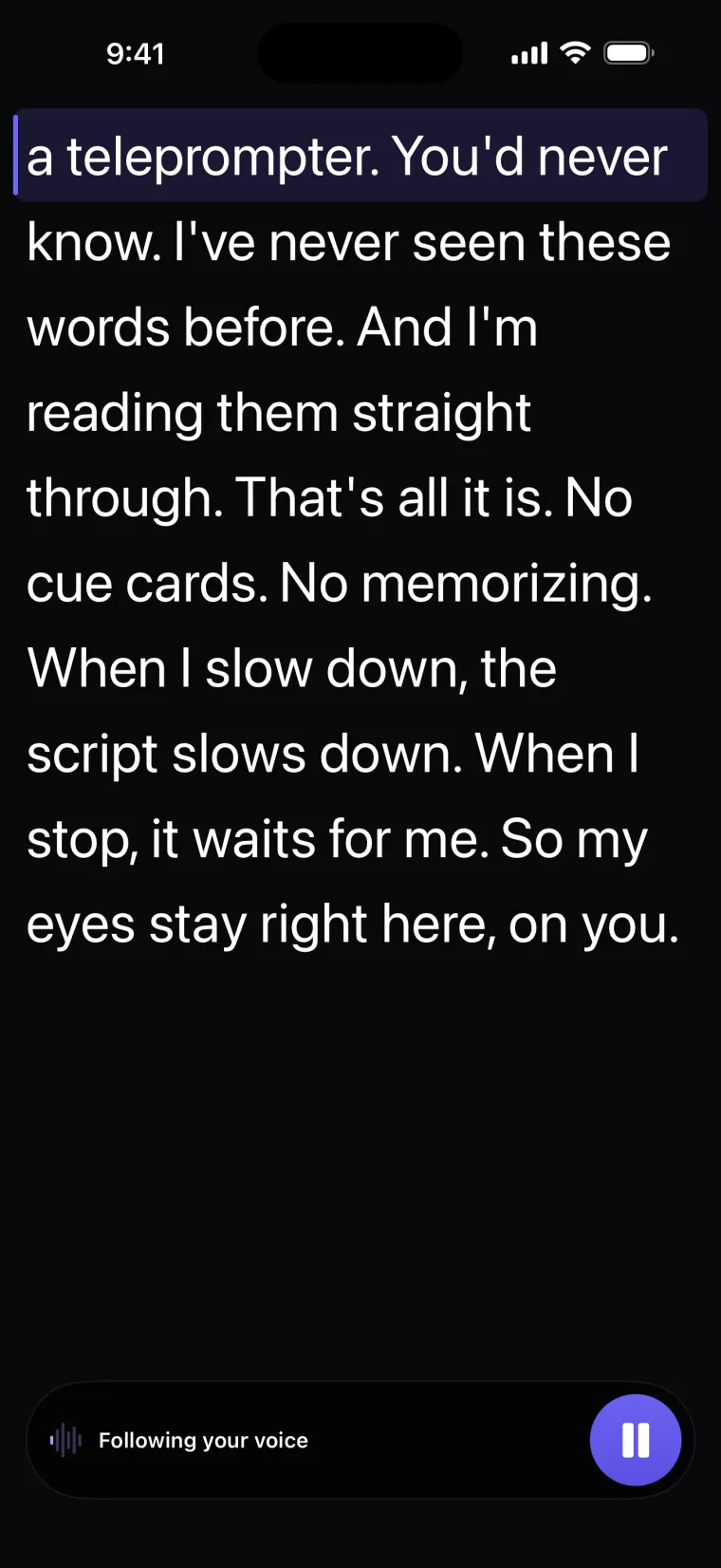
The prompter screen has Text, Scroll, Start and Edit controls, and the screen does not dim or lock while it is open. In the Scroll panel you choose Voice or Auto. Voice mode makes it a prompter that keeps your pace: the script moves as you speak, the words you have read change colour, and nothing moves while you stop to think. Auto scrolls at a speed you set on a 1 to 50 slider; Test runs the script behind the panel so you can judge the speed before you start. To go over a passage again, drag the script back to it, or tap a line to read on from there.
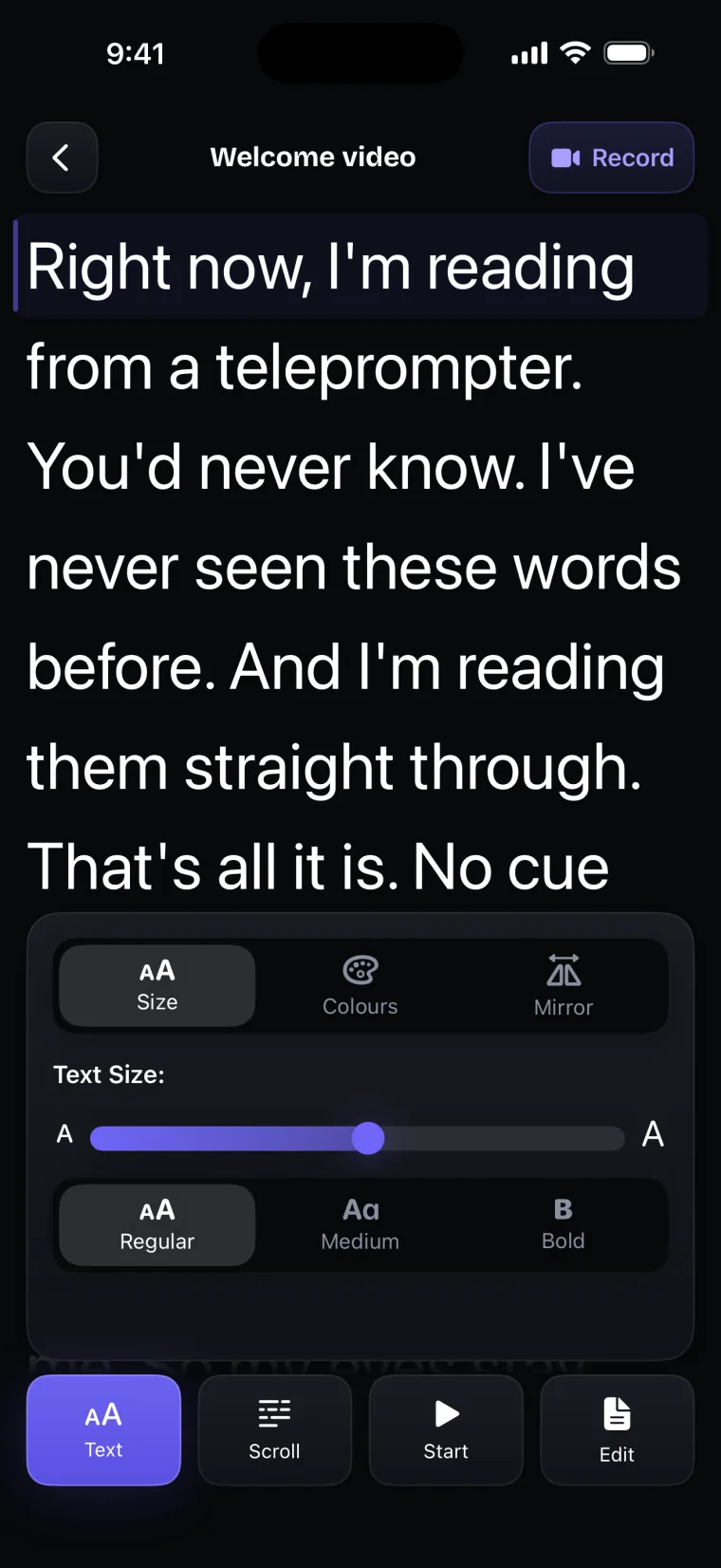
Reading from a distance needs larger text than reading from your hand. On the prompter screen, the Size tab of the Text panel sets the text from 14 to 64 points, in Regular, Medium or Bold. In the recorder, Font size goes from 16 to 40. On an iPad, the default text is larger than on an iPhone, which helps on a lectern.
If voice following cannot start, a banner says why, such as a refused microphone, a microphone in use by a call or another app, or a language that is unavailable, and offers “Use auto scroll”. If voice following stops while you read on the prompter screen, the prompter pauses and explains why. In the recorder, a take carries on at the set speed instead.
To record a run, tap Record on the prompter screen. The recorder shows the script in a window over the camera picture, near the lens. Each take you keep is stored with the project, newest first, so your runs stay in order for comparison. The app sets no limit on how long a take can be; a take shorter than 5 seconds is not kept.
If you will read from a beam-splitter teleprompter on the day, rehearse with the same setup. The Mirror tab of the Text panel reverses the script Horizontal, Vertical or Both, so it reads correctly in the glass; only the script is reversed, never the buttons. The guide on setting the phone under a beam-splitter rig covers the rest of that setup.
Where this stops working well
Teleprompter: Video & Captions shows your script and records your runs. Judging the runs is left to you.
It records with the front camera only, adds captions only to videos recorded in the app, and saves finished videos to Photos; it does not post to social networks or export subtitle files.
- No score or feedback on delivery. The app does not rate your delivery, measure your pace or count filler words. For automatic feedback, use a tool that does: Microsoft PowerPoint’s Speaker Coach evaluates pacing, pitch, filler words and whether you are reading the slide text, and gives a report after each rehearsal; it needs a microphone, an internet connection and a Microsoft account, and it only understands English (Microsoft Support, “Rehearse your slide show with Speaker Coach”, read 2026-10-27). A friend watching your recording can do the same in any language.
- No remote control. The app does not work with Bluetooth remotes, keyboards or foot pedals. Speed and position are changed on the phone itself, so set the Auto speed during rehearsal or use Voice mode.
- No mirroring while recording. Mirror applies to the prompter screen only. With a rig, the recording is made by a separate camera behind the glass.
- Calls and noise. A call that comes in stops voice following, so stop calls from ringing through before a run that matters. How well voice following copes with a noisy hall depends on Apple’s speech recognition, and the app gives no figure for it; test in the room if you can.
Questions people ask
Is it a good idea to record yourself practicing a speech?
Yes. A recording shows you what the audience will see and hear, which is hard to judge while you are speaking. Watch it twice, once with the sound off and once without looking at the screen, and change one thing before the next run.
Should I practice with the full script or with notes?
Start with the full script while you learn the order and the exact wording of quotations or figures. Move to short notes once the order is in your head, and rehearse the last runs from the same notes you will have on the day.
Can I use Teleprompter: Video & Captions as a prompter during a live talk?
Yes. The prompter screen shows the script without recording, and the screen does not dim or lock while it is open. It has no remote control, a call that comes in stops voice following, and the prompter screen pauses when voice following stops, so test it in the room and keep Auto ready. For a beam-splitter rig, the Mirror tab reverses the script.
Does Teleprompter: Video & Captions give feedback on my delivery?
No. Teleprompter: Video & Captions shows the script and records your runs, but it does not rate your delivery, measure your pace or count filler words. Review the recording yourself in two passes, or use a rehearsal tool that gives automatic feedback.