Three ways to know what to say
Memorizing, talking from notes and reading from a prompter are the three usual ways to know what to say in a recorded video. They differ in how much work they need before you record, in what happens when you lose your place, and in how the result tends to sound.
| Method | Preparation before recording | When you go blank | How it can sound | Fits best |
|---|---|---|---|---|
| Memorizing word for word | The most: learning every line | The take stops until you find the line again | Natural once you know it well; recited while you are still reaching for words | Short pieces, and talks you will give where no screen is possible |
| Talking from a few notes | Little: a short list of points | You glance at the next point and carry on | Conversational; the wording changes from take to take and the length is harder to control | Explaining something you know well |
| Reading from a prompter | Writing the script so it is easy to say | The next line is already in front of you | Close to the written words; flat if the script was written stiffly | Exact wording, long scripts, facts and figures that must be right |
None of the three is better in general. The right one depends on the length of the video, how exact the wording has to be, and whether you can have a screen in front of you.
When memorizing is worth it
Memorizing is worth the time when the piece is short, such as an opening line or a sign-off you will use in many videos. It is also the right choice when the recording is practice for a talk you will give live, without a screen, because then knowing the words is the goal.
Memorizing also suits shots where you cannot look at a screen: walking, working with your hands, or turning to point at something. If you memorize, learn the script out loud, in the same order you will say it, and record yourself saying it before the day of the shoot.
Talking from notes
Talking from notes means writing a short list of points instead of full sentences, and saying each point in your own words. It suits a subject you know well, because the sentences come from what you know, not from a page.
Notes have two costs. The wording changes every time, so two takes rarely match, which makes it harder to join parts of different takes. And without full sentences, an explanation can wander, so takes can run long and need more cutting afterwards.
Reading from a prompter without sounding read
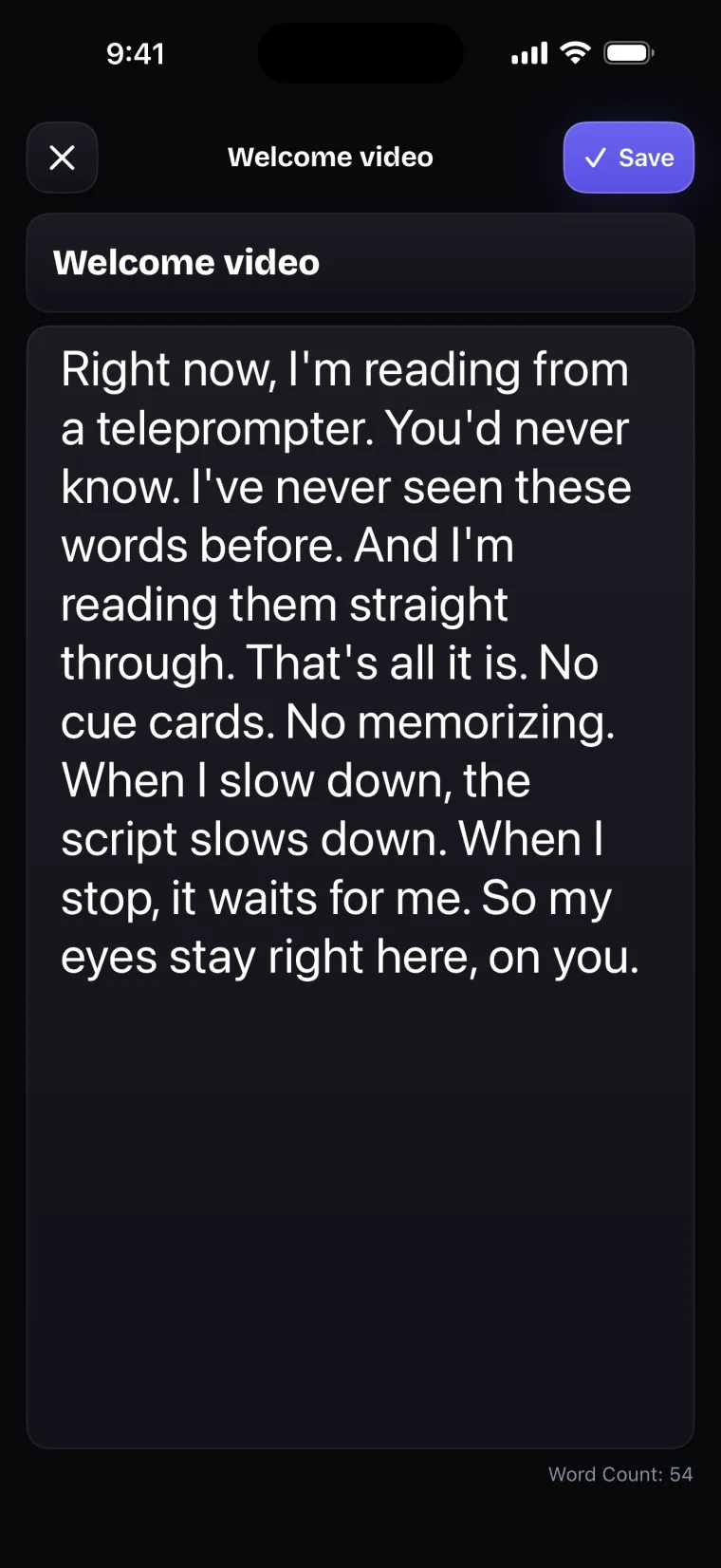
Reading from a prompter keeps every word in front of you, so a blank moment does not have to end the take. The cost moves to the writing: a script written like an essay sounds like an essay when you read it aloud. Short sentences, everyday words and line breaks where you breathe make a script that sounds spoken, and there is a full guide on reading so it does not sound read.
A good script for a prompter starts with a draft you say out loud before you type it. The guide on writing a script that is easy to say covers that part.
If you go blank in the middle of a take
Going blank in the middle of a take does not mean starting the whole video again. The steps below keep the recording running and leave a clean place to cut later.
- Stop talking and stay still, but keep recording.
- Breathe, and look back at the lens.
- Find the start of the sentence you were in, not just the word you lost.
- Leave a short silence, then say the whole sentence again and carry on to the end.
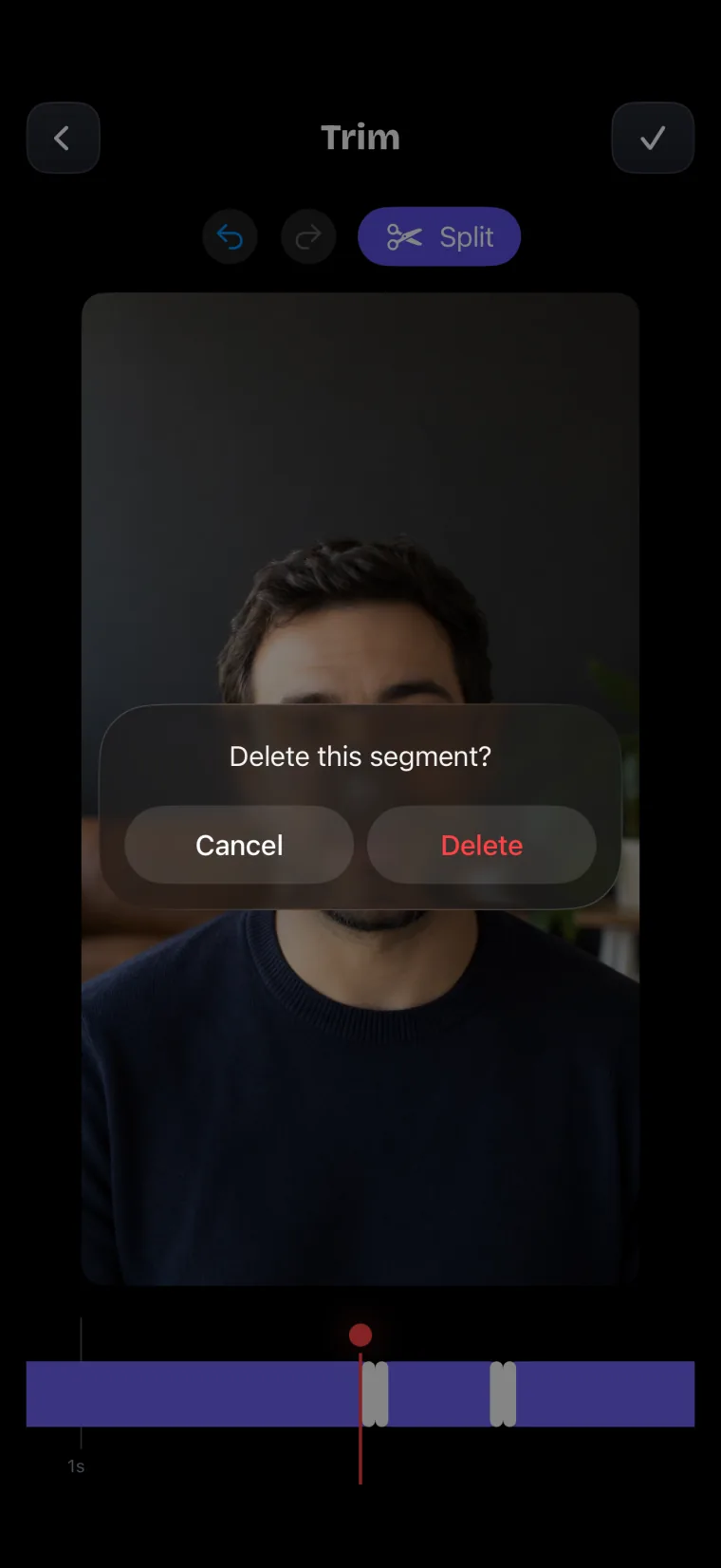
- In the editor, split the take just before and just after the stumble, and delete the part you do not want.
The silence in step 4 matters, because a cut is easiest to hide where nobody is speaking. Starting the whole sentence again matters too, because a sentence joined in the middle of a word sounds wrong even when the picture matches.
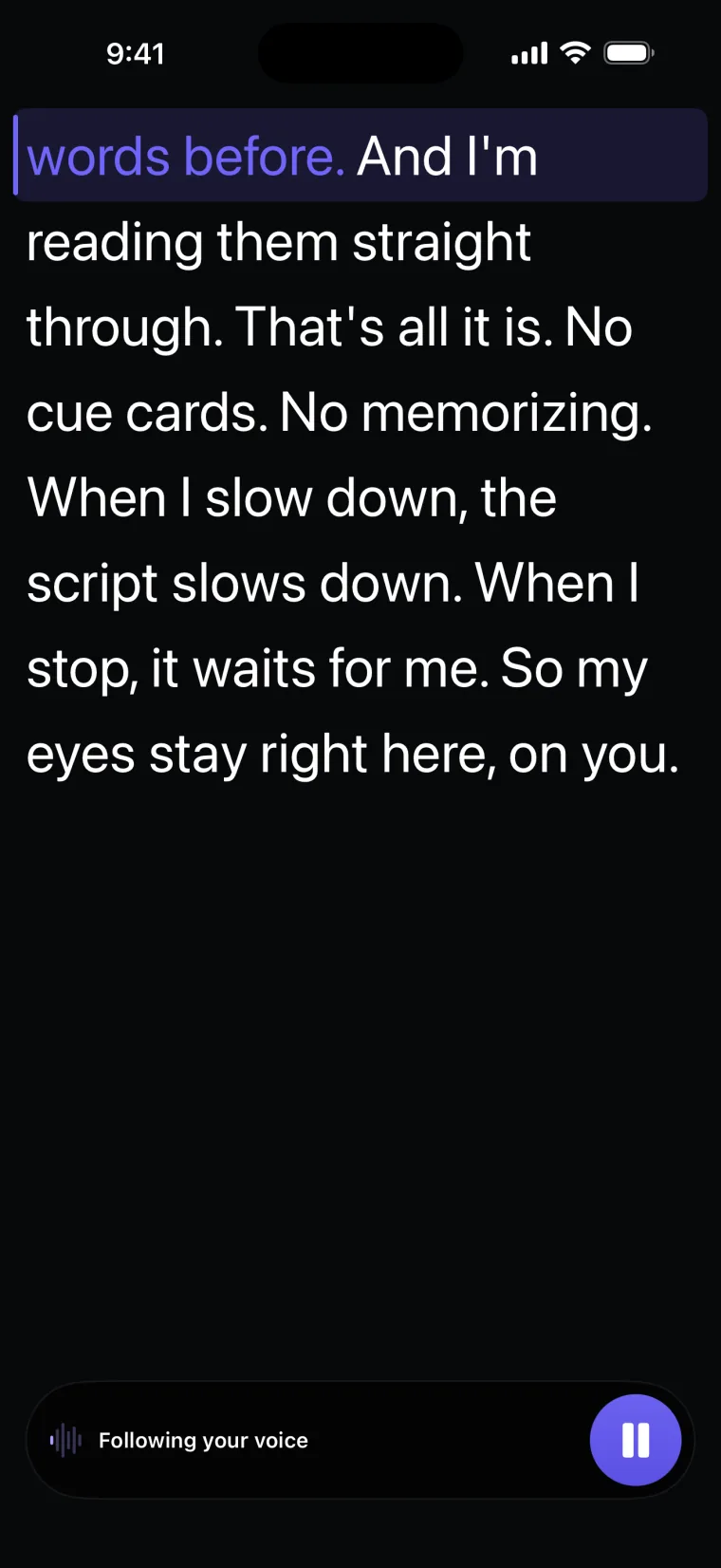
The scroll mode changes step 3. In Voice mode, Teleprompter: Video & Captions keeps the script still while you are silent, so the line you were on is still in front of you. In Auto mode the script keeps moving at its speed; if it has moved too far, stop the take and record the rest as a new take, starting from that sentence.
In the app, the Trim screen shows the take as segments. You move to the stumble, tap Split, and delete the segment you do not want; Undo and Redo are there if you cut the wrong part. Saving joins the parts you kept into one video.
Recording in parts
Recording in parts is a normal way to make a video, and there is no rule that a video is one take. A long script can be recorded section by section, with a break between each, so that a stumble only costs you one section.
- Split the script into sections at natural breaks, such as a new point or a new step.
- Before each take, drag the script until the first line of the section sits at the top of the window.
- Keep the same framing, light and clothes for every take, so the parts match when they are joined.
- Save each finished take to Photos, then join them in the video editor you use.
Teleprompter: Video & Captions keeps every take you record with its project, newest first, so the sections of one script stay together. If you feel the pressure of a single perfect take more than the words themselves, the guide on the pressure of being on camera has a routine for that.
How Teleprompter: Video & Captions fits, and where it stops working well
Teleprompter: Video & Captions is built for the last of the three methods: reading the script over the camera while you record. The script sits in a window over the live picture, just under the front camera. In Voice mode, the script moves as you say the words and does not move while you are silent, so going quiet to think does not cost you your place. You can drag the script, or tap a line on the prompter screen, to set where reading continues. The app sets no maximum length for a take; the storage space left on your device is the practical limit.
Where this stops working well
The app has limits that affect how you record and edit. It records with the front camera only, adds captions only to videos recorded in the app, and saves finished videos to Photos; it does not post to social networks or export subtitle files.
- No remote control. The app does not work with Bluetooth remotes, keyboards or foot pedals, so you tap the phone to start and stop each take, and trim that movement from both ends.
- Edits to an older take are not stored on it. When you reopen a take from the take list, trim, crop, background and mirror changes are not written back to that take; saving it to Photos is how you keep them. For a new take, the version you leave the editor with is the one stored.
- A take must be at least 5 seconds. Shorter takes are not kept, which matters if you record a single line on its own.
Questions people ask
Is it better to memorize a script or use a teleprompter?
Neither is better for every video. Memorizing suits short pieces and talks you will give without a screen. A teleprompter suits long scripts and exact wording, as long as the script is written the way you speak. Talking from notes sits between the two and suits subjects you know well.
What should I do when I forget a line in the middle of a take?
Keep recording. Stop talking, breathe, find the start of the sentence you were in, leave a short silence, and say the whole sentence again. Afterwards, split the take before and after the stumble and delete that part.
Do I have to record the whole script in one take?
No. You can record a long script section by section and join the takes afterwards. Keep the framing and light the same for every take so the parts match, and start each take at the first line of its section.
Is there a time limit on a take in Teleprompter: Video & Captions?
Teleprompter: Video & Captions sets no maximum length for a take, so the storage space left on your iPhone or iPad is the practical limit. There is a minimum: a take shorter than 5 seconds is not kept.